then set the strategy parameters
 for defining:
The information in this section will help you create and edit Point to Point operations in your manufacturing program.
Select Point to Point
then set the strategy parameters
for defining:
Specify the tool
 to be used, NC macros
 ,
and feeds and speeds
,
and feeds and speeds
 as needed.
 Point to Point Tool Axis
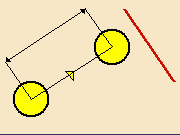
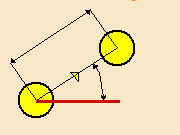
You can specify a single global axis that will be applicable to all points of the operation or different local axes for different points in the operation. If needed, a local axis can be specified for the following types of motion: Goto Point and Go Delta.
The global tool axis is the default axis that will be applicable to all points of the operation, if no local axis is defined. This axis is specified in the Strategy tab by first selecting the axis representation in the sensitive icon then specifying the direction in the Tool Axis dialog box that appears.
Defining the Tool Axis
The tool axis can be defined while selecting the point itself. When
you click on Goto Point button on Motions tab, the following prompt appears
Select Sketch, Point or Circle, indicate on Face and Select Edge, Line or double
click to exit. So you have to first select a point, then you get an option
of either selecting an axis for that point or selecting another point.
You can select either an axis for that point or can select the next point.
If you have not selected the axis and directly goes to the next point then for the previous point global axis would be used.
If you have selected an axis once for any point, and then for later points user does not select the axis, then the axis of the previous point would be used instead of the global axis.
A Goto point motion is created for each selected point; the tool axis of each Goto point motion depends on the axis selection (if any).
Example: creation for Goto Point motions
Create a new Goto Point motion (Goto Point command)
Select a point 1 (the tool axis used is the default one is the same tool axis of
the previous tool motion)
Select a point 2
Select a line (the tool axis for the point 2 depends on this selection)
Select a point 3 (the tool axis is same as for point 2)
Double click (ends the selection and Goto Point creation command).
Note: the tool axis orientation depends on the selected element (line, edge)
own orientation.
This orientation can be reversed or modified using the editing axis capabilities
Editing the Tool Axis
Once you completes the selection of any point, it is still possible
to edit the axis in one of the following ways:
- Right click on the motion in the list Motions
- Right click on the actual point in the viewer
- Select Local axis from the Edit dialog box.
In the first two cases, contextual commands are available:
Edit local Axis
In this case you would be prompted Select Line, edge or double click to
exit. So you can select axis in the viewer. If you double clicks without
selecting line or edge then no change would be registered.
Use Global Axis
In this case for that point Global axis would be used.
For the third case, user can only select the local axis from the Edit dialog box. Once user clicks on any point in Motions tab, the Edit dialog boxappears for that point. There user would have option to select the local axis.
Defining the Tool Axis
You can define the local axis for the point while specifying the Go Delta motion. Here you would be given an option to choose local axis.
If you does not specify the local axis while specifying the Go Delta point then the Global axis will be used. But if there is a local axis specified for the previous point then the Go Delta point would use that axis rather than the global axis.
Editing the Tool Axis
Once you creates a Go Delta point, it is still possible to edit the axis in one of the following ways.
- Right click on the motion in the list Motions
- Right click on the actual point in the viewer
- Select Local axis from the Edit dialog box.
In the first two cases, contextual commands are available:
Edit local Axis
In this case you would be prompted Select Line, edge or double click to
exit. So you can select axis in the viewer. If you double clicks without
selecting line or edge then no change would be registered.
Use Global Axis
In this case for that point Global axis would be used.
For the third case, you can only select the local axis from the Edit dialog box. Once you clicks on any point in Motions tab, the Edit dialog box appears for that point. There you would have an option to select the local axis.
All Milling and Drilling tools can be used in this type of operation.
In the Feeds and Speeds tab page, you can specify feedrates for approach, retract and machining as well as a machining spindle speed.
Feedrates and spindle speed can be defined in linear or angular units.
A Spindle output check box is available for managing output of the SPINDL instruction in the generated NC data file. If the check box is selected, the instruction is generated. Otherwise, it is not generated.
Feeds and speeds of the operation can be updated automatically according to tooling data and the Rough or Finish quality of the operation. This is described in Update of Feeds and Speeds on Machining Operation.
In Point to Point operations, a local feedrate can be defined for all tool motions (except the first motion, which must be either RAPID or a specific feedrate). The local feedrate is applied instead of the machining feedrate during the tool motion to reach the tool position. For the operation start point, machining feedrate is taken into account.
You can define transition paths in your machining operations by means of NC Macros. These transition paths are built from elementary motions and are useful for providing approach and retract motion in the tool path.
You can use the following commands to define the elementary motions of macros in a Point to Point operation:
| | | | | | | | | | | >
distance along a given direction | | >
axial motion to a plane |
>
PP word >
axial motion
The general procedure is described in Define Macros on a Milling Operation.