|
This gives you the capability to identify a
Prismatic Machining Area Feature visually in the 3D Viewer by moving the
cursor over a feature or selection in the Manufacturing View. This gives
you the capability where the system adds representations of Prismatic
Machining Area Feature and Machinable Axial Features in the 3D Viewer.
This also has the capabilities to identify and select features from 3D
Viewer and use them directly in operations. |
|
 |
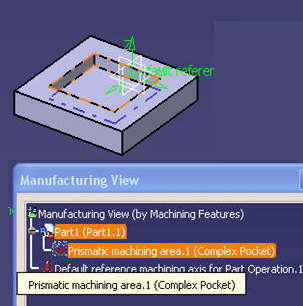
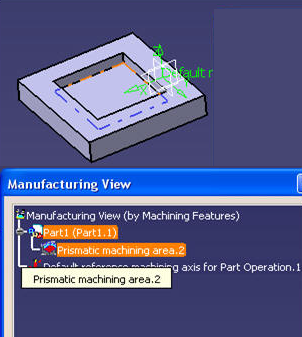
1. | Pre-highlight Prismatic Machining
Areas in the 3D viewer by moving the cursor over the feature in the
Manufacturing View.
|
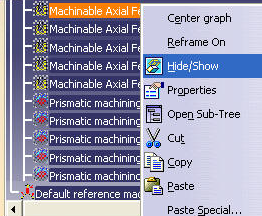
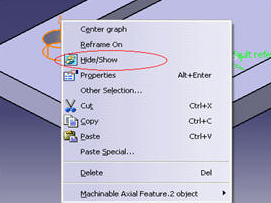
| 2. | You can request a permanent representation of Prismatic
Machining Areas and Machinable Axial Features:
|
|
| 3. | The Permanent
representations of Machinable Axial features: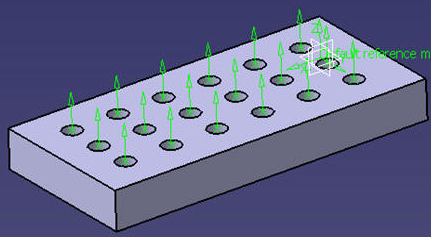 Permanent representations of Prismatic Machining Area features: 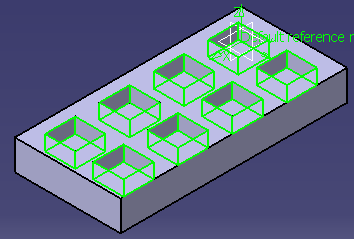 |
|
| 4. | Click the permanent representation
directly in the 3D viewer to select a
Prismatic Machining Area or a Machinable
Axial feature. |
|
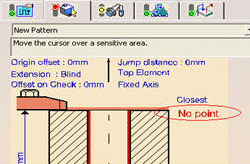
| 5. | In Axial Machining Operations, click
No point in the Geometry
tab to select a
Machinable Axial feature from its
permanent representation in the 3D
viewer:
|
|
| 6. | In the Pocketing and Profile Contouring
operations, click the arrow on the right
of the Feature to select a Prismatic
Machining Area from its permanent
representation in the 3D viewer: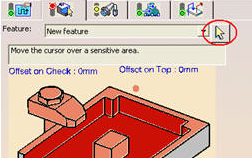
|
|
|
|
||