When you insert a component in Mold Tooling Design, you can define in which sub-assembly the associated hole/added material/split is created by using specific Tooling functions/commands.
A mechanism of Tooling Interface is used to avoid context problem when a hole/material/split is created in different sub-assemblies,
Several users are often attached to the same project to decrease the time of the mold design. Each one works on a specific sub-assembly independently. When a user works on the whole assembly of the mold, it is necessary to maintain the capability to work later independently on the sub-assemblies. This capability is named Concurrent Engineering.
To facilitate Concurrent Engineering, Tooling Interface files can be pre-created. Each user creates his own Tooling Interface files he wants to manage without interference with Tooling Interface files used by another user.
In SmarTeam, the capability of concurrent engineering leads to a correct check-out (read/write status) of the elements each user wants to work on. Managing editability of impacts aims at preventing the loss of data and long hours work.
The Tooling Interface Management options in Tools > Options > Mold Tooling Design > Miscellaneous tab provides a control access to Tooling Part Interface and Tooling Product Interface.
What you must do
- We recommend that you predefine Tooling Product Interface, Tooling Part Interface and Tooling Split Part Interface files, because this ensures automatic synchronization of links based on published elements.
- Save Part and Product Interfaces in the main structure, as early as possible, in order to allow a status Read/Only for theses parts and products (not available on parts and products created in session).
- Use Insert > New Product and Insert > New Part
commands to pre-create the Tooling Product Interface, the Tooling Part
Interface and the Tooling Split Part Interface in the Die structure and in
the Assembly Components Templates, provided
naming conventions are satisfied:
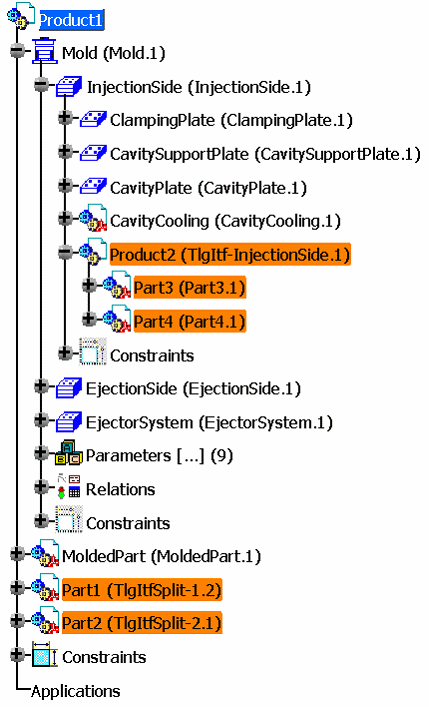
- A Tooling Product Interface must contain the string “TlgItf” in its
instance name.
A Tooling Part Interface inside a Tooling Product Interface has a free name. - A Tooling Part Interface for surface reduction purpose must contain the string “TlgItfSplit” in its instance name.
- A Tooling Product Interface must contain the string “TlgItf” in its
instance name.
How it Works
Two implementations of the control are made depending on the type of Tooling Interface file:
- Common Tooling Part Interface and Tooling Product Interface.
- Specific Tooling Split Part Interface.
Below are listed the messages that may appear, and how you can deal with them:
- /p1, /p2, etc are replaced by names or values in the messages displayed.
- Yes: means: this is what happens if you click yes in the
message box.
No: means: this is what happens if you click no in the message box.
| The following Tooling Product Interface are Read Only. | ||
| In /p1, there are /p2 candidates available. Number /p3 is /p4. Confirm to use it. |
At least 2 tooling interface products have been found. |
Yes: Mold Tooling Design will use the displayed product as Tooling
Product Interface. No: put one of the existing products in "writable, and active, and loaded" mode. |
| In /p1, the following Tooling Interface products are Read Only: /p2. | There is an tooling interface product, but it is read only. Action is stopped. |
|
| In /p1, there is no Tooling Interface product. | There is no tooling interface product or all tooling interface products are unloaded or inactive. Action is stopped. |
|
| The following Tooling Interface part with right context are Read
Only: /p1 Do you want to continue? | Mold Tooling Design found a Tooling Interface part, but it is read only. |
Yes: Mold Tooling Design will create a new
Tool Interface part with automatic
naming. No: Check that the displayed Tool Interface part is a good candidate:
|
| There is no Tooling Interface part with right context. Do you want to continue? |
Mold Tooling Design found at least one available Tooling Interface part, but none of these have got a right context. | Yes: Mold Tooling Design will create a new
Tooling Interface part with automatic
naming. No: Check that an available Tooling Interface part with right context is not unloaded or inactive. |
| The following Tooling Interface parts with no context are Read Only:
/p1 Do you want to create a new Tooling Interface part? |
|
Yes: Mold Tooling Design will create a new
Tooling Interface part with automatic naming. No:
|
| There is no Tooling Interface part with no context. Do you want to create a new Tooling Interface part? |
Mold Tooling Design could not find any Tooling Interface part with right context or with no context | Yes: Mold Tooling Design will create a new
Tooling Interface part with automatic
naming. No: Create a new Tooling Interface part. |
| The following Tooling Split Interface parts are Read Only: /p1
Do you want to create a new Tooling Split Interface part? |
Mold Tooling Design found Tooling Split Interface part but they are in read only mode | Yes: Mold Tooling Design will create a new
Tooling Split Interface part with automatic
naming. No:
|
| There is no Tooling Split Interface part. Do you want to create a new Tooling Split Interface part? |
Mold Tooling Design could not found any "read/write, active or loaded" Tooling Split Interface part. | Yes: Mold Tooling Design will create a new
Tooling Split Interface part with automatic
naming. No:
|
| There are too much candidates as Tooling Split Interface part: /p1 | Mold Tooling Design found too many Tooling Split
Interface parts in "read/write active or loaded" mode. Action is stopped. |
Put only one Tooling Split Interface part in read/write, active and loaded mode. |
| The following Tooling Split Interface parts are Read Only: /p1 . | This message will happen if you use split synchronization. Mold Tooling Design found Tooling Split Interface parts but they are in read only mode Action is stopped. |
Retrieve the Tooling Split Interface part used to do the split operation that you want to synchronize. Then put it in in "read/write, active, loaded" mode. |
| There is no Tooling Split Interface part. | This message will happen if you use split synchronization. Mold Tooling Design could not find any available Tooling Split Interface part. Action is stopped. |
Retrieve the Tooling Split Interface part used to do the split operation that you want to synchronize. Then put it in in "read/write, active, loaded" mode. |
| /p1 is Read Only. |

- A message may inform you that no Tooling Interface part with a right
context is available, although this is not true, e.g. when a drill list
has been recomputed:
- If you click No, only the holes that do not need a context are recreated, the other holes are not.
- Use Undo to go back to the previous status.
- Within a replace action, Tooling Interface parts should not be locked or unloaded. If this happens, exit the command, modify the lock/unlock status and restart the replace.