|
This task shows you how to use the contextual menu of
components. |
 |
There are several restrictions concerning the manipulation
(notably when copying, pasting, deleting, dragging and dropping) of
components and drilled CATParts.. Click here
for more information. |
 |
-
Open file
MoldWithMoldedPartAndComponents.CATPoduct in the samples/MoldAndPart
directory.
-
Choose LeaderPin_FSN_1.1 in the specification
tree or in the viewer
(this is an example, the labels will vary with the name of the component).
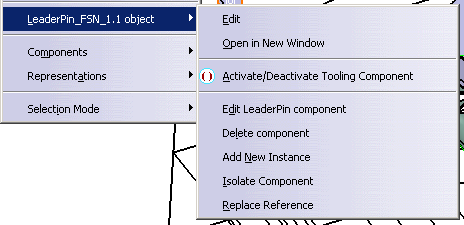
Use LeaderPin_FSN_1.1 object contextual menu.
|
| |
Open in New Window
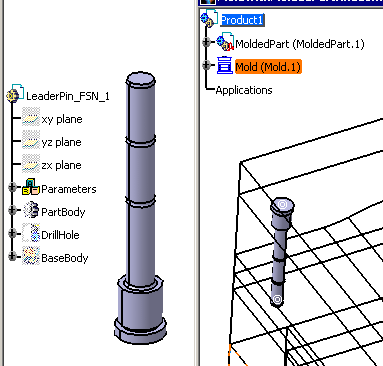
This opens the CATPart of the component in a new window, where you can
edit it.
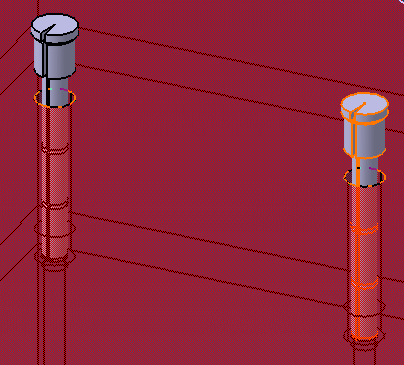
For example, we have changed the shaft angle of the LeaderPin in the new
window,
this change is taken into account in all the instances of the LeaderPin in
the Product.
|
| |
Activate/Deactivate LeaderPin Component
This is a toggle function, components that were already deactivated will
be activated and active components will be deactivated and displayed in visu
mode in the tree.
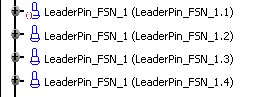
One component or a group of components may be selected for
activation/deactivation.
Deactivated components are:
- Not visible in the viewer nor are their associated holes
- Ignored when a bill of material is generated.
|
| |
Edit LeaderPin Component
-
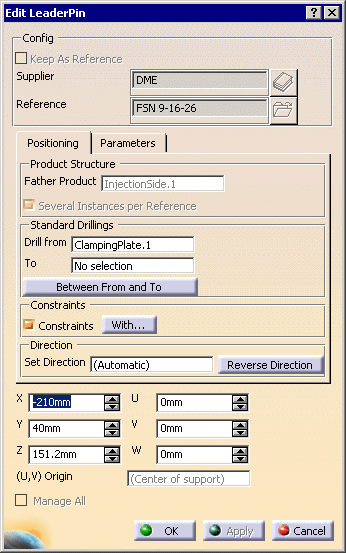
The component edition dialog box is displayed. Refer to the Description of the Generic Dialog Box
chapter for more information on the dialog box.
-
You can now modify the positioning of the component, its
origin, its direction, the Drill from/To positioning and its
parameters.
-
Click
Reverse Direction or change the Origin X. You will see a preview
of the result.
-
Pick the W green arrow on the graphic display
to reverse the orientation or pick another point or face to change the
position of the component. You will see a preview of the result.
|
| |
Note that the coordinates are displayed under the cursor as
you move it. |
|
-
You can also modify
the component parameters in the Parameters tab. This tab is
similar to that of the Define dialog box.
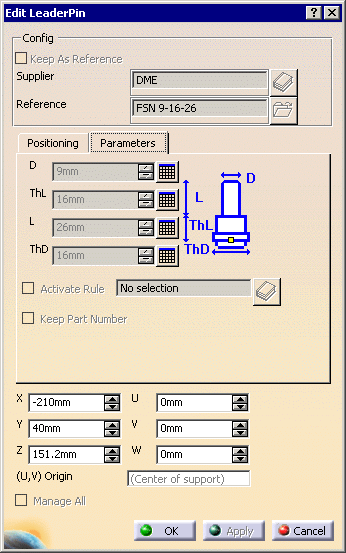
However in the Edit dialog box, you
retrieve the complete list of the user parameters of the component,
not only the standard ones: This is particularly useful to edit user components.
-
Use the slider of the tab to browse all the
data available.
-
Click OK to apply your modifications.
|
|
|
Constraints that depend upon a component will be deleted if
you edit that component. |
 |
When editing components, you cannot modify the original
supplier but you can change the reference in order to change the dimensions. |
| |
Delete component
Deletes the components and their associated holes. |
|
|
When using the Delete component command and
working with the cache system:
- All the parts are switched to design mode at the beginning of the
process,
- And all the parts are switched to visualization mode at the end of
the process.
That means:
- At the beginning of the process:
- When a part is in visualization mode, it is switched to design
mode,
- And when a part is in design mode, nothing is done.
- At the end of the process, all the parts not modified in design mode
are switched to visualization mode (even if the part was in design mode
before launching the command).
Switching parts to visualization mode allows working with less memory and
decreases time manipulations.
We recommend that you do not use the ordinary Delete
function, since the associated holes would not be deleted. |
| |
Add New Instance
Enables you to add new instances of a given reference. The operating mode
is similar to that of Adding Components.
|
|
|
- When Several Instances per Reference is active, you will create new instances of the
given reference.
- When Several Instances per Reference is not
active:
- You will create a new reference and a new instance of that reference.
- If the given reference is a CATProduct with subparts, only a new
reference of the CATProduct will be created. No new references of the
subparts will be created. Instances of the CATProduct and of the subparts
will be created and the new instances of the subparts will contain exactly
the same subparts as the original.
- When the given reference has been split, Add New Instance
is not possible: a message is displayed.
|
|
Isolate Component
See Isolating a Component.
Replace Reference
See Replacing Reference for
information on this function. |