|
This task shows you how to browse prismatic machining areas. | |
 |
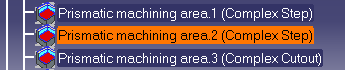
1. | In the Manufacturing View, select one of the
created prismatic machining areas as follows:
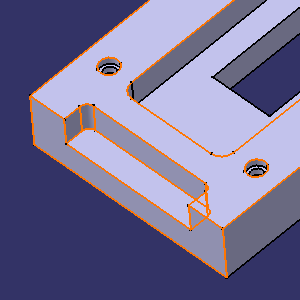
In the example above, the selected feature is a complex step. It is highlighted in the 3D view. |
|
|
||
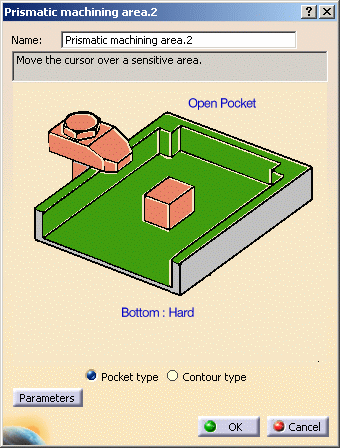
| 2. | Double click the feature in the manufacturing
specification tree. A dialog box appears showing its characteristics.
|
|
 |
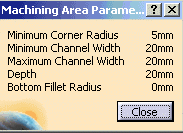
A Parameters
button is available for pocket machining area features only. Click Parameters button to display a pop-up dialog box showing the feature parameters such as Maximum channel width, Minimum channel width, Minimum corner radius, Depth, and Bottom fillet radius.
If the parameters for the particular feature have not already been computed, they are computed and displayed on the pop-up dialog box. Note that parameters are not computed for guides selected by means of the Sectioning contextual command. |
|
| The created features can now be machined as described in
the User Tasks section. Feature recognition also provides a Prismatic Machining Area corresponding to a Complex Pocket. The boundary is defined by a hard boundary only. An imaginary contour at the intersection of Hole and Slot, is automatically defined to close the hard contour. But this imaginary contour is shown only when hole is recognized by Prismatic Machining Preparation Assistant. In this way CATIA would give correct minimum and maximum channel width values for prismatic machining area. 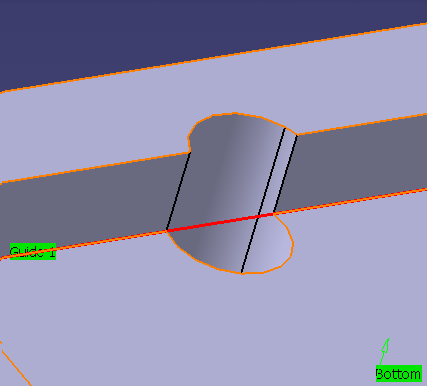 |
||
|
|
||