Create an Axial Operation 
on a Machinable Axial Feature

This task shows you how to create a Counterboring operation using an machinable axial feature. 
You can make use of one of the Counterbored Hole features created in the Globally Create All Prismatic Machinable Features task.
1. Select the Manufacturing View icon in the Machining Features toolbar.

Use the Sort by Machining Features contextual command to display the desired view.

2. Select a Counterbored Hole feature in the view.
3. Select the Counterboring icon . The Counterboring dialog box appears.
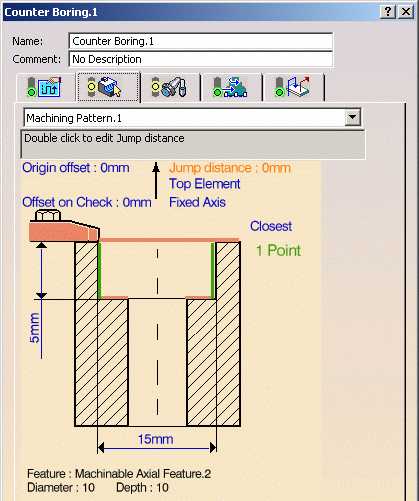
The operation is initialized with the feature geometry as well as default parameters for machining strategy, feeds and speeds, and tool.

 You can edit any of these values, if desired.

4. Select the Tool tab and choose a suitable Counterbore tool according to the feature characteristics displayed in the Geometry page.
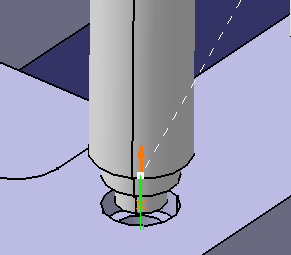
5. Click Replay icon to verify the tool path.

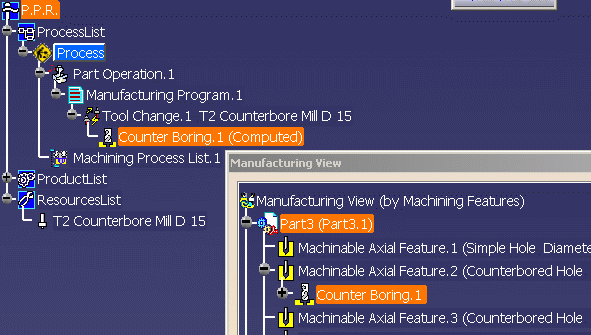
6. Click OK to create the Counterboring operation. The operation is added to the Manufacturing View and to the Manufacturing Program in the PPR tree.