
This task shows you how to edit callout properties.

Open a .CATPart document. Double-click Sheet.1 in the specification tree to open the layout in the 2D window which has at least one callout created in it.

-
Select the callout to be modified.
-
Right-click the callout and select Properties. The Properties dialog box is displayed.
-
Select the Callout tab.
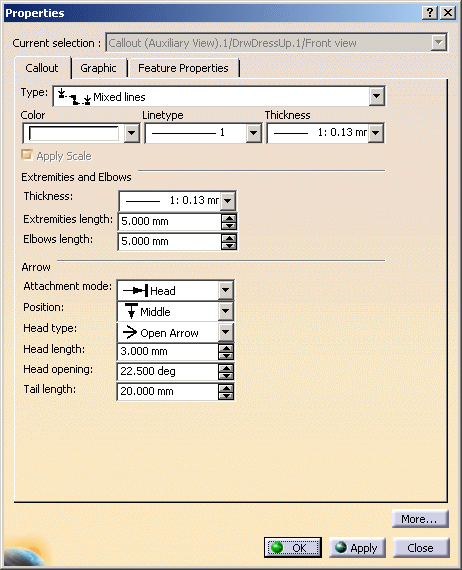
In this dialog box, you can set the following parameters:
-
Switches for pre-defined types: continuous lines, mixed lines, extremities and elbows only or one arrow only.
-
Continuous lines: The profile extremities and corners are displayed the same way as the profile.
-
Mixed lines: The profile extremities and corners are displayed on top of the profile.
-
Extremities and elbows only: The extremities and elbows are displayed and the profile is not displayed.
-
One arrow only: Only the first arrow and text are displayed, along with the first profile extremity. The location of the arrow corresponds to the position of the first point of the underlying profile and cannot be modified.
-
-
Color,
-
Linetype,
-
Line thickness.
For Extremities and Elbows:
-
Thickness,
-
Extremities length,
-
Elbows length.
For Arrows:
-
Attachment mode
-
Position: The position of the arrow relative to the extremity length.
-
Start: The arrow is located at the outer extremity of the callout profile.
-
Middle: The arrow is located at half the distance of the extremity length from the outer extremity of the callout profile.
-
-
Head type,
-
Head length,
-
Head opening,
-
Tail length.

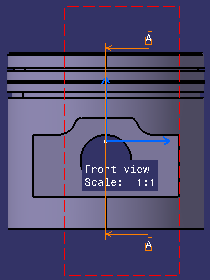
The Apply Scale option is disabled as this property is not supported in 2D Layout for 3D Design. The selected callout with corresponding attributes is highlighted.
-
-
Modify the callout attributes.
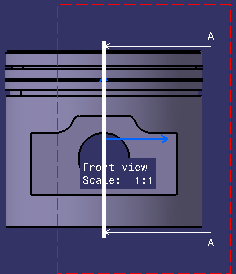
For example change the Thickness to 4 and Tail length to 50mm. -
Click OK to validate and exit the Properties dialog box.

More about the Callout Properties Dialog Box
This dialog box also displays the following tabs:

Graphic Tab
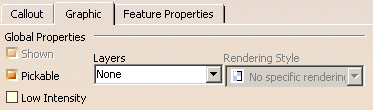 |
- Global Properties:
- Shown: This property is not available in 2D Layout for 3D Design.
- Pickable: Select this check box if you want the view to always be selectable.
- Layers: This property is not available in 2D Layout for 3D Design.
- Rendering Style: This property is not available in 2D Layout for 3D Design.
- LowInt: Select this check box to apply the low-intensity color to the selected view.
Feature Properties Tab
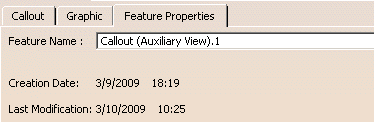 |
- Feature Name: Enter a new name for the callout in the field.
- Creation Date and Last Modification: The information displayed concerns the creation and modification of callouts.
