-
Click Offset 3D Elements
 in the 3D Geometry toolbar.
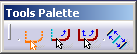
The Tools Palette toolbar appears.
-
Choose from the following options:
Note: These options are only applicable when offsetting a 3D surface.-
No Propagation
 : offsets only the element you select. For a 3D surface it has the
same effect as Point Propagation, because the nearest
boundary is offset.
: offsets only the element you select. For a 3D surface it has the
same effect as Point Propagation, because the nearest
boundary is offset. -
Tangent Propagation
 : offsets the element you select as well as the elements tangent to
it (closest edge of the face, and all tangent edges).
: offsets the element you select as well as the elements tangent to
it (closest edge of the face, and all tangent edges). -
Point Propagation
 : duplicates the element you select as well as connex elements
(closest edge of the face, and all continuous edges).
: duplicates the element you select as well as connex elements
(closest edge of the face, and all continuous edges). -
Both Side Offset
 : duplicates the element you select on both sides of this element.
This option can be used while using any of the three options
mentioned above.
: duplicates the element you select on both sides of this element.
This option can be used while using any of the three options
mentioned above.
-
-
Select the 3D element you want to offset. This can be either a surface or an edge.
A preview of the elements to be created appears as you drag the cursor. Additional fields are displayed in the Tools Palette:-
Offset: defines the offset value precisely.
-
Instance(s): defines the number of elements you want to obtain after the offset operation.
-
-
In the Instances field of the Tools Palette, enter the number of offset instances you want to create.
-
You can define the location of the offset use-edge using either the mouse or a specific value. Perform either of the following operations:
-
Select a point or click where you want the new element to be located.
-
Define the location precisely by entering a value in the Offset field.
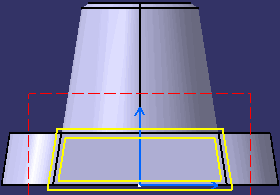
The offset use-edge is created. It is associative to its reference element. As an example, the offset use-edge below was created using No Propagation and Both Side Offset:
-