
This task shows you how to create a 3D axis or an infinite line using a point selected in the 2D layout view and the support plane of the view.
The line is perpendicular to the sketch support plane and goes through the selected point.


-
Double-click the front view to activate it.
-
Create a point in the active view.
-
Click 3D Axis
 in the 3D Geometry toolbar (3D Outputs
sub-toolbar).
in the 3D Geometry toolbar (3D Outputs
sub-toolbar).
The Tools Palette appears.
-
Enter a name for your 3D axis in the Tools Palette.
-
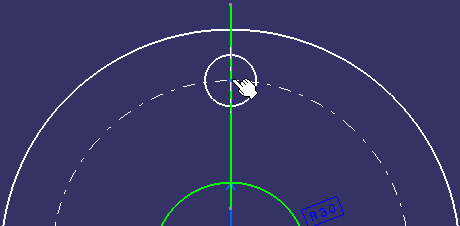
Select the point in the view as shown below.
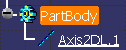
The 3D axis, Axis2DL.1, is created and it is listed in the specification tree, under the PartBody node.
The 3D axis is also displayed in the 3D window.

Rotate the view to make the 3D axis appear infinite. 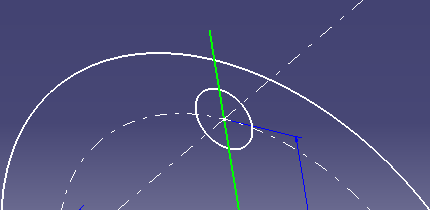
- (Optional)
Select one or several other lines.
Several 3D axes are created in one shot per selected point. You can also create several 3D axes on a single point.
If you delete the point on which the 3D axis is created, then, a dialog box appears in which you can click Deactivate or Isolate to deactivate or isolate the created feature respectively.
