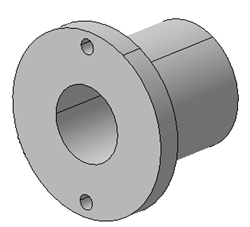
|
-
Right-click the front view in the specification tree or
in the sheet and select Clipping > Add 3D Clipping.
-
In the Clipping dialog box, select Slice
Clipping
 . .
-
Perform either of the following operations to manipulate
the clipping slice:
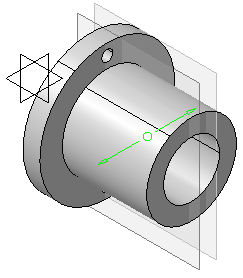
- In the 3D viewer, drag the arrows to the required
position.
You can select a point, a line, a plane, or an axis, as a
reference element.
 |
Global manipulation for slice clipping:
Click the dot manipulator between the arrows to move
the clipping tool. Click in the empty space to exit
this mode. |
- Under Parameters, enter the required values
in the boxes.
- In the 3D viewer, click the arrow and select a reference
element.
After clicking the arrow, the following options are
available for translation of planes during reference
selection:
- Translate plane to geometry
 :
Moves the plane according to the selected
reference element. :
Moves the plane according to the selected
reference element.
- Translate plane to bounding box
 :
Lets you select the planes using the bounding
box of the selected element. The bounding box
defines two alternative reference faces. The
selected face is highlighted with green color. :
Lets you select the planes using the bounding
box of the selected element. The bounding box
defines two alternative reference faces. The
selected face is highlighted with green color.
- Translate plane along main axis
 :
Lets you translate the plane along the main
axis. By default, this option is selected. :
Lets you translate the plane along the main
axis. By default, this option is selected.
|
|
-
Under Display, click the following options to
change the visualization accordingly:
- Clipping
tool:
-
Display background and clipping tool
 :
Shows the 3D object and the clipping
tool. :
Shows the 3D object and the clipping
tool.
-
Display clipped background and
clipping tool
 : Shows
the clipped 3D object and the
clipping tool. : Shows
the clipped 3D object and the
clipping tool.
-
Display clipping tool
 :
Shows only the clipping tool. :
Shows only the clipping tool.
|
- Transparency:
to modify transparency of the clipping tool. By
default, the value is 200.
- Turn viewpoint
 :
to turn the viewpoint of 3D object to Iso,
Front, Rear, Left, Right, Top, or Bottom. :
to turn the viewpoint of 3D object to Iso,
Front, Rear, Left, Right, Top, or Bottom.
- With respect to view plane:
The viewpoint to be turned is with
respect to the view plane. In this
case, the 2D layout plane is used as
front view.
- According to standard
orientation: The viewpoint to
be turned is with respect to the
standard orientation.
|
|
- Click OK to apply the modifications.
The view is clipped.

|
 Using the
Slice Clipping
Using the
Slice Clipping