


-
Right-click the view that you want to re-position.
A contextual menu is displayed. -
Select View Positioning > Align Views Using Elements.
-
On this view, select the first geometrical element that you want to align; this element may be projected either as a point, a line or a circle (aligned according to its center).


You can select elements seen by transparency in the background of a view. You cannot select elements:
- if these elements are seen in the background of a view with a display mode that is set to unpickable.
- if these elements are filtered with the attribute unpickable active.
- if the View Background Manipulation option is active.
- in the 3D window or via the specification tree.
A visual feedback is provided to indicate the kind of geometry detected, and in the case of a line, its orientation (the orientation being determined by the proximity of the mouse pointer with one of its extremities).
-
On the reference view, select the geometrical element that you want to align.
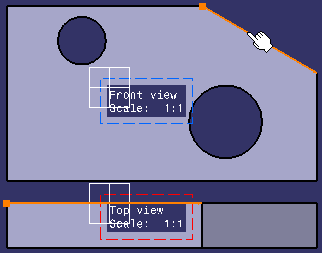
If both selections are lines, you can press Shift before clicking the second element to view where both line origins meet. This gives a visual feedback: a blue dotted line joining the lines origin points. In this case, both lines will be made co-linear and their origin points coincident.
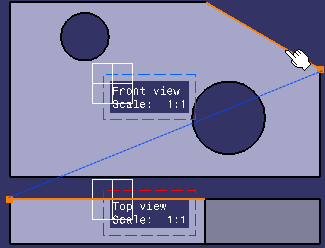
The first view is moved, and both views are aligned according to the elements you selected. Any associative positional link that existed between the two views prior to their alignment is removed, and no new one is created.

If you want to restore an associative positional link between the views, you can right-click the view and select View Positioning > Position According to Reference View. You have now aligned a view with another one using geometrical elements (lines, circles or points).
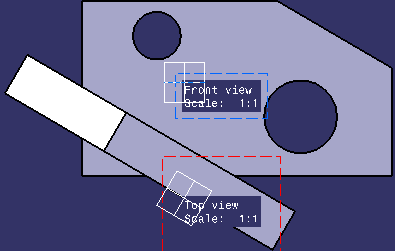
Here is the result if you pressed the Shift key at step 4 (in the case of co-linear lines and coincident origin points):
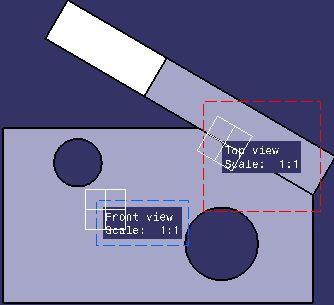
You can undo or redo the operations performed on a view. Each time you manipulate a view, a Move step is created in the Undo/Redo Overview panel.
