This task shows you how to define or modify the first principal view and resize the view bounding box when selecting a 3D reference element during view creation.
It also allows you to position the center of the view's bounding box on the sheet, rather than the origin of the view.

Select Change primary view plane and Resize view box according to 3D model options in Tools > Options > Mechanical Design > 2D Layout for 3D Design > View Creation tab. For more information, see Principal Views settings.

-
Click Principal Views
 in the
Layout toolbar.
in the
Layout toolbar.
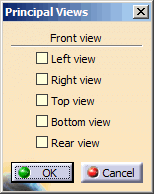
The Principal View dialog box appears, the primary view is Front.

To change the primary view, click the robot arrows.
Depending on which arrow you clicked, the following permutations are applied:
- Right arrow: FRONT > LEFT > REAR > RIGHT > FRONT.
- Left arrow: FRONT > RIGHT > REAR > LEFT > FRONT.
- Up arrow: FRONT > BOTTOM > REAR > TOP > FRONT.
- Down arrow: FRONT > TOP > REAR > BOTTOM > FRONT.
The preview of the 2D view frame along with the robot is displayed in the sheet and the view bounding box is displayed in the 3D area.
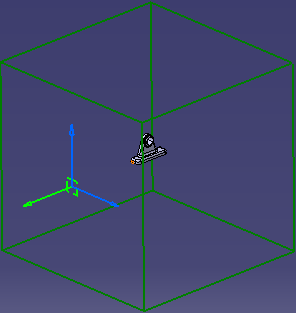
When no reference plane or surface is selected from 3D, then the view bounding box dimensions are computed from the standards, see Layout Views Customization.
-
Select a plane to define the Front view plane orientation.
The view box is resized according to the 3D model.
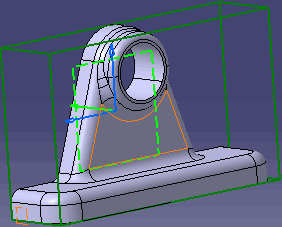
- You can orientate the view bounding box using the robot.
- You can modify the view bounding box angle using the green knob displayed on the robot, when you select a reference and when the Change primary view plane option is selected, see Primary View settings.
-
Select Left and Top views to be created in the Principal View dialog box and click OK.
-
Click on the sheet to position the principal views.
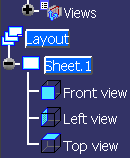
The view is created and additional views are displayed in the specification tree.