
Note: The Change View Support dialog box is not available for multi-plane section views, projection views, views from FTA or filtered views from FTA captures.
This dialog box contains controls for:
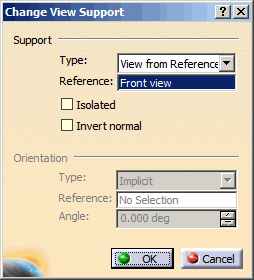
Support |
 |
Changes the support type or reference support of the view.
- Type
The following options are available:- View from Reference.
- View from Profile: Selecting this option makes
the following options unavailable:
- Type
- Reference
- The Orientation section
 |
The Type box is available for changing from View from Reference to View from Profile in the case of an auxiliary view created from a reference or a multi-plane section view created from reference by selecting a Functional Tolerancing and Annotations view. |
- Reference
Changes the reference support/3D viewpoint of the view. - Isolated
Isolates the view from its reference support.The
Isolated check box is selected automatically if View from Profile is selected. - Invert Normal
Inverts the normal of the view. You can also invert it by clicking the view normal in 3D.
|
|
Irrelevant in axonometric view context. |
- Point
Lets you define the view origin by clicking a 3D point or vertex, or indicating a point on a surface or a curve, in the 3D window.
|
|
Relevant in axonometric view context only. |
Orientation |
|
- Type
Specifies the orientation type of the view plane definition.- If you select an incorrect orientation type, an error message is displayed and the orientation type is set back to Implicit mode.
- The reference linear elements and surfaces can be selected from any part of the edited 2D Layout or from 3D view background (except for the background of the new view during its creation).
- Irrelevant in axonometric view context.
The options in the Type combo box are as follows:
- Implicit: Optimizes the orientation automatically. This is the default mode.
- X Axis: Orientates the horizontal axis according to the X axis representation when possible.
- Y Axis: Orientates the horizontal axis according to the Y axis representation when possible.
- Z Axis: Orientates the horizontal axis according to the Z axis representation when possible.
- Parallel to line: Orientates the view parallel to a linear element. The linear element is projected onto the view support. If the projection results in a line, the H axis of the view becomes parallel to the projection. Otherwise, the view orientation remains unchanged (i.e. the projection results in a point).
- Normal to surface: Orientates the view normal to a surface. The normal of the surface is projected onto the view support. If the projection results in a line, the V axis of the view becomes parallel to the projection. Otherwise, the view orientation remains unchanged (i.e. the projection results in a point).
- Reference
Specifies the reference element selected for the Parallel to line and Normal to surface orientation types.- If you selected the Parallel to line orientation type, some elements which are seen as a line in a view background (circle, ellipse, spline, etc.) cannot be selected as they are not linear elements.
- There is no associativity between the view and the reference linear element or surface.
- Angle
Specifies the angular value for view orientation. The view is rotated by the specified angle, counter-clockwise around the view support, normal from the support basic orientation.- The angle of the view in the sheet is independent from the 3D angle.
- The specified value is not persistent.
