-
Open the
Kwxcheck.CATPart file.
-
From the Start menu, select Knowledgeware>
Knowledge Expert workbench.
-
Click the Expert Check icon ( ).
).
-
Select the rule base relation in the
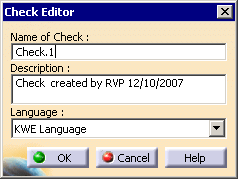
specification tree. The following dialog box is displayed.
-
If need be, replace the default name and description of
the check to be created, the description will be displayed at the first
line. Select the KWE Language, then click OK.
The expert check editor is displayed.
 |
If you want
to display the Check Language after creating the check, select the
check in the specification tree, and select Edit > Properties
or Alt > Enter. The Check language is displayed. |
-
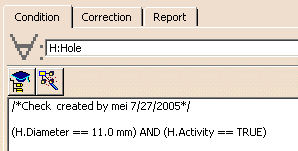
Use the area with the
 symbol to specify the feature type you want to apply the expert rule. The
following syntax must be applied:
symbol to specify the feature type you want to apply the expert rule. The
following syntax must be applied:
H:Hole
-
Copy/Paste the code below from your browser to the
edition box:
(H.Diameter ==
       11.0 mm) AND (H.Activity == TRUE)
The check editor now looks something like this:
-
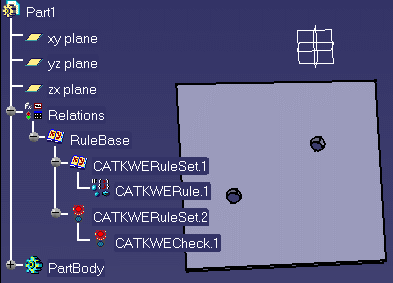
Click OK. A check is added to the rule base in
the specification tree. To get a full description of the available types,
see the Reference section of this guide.
-
Click the
 icon to solve the rule base. Your document looks something like this:
The light icon associated with the check has turned to
red, indicating that the check is not valid (all the holes have a
diameter of 10.0mm).
Right-click the check in the specification tree, and
select Highlight Failed Component. This highlights the
features that don't fulfill the criteria specified in the check.