
This task consists in checking joint limits during a kinematics simulation.

Open the CHECKING_LIMITS.CATProduct document. Remember you set joint limits in the previous task

-
Click Simulation with Commands
 in the DMU Kinematics toolbar. The Kinematics Simulation
-Mechanism.1 dialog box is displayed:
in the DMU Kinematics toolbar. The Kinematics Simulation
-Mechanism.1 dialog box is displayed:
If you work with V4 kinematics data, the Check Joint Limits option is available through the Kinematics simulation commands. (
, )
) -
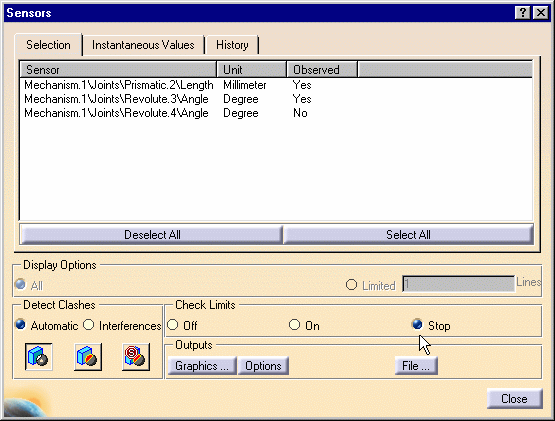
In the Sensors dialog box displayed select Stop for the check limits setting.
-
Off: Ignores any limits (upper and lower) during the simulation.
-
On: Displays limits values and information in the comments field within the History tab.
-
Stop: Stops the simulation when the upper and lower limits are reached.
For more information, see Setting Joints limits.
-
-
Select the joints to be observed: Prismatic.2 and Revolute.3 (use the Selection tab and select the joints in the sensor list).
Remember, you set limits on Prismatic.2:
-
Lower limit -10mm
-
Upper limit 10mm
Note: Because a command is assigned to Revolute.3, the limits are necessarily set. The default values for angle limits are:
-
Lower limit -360deg
-
Upper limit 360deg
The clash detection is available within the Sensors dialog box.
-
-
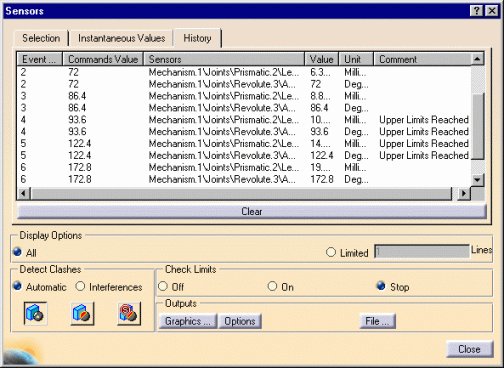
Click the History tab
-
Manipulate the slider of the command or use the manipulators in the geometry area.
Note: in direct manipulation context (using the manipulators) the simulation is stopped each time a limit is reached.
In both cases (slider manipulation or direct manipulation), the comments column is updated each time a limit is reached.
-
Select Clear if needed.
-
Click Close to exit the command.
