
This task shows how to detect clashes between two kinematics products.

Open CLASH_DETECTION.CATProduct document.

-
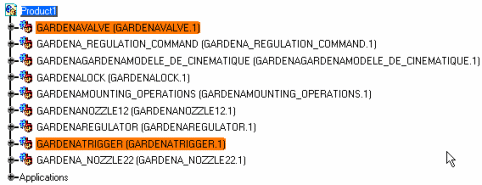
In the specification tree, select GARDENAVALVE then control-click GARDENATRIGGER
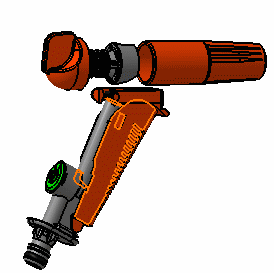
The two items are highlighted in the specification tree and in the geometry area.
-
Click Clash
 .
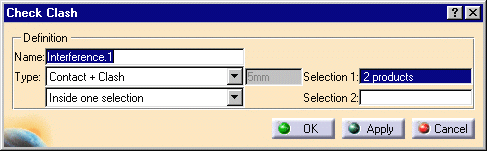
.The Check Clash dialog box is displayed. Make sure the interference type is set to Contact + Clash and Inside one selection.
-
Click Apply, when done Ok.
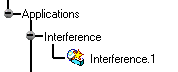
The specification tree is updated.
-
Double-click Simulation.1 in the specification tree. The Edit Simulation and Kinematics Simulation dialog boxes are displayed.
-
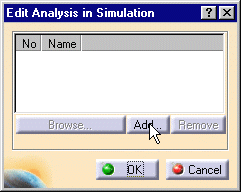
Click Edit Analysis button in the Edit Simulation dialog box.
The Edit Analysis in Simulation dialog box is displayed.
-
Click Add then select interference 1 from the displayed Select dialog box
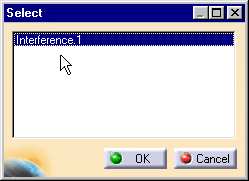
The Edit Analysis in Simulation dialog box is updated:
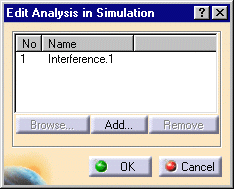
-
Click OK to confirm your operation.
You defined an interference. -
Set the Interference to On using the drop-down list.
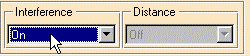
The specification tree is updated. 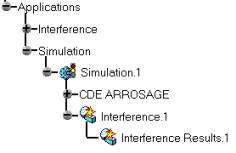
-
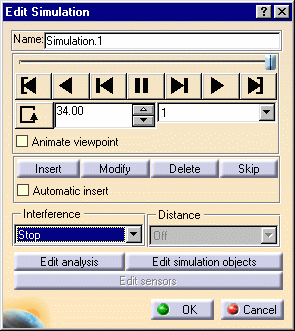
To locate the clash position more precisely, set the Interference to Stop in the Edit Simulation dialog box
The simulation stops at the position where a collision is detected between GARDENAVALVE and GARDENATRIGGER products. The products in collision are highlighted.
-
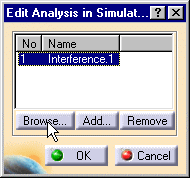
Click Edit Analysis in the Edit Simulation dialog box. The Edit Analysis in Simulation appears.
-
Click Browse.
-
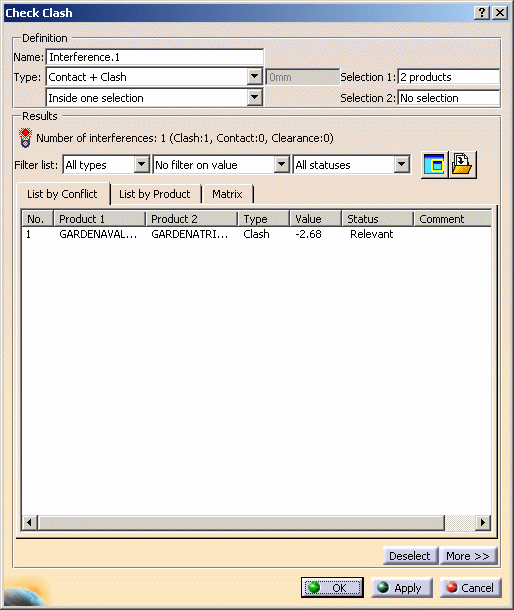
The Check Clash dialog box is displayed. The specification tree is updated accordingly.

Refer to the DMU Space Analysis User's Guide for more information about detecting and analyzing interferences between products or between groups.
