

The kinematics document must be already opened.
You already defined a simulation. For more information, refer to Recording Positions.

-
In the specification tree, click KIN_EX17_06_CENTRAL_DOOR then control-click KIN_EX17_09_LEFT_DOOR.
The two items are selected and highlighted in the specification tree.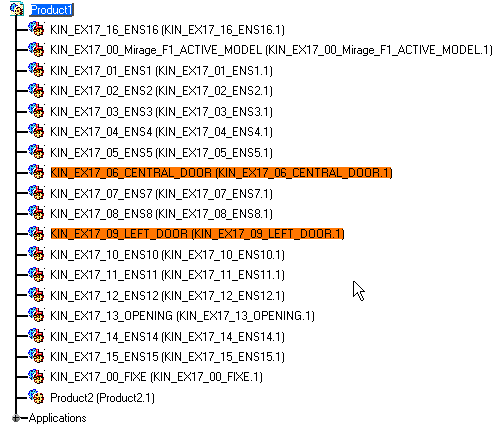
-
Click Distance and Band Analysis
 in the DMU Space Analysis toolbar, or select Insert >
Distance from the menu bar to calculate distances. The Edit
Distance And Band Analysis dialog box is displayed.
in the DMU Space Analysis toolbar, or select Insert >
Distance from the menu bar to calculate distances. The Edit
Distance And Band Analysis dialog box is displayed. -
Ensure that the first Type drop-down list box is set to Minimum and Inside one selection.
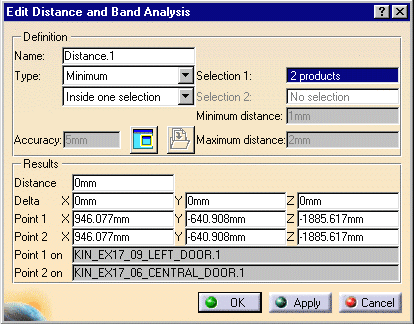

The default distance analysis is measuring the minimum distance inside one selection.
-
Click Apply
-
Click OK.
The specification tree is updated.
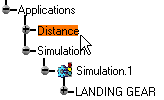
-
Double-click Simulation.1 in the specification tree. The Edit Simulation dialog box is displayed.
-
Click the Edit Analysis.
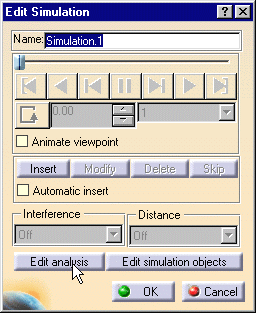
The Edit Analysis In Simulation dialog box is displayed: -
Click Add then select Distance1 from the displayed pop-up.
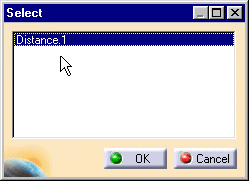
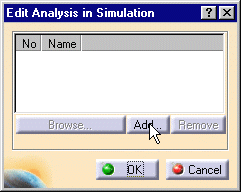
The Edit Analysis in Simulation dialog box is updated. 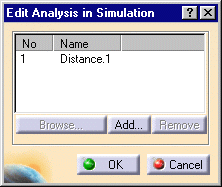
-
Set the Distance to On using the drop-down list.

The specification tree is updated accordingly.
-
In the Kinematics Simulation dialog box, run a step by step simulation using the Use Laws tab.The minimum distance between the two products is displayed at each step.
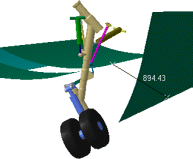
Refer to the DMU Space Analysis User's Guide for more information about detecting and analyzing distances between products or between groups.
