|
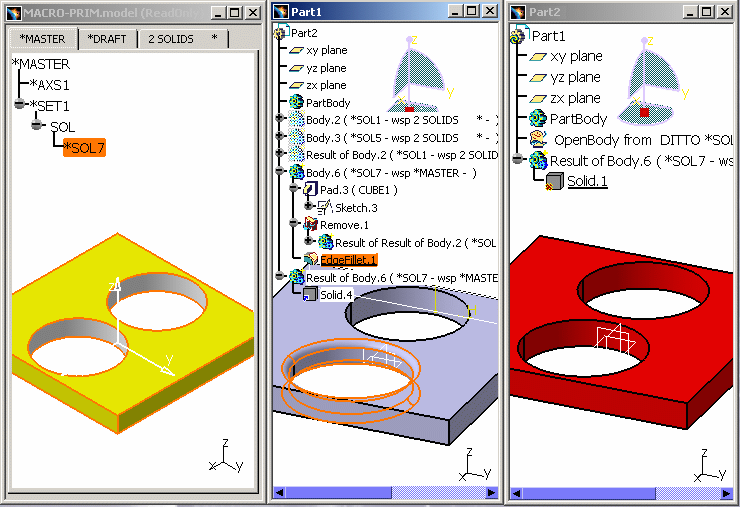
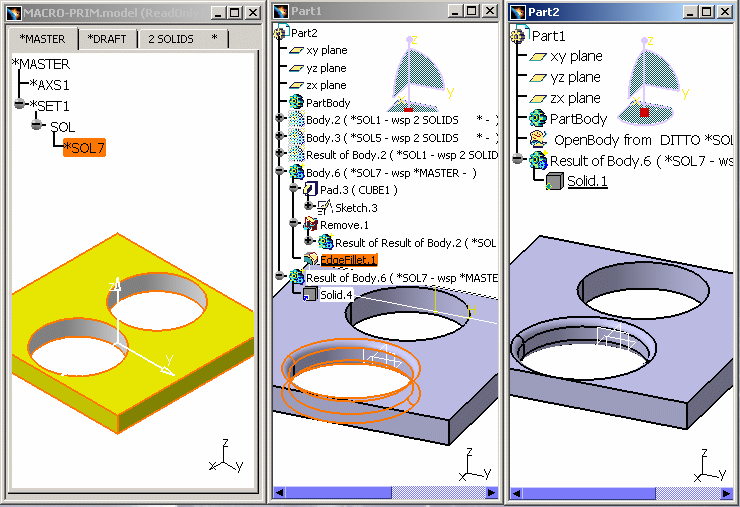
This task shows you how Solids can be migrated
into CATIA V5 and then copied / pasted within CATIA V5 into different
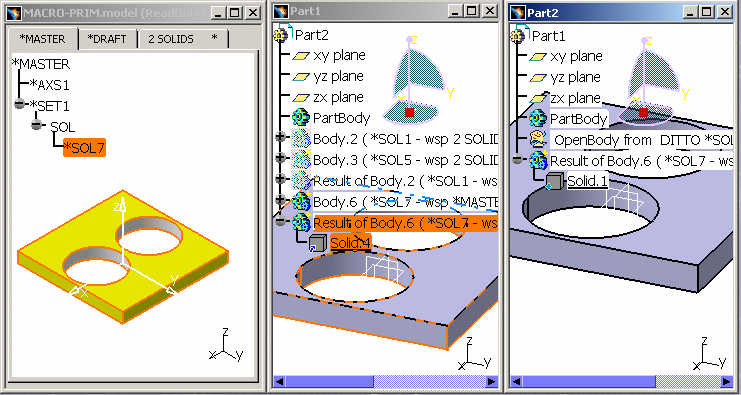
CATParts. If you modify the Detail within a Part, you need to synchronize the other Part containing the same Detail (initially copied from another Part). |
|||||
 |
Before, on Windows and UNIX, you needed to
edit CATIA V5 with the variable before opening CATIA V5: set InteractivMultiCpARWL=1 Now, the interactive Multi-Copy / Paste As Result With Link is the default mode. It is done without the setting. It saves CPU, memory place and time. If you want to avoid this management, the by-pass is to close the .model after every Paste, and to re-open it if you want to do another Paste. |
|||||
|
|
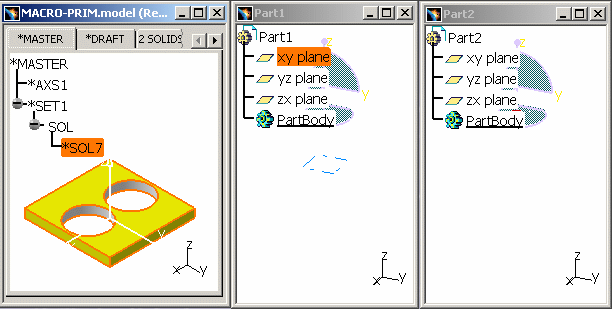
Open MACRO-PRIM.model
and create 2 new Parts: Part1 and Part2.
|
|||||
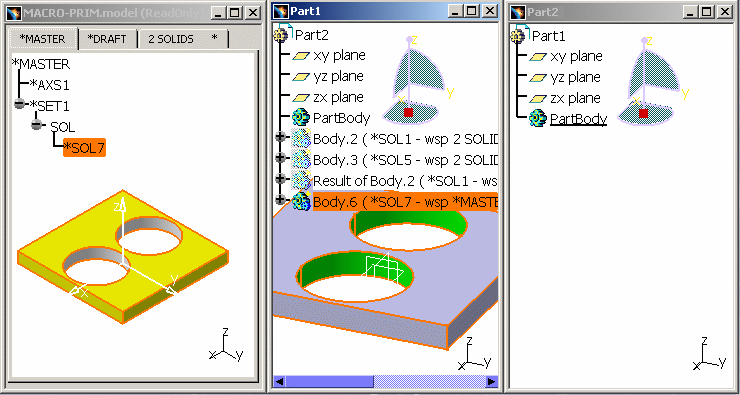
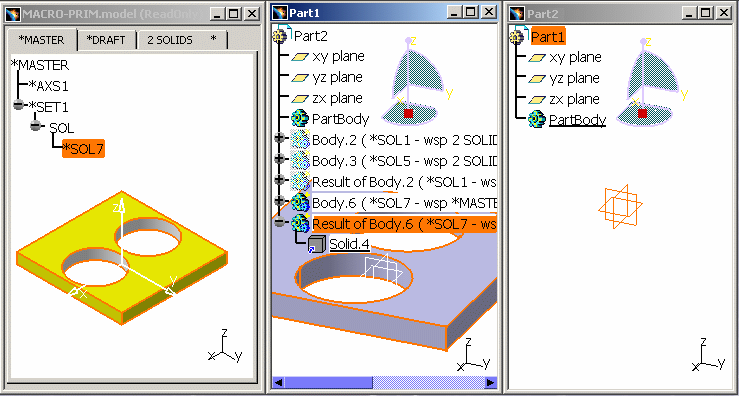
Using the Copy / Paste As Result with Link (CPARWL) method. |
||||||
 |
Whenever it is possible, it is recommended to
work in CATIA V5. This method (Copy / Paste As Result with Link) allows to save time and provide fast rendering and manipulation for assemblies. |
|||||
 |
When we migrate a V4 model(.model) consisting of multiple instances of a single V4 solid(*Sol) in As_Spec mode using the Batch Utility, some migration results for the *Sol instances are not OK ,whereas the migration result of the reference *Sol is OK. To avoid these errors, set the following variable: CATV4V5ForceOptimisation = 1 This variable helps in force optimizations (reuse solid) instead of re-migrating V4 solids. During migration because of this variable setting, the reference V4 Solid is migrated and instances of solid are created by re-using reference solid. After you set the variable, re-launch CATIA session and execute the migration scenario again. |
|||||
|
|
||||||