
This task shows you how to cut a subdivision surface by one or more edges to modify the existing mesh or create sub-parts of the mesh.

Create a 3D shape containing a subdivision surface.
-
Select the subdivision surface.
-
Click Cut by Edges
 in the Styling Surfaces
toolbar.
in the Styling Surfaces
toolbar.
You can also access this command by pressing ALT+SHIFT+J. A Tools Palette is displayed:

The following icons let you:
-
 Previous Result: choose the part to
keep (previous solution).
Previous Result: choose the part to
keep (previous solution). -
 Next Result:
choose the part to keep (next solution).
Next Result:
choose the part to keep (next solution). -

 Face Selection,
Edge Selection: selects a face, or
edge as the border to cut.
Face Selection,
Edge Selection: selects a face, or
edge as the border to cut. -
 Propagation:
propagates the selection to all the free edges.
Propagation:
propagates the selection to all the free edges. - New Feature Mode
-
 : Only modifies the
mesh. The original mesh is not kept.
: Only modifies the
mesh. The original mesh is not kept. -
 : Creates one mesh in the
specification
tree.
: Creates one mesh in the
specification
tree. -
 : Creates all the
meshes in the specification tree.
: Creates all the
meshes in the specification tree.
-
-
 Apply (Enter): apply
the command.
Apply (Enter): apply
the command.
-
-
Click Edge Selection
and select one or more edges. -
Click Propagation
to propagate the selection to all the free edges.
It is only available with Edge Selection.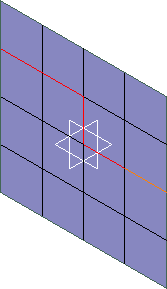
A solution is previewed:
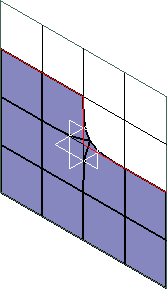

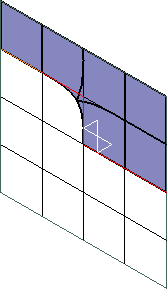
You can click Next Result
to visualize the other possible
solution:
-
Click Apply (Enter)
to apply changes.In the Modification toolbar, click Multi-Selection  to validate the current operation and select the next surface to
cut without exiting the Cut by Edges
command.
to validate the current operation and select the next surface to
cut without exiting the Cut by Edges
command.
You can also press Ctrl +Space to validate the current operation and select the next surface to cut.
