


-
From the Operations tool bar, click Character Line
 .
.
You can also access this command by pressing ALT+SHIFT+C. -
Select the subdivision surface.
The Tools Palette appears:
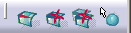
- Character Line Creation
 : Creates the
character line.
: Creates the
character line.You can also access this command by pressing Ctrl+Shift+J.
- Character Line Remove
 : Resets the
selected character line.
: Resets the
selected character line.You can also access this command by pressing Ctrl+Shift+S.
- Character Line Remove All
 : Resets all
character lines.
: Resets all
character lines.You can also access this command by pressing Ctrl+Shift+O.
- Mesh View
 :
Hides or shows the base mesh.
:
Hides or shows the base mesh.You can also access this command by pressing Alt+Ctrl+X.
- Character Line Creation
-
Select the edges on the subdivision surface by pressing Ctrl or select a start edge and press Shift to define the end edge.

- A minimum of two edges is necessary to perform this operation.
- The edges must be continuous. That is, there should be no free edges.
- There can be only one character line feature per subdivision surface.
- The two edges of the character line must lie on different faces.
-
Click Character Line Creation
.
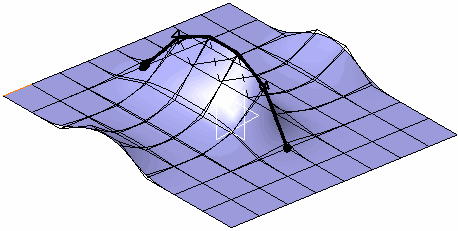
The character line is created. The start of each fading edge is defined by a double arrow and the end is defined by a dot. The zone between two fading edges is the sharp zone:
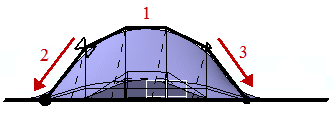
1 shows sharp zone.
2 and 3 show the direction from sharp to smooth.The start of the two fading edges must lie on different edges.
-
Move the manipulators to precisely tune the start and end of the fading edges.
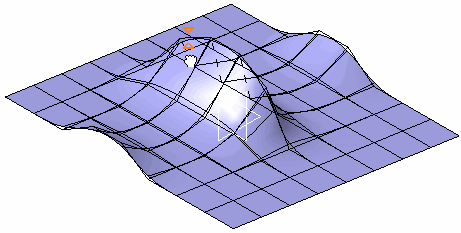
-
Click Mesh View
to hide the mesh for easier manipulation.
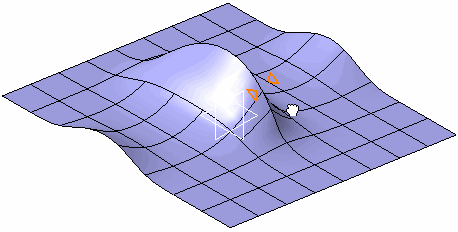
A Subdivision Character Line.x feature is added to the specification tree under the subdivision surface node.
