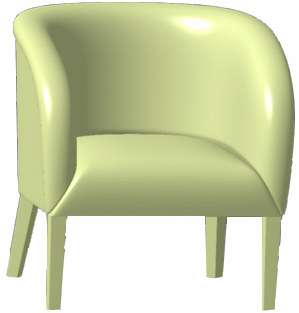
-
Click Import Subdivision
 in the Creation toolbar.
The Import Files dialog box appears. -
Select the file to import.The Tools Palette is updated with new icons:

-
Click Open.
A preview of the imported subdivisions and meshes is displayed (one color and one arrow per subdivision).
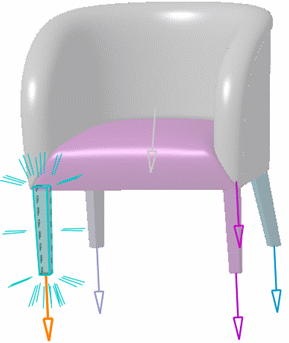
Note: Colors are displayed according to the options set in Tools > Options > Shape > Imagine and Shape > Display tab. For instance, here we selected the Automatic colored in Multi-Selection Mode and Show hidden lines in dashed lines check boxes, white as the background color, and any of the three visualization options.
-
Click the arrow in the 3D area for each surface to change the orientation of the normal to the respective surfaces if necessary.
-
Click Flip Y up and Z up
 if necessary.
Note: If the model is not correctly orientated after the import (i.e. with Y up), you have to click this icon to flip to the Z up axis. -
Optional: Click Import nothing to import no mtl file.
-
Optional: Click Import color
 :
to apply the material on the surfaces.
:
to apply the material on the surfaces.
Note: This icon is selected by default. It applies the color from an mtl file to the imported subdivision surfaces. -
Optional: Click Import material
 to apply the material on the surfaces.
-
Optional: Click Create one GS by File and Color
 to create a geometrical set for each imported file that
contains surfaces having the same material.
to create a geometrical set for each imported file that
contains surfaces having the same material. -
Click Edition
 to define the scale factor related to the selected
elements.
to define the scale factor related to the selected
elements. -
Click Apply (Enter)
 to validate the import and create the subdivisions in
the specification tree.
to validate the import and create the subdivisions in
the specification tree.