

-
Create a 3D shape containing a subdivision surface.
-
Define the number of cuts for your subdivision surface.

-
From the Modification toolbar, click Modification
 .
. -
In the Tools Palette, click Law Manipulation On/Off
 .
.
This function is available with all types of the Translation, Rotation, and Affinity commands.
The law manipulator lets you define and manage the manipulation laws. You can define your own laws or choose predefined laws such as linear, concave, or convex laws.
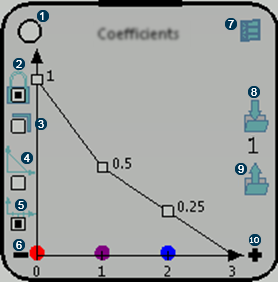
Symbol Description 1 Moves the graphic manipulator in the work area. 2 Locks free edges. 3 Locks sharp edges. 4 Shows predefined laws. 5 Defines the number of coefficients that propagate the law. If it is deactivated, the law automatically propagates to the free edges. 6 Removes a coefficient. 7 Opens a dialog box to enter coefficients manually. 8 Saves a law. 9 Stocks all the saved laws and enables to choose one of them. 10 Adds a coefficient. 
- You can change the size of the law manipulator with the resizing handle at the top.
- You can also modify the coefficients manually by manipulating the white handles.
- For better visualization, the impacted vertices are displayed in colors.
- The laws you create are automatically named and ordered by number.
- The number of coefficient is limited to 10.
-
After you define a law, select a face, an edge, or a vertex and drag the arrow in the required direction.
You can also select multiple elements. Without a law With a law 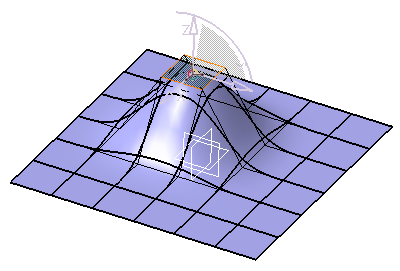
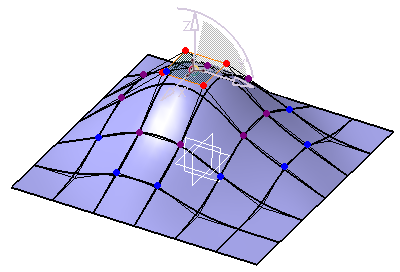
Only the selected elements move. The elements surrounding the selected elements also move according to the coefficients defined by the law.
