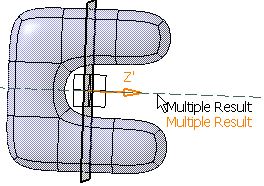
This task shows you how to cut a subdivision surface by a plane and remove a side of the subdivision surface.

Open the ModifySurface7.CATPart document.
-
Click Cut by Plane
 in the Styling Surfaces
toolbar.
in the Styling Surfaces
toolbar.
You can also access this command by pressing ALT+SHIFT+Q. A Tools Palette is displayed:

The following icons let you:
-
 manage the compass,
 -
 reset the plane orientation,
 -
 select the subdivision surface,
 -
 select the plane,
 -
 choose the side to keep,
 -
 translate the plane,
 -
 rotate the plane,
 -
 show the resulting mesh,
 -
 apply
the command.
apply
the command.
-
-
Click Surface Selection
. -
Select the subdivision surface.
-
Click Plane Selection
. -
Select the plane.
Here we selected the xy plane: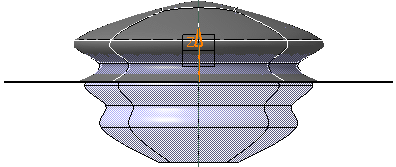
-
Click Surface Selection
to choose the side to keep.
One click on this icon reverses the side to keep: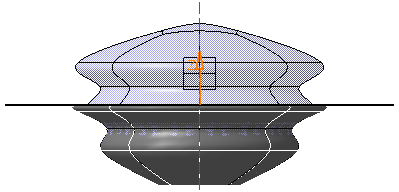
-
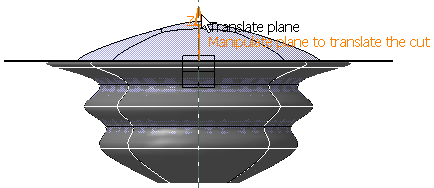
Click Plane Translation
. -
Hold down the left-mouse button and drag to translate the plane.
-
Click Plane Rotation
.
Hold down the left-mouse button and drag to rotate the plane.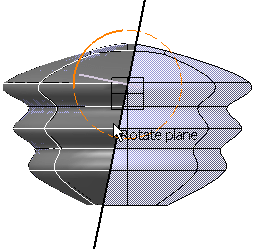
Note: Once the Plane Translation
or Plane Rotation
options have been selected, two icons appear in the
Tools Palette:-
 :
this icon lets you use the edition panel and modify exactly
the position of the plane.
:
this icon lets you use the edition panel and modify exactly
the position of the plane.
Refer to Using Edition for Modification for further information. -
 :
this icon lets you set the attenuation during the
manipulation.
:
this icon lets you set the attenuation during the
manipulation.
Refer to Setting the Attenuation Factor for a Surface for further information.
-
-
Click Show Resulting Mesh
to visualize the base mesh.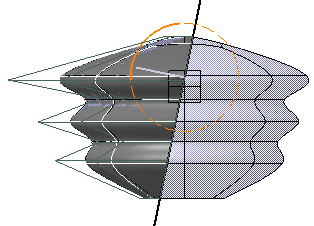
-
Click Apply (Enter)
to validate the command.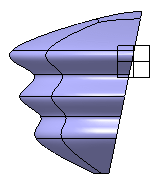
In the Modification toolbar, click Multi-Selection  to validate the current operation and select the next
surface to cut without exiting the Cut by Plane
command.
to validate the current operation and select the next
surface to cut without exiting the Cut by Plane
command.
You can also press Ctrl + Space to validate the current operation and select the next surface to cut.
In case of a multiple result, it is not possible to cut the surface: