This section provides the information you need when
working with visible elements.
The following topics are discussed:

Visualize the Icons

Here is an example with the expandable toolbar:
Visualize Hidden Edges
- If Show hidden lines in dashed lines option is cleared, hidden lines are displayed with the same settings as the base mesh elements defined in Tools > Options > Shape > Imagine & Shape > Display tab, Base Mesh area. Depending on the different states of View and Selection mode command, the subdivision surface is as seen:
All/All All/Front Front/Front
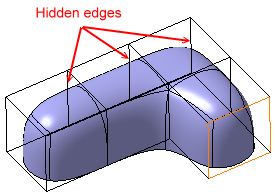
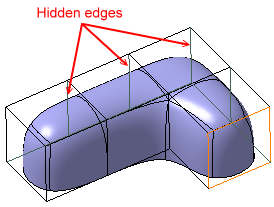
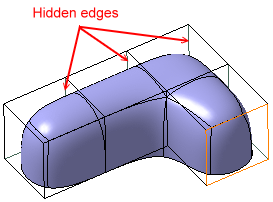
- In some case, it may happen that some edges are seen
though they are behind the face. This is because the surface has
such faces with the normal directed towards you and not towards
the back of the screen as it is in most of the cases.
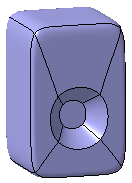
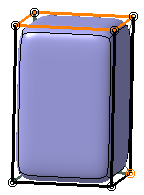
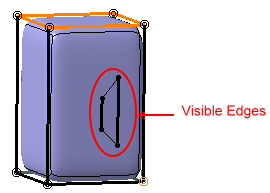

- If the All Elements Selection
 icon
is activated, only pickable elements will be selected (not grayed
out elements), provided the View All and Selection Front
icon
is activated, only pickable elements will be selected (not grayed
out elements), provided the View All and Selection Front
 or
View and Selection Front
or
View and Selection Front
 modes are activated.
 - Hidden edges cannot be selected when the View and Selection Front and View All and Selection Front modes are activated and they become grayed out (i.e. with low luminosity).
- Activating any of these icons does not change the current selection.
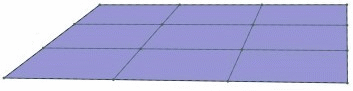
Case of Planar Surfaces
As a result, no difference may be visible between the View All and Selection Front and View and Selection Front modes.
- View and Selection All

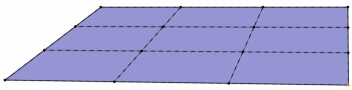
- View All and Selection Front
and View and Selection Front