

Create a sphere.

-
Repeatedly click Text Help Level
 to sequentially display the different levels of help.
It gives you some information on the current function and drives you to the possible actions.
-
:
no help is displayed:
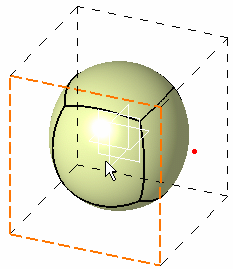
-
 :
a short help is displayed:
:
a short help is displayed:
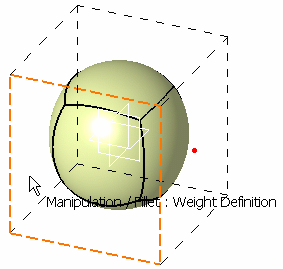
-
 :
a long help is displayed:
:
a long help is displayed:
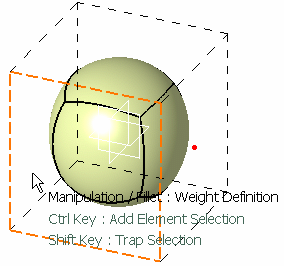

The visualization of the three help text level icons can either be on the same icon cyclically or in an expandable separate toolbar. This depends on the option chosen in Tools > Options > Shape > Imagine & Shape > General tab, Command Options Menu Mode area.

 on screen from
the General Options toolbar. You can move the help text
anywhere on the screen.
on screen from
the General Options toolbar. You can move the help text
anywhere on the screen.To pin it back to the cursor, click Pinned Help Text again.
