-
From the Creation
toolbar, click Strip Drawing
 .
.
The Tools Palette is displayed:

- Add Strip
 : Switches from creation mode to
modification mode. : Switches from creation mode to
modification mode.
 |
You can also access this
command by pressing Ctrl+Shift+M. |
|
- Erase
 : Erases sections of the stripped
surface in creation mode and surfaces or edges in
modification mode. : Erases sections of the stripped
surface in creation mode and surfaces or edges in
modification mode.
|
|
You can also access this
command by pressing Ctrl+Shift+D. |
|
- Constant Dimension
 : Defines the section size
using a slider. : Defines the section size
using a slider.
|
|
You can also access this
command by pressing Ctrl+Shift+V. |
|
- Automatic Sections
 :
Defines an automatic orientation of the sections. :
Defines an automatic orientation of the sections.
|
|
You can also access this
command by pressing Ctrl+Shift+P. |
|
- Mesh View
 :
Views or hides the base mesh. :
Views or hides the base mesh.
|
|
You can also access this command by
pressing Ctrl+Shift+X. |
|
- Apply
 : Applies the command.
- Working Zone
Activation/Deactivation
 : If this option is selected,
only the elements selected under working zone are considered
for manipulation. : If this option is selected,
only the elements selected under working zone are considered
for manipulation.
This is option is available only when a working zone is
defined using the Working Zone Definition
 command.
For more information, see Defining
the Working Zone.
|
-
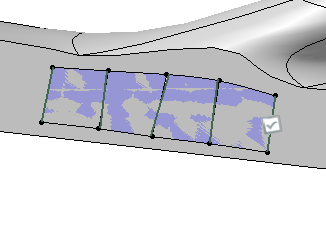
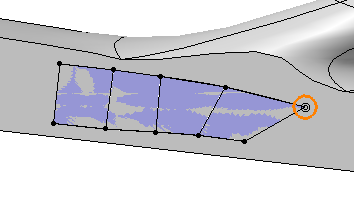
Start drawing on the support surface.
-
Click Constant Dimension
.
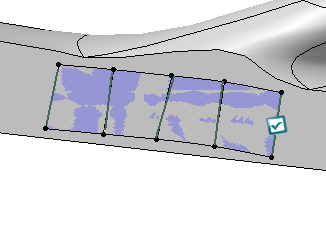
A slider is displayed on the right. Drag the manipulator to adjust the
section size.
When both sizes of the section are different, the manipulated size is
the biggest one, and the proportion is kept.
-
Click Automatic Sections
.
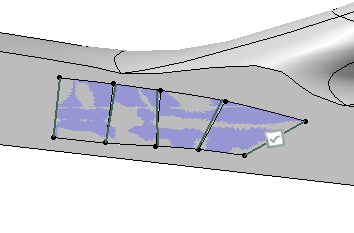
Sections are oriented approximately parallel to each other.
-
Click Mesh View
.
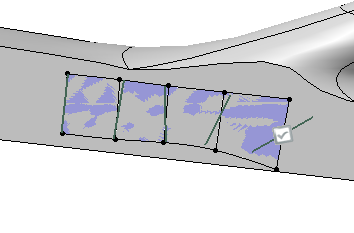
The base mesh is visible.
 |
This selection is saved as user
preference. |
-
Click Apply
.
A new subdivision surface is created.
-
Click Add Strip
.
The Tools Palette for modification mode is displayed.

-
Modify the strips using the cursor.
-
In the modification mode, hover the cursor near an edge
and click in the work area to extrude the edge.
 Creating a Stripped Surface