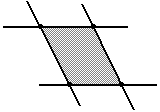
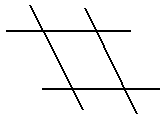
-
Click Mesh Drawing
 .
.
You can also access this command by pressing ALT+SHIFT+M.
A Tools Palette appears.

The following icons let you:-
 activate the support mode before starting to
draw. The manipulation is allowed only in the plane where the
curve is to be created. This is unavailable once the first curve
is created.
activate the support mode before starting to
draw. The manipulation is allowed only in the plane where the
curve is to be created. This is unavailable once the first curve
is created. -
 change the working plane before or while the
mesh is being drawn.
change the working plane before or while the
mesh is being drawn. -
 create a curve using pointer or a graphic pen.
 -
 create primitives.
 -
 merge vertices.
 -
 erase pixels of the curves.
Press Ctrl to erase only the pixels of one curve (highlighted in orange). -
 delete curves (highlighted in orange) by picking or
crossing them.
delete curves (highlighted in orange) by picking or
crossing them.Press Ctrl to delete the part of a curve that intersects with another curve (highlighted in orange). -
 define the visualization of the mesh.
 -
 apply the command. This is active only when the
mesh is valid.
apply the command. This is active only when the
mesh is valid.
-
- Click Draw
to start drawing curves and define the mesh.

Notes: - You can define a polyline using the left-mouse button.
- To end the creation of polylines, either click on the last extremity or click the first extremity to create a closed polyline (the circular point is highlighted in blue to indicate that it can be clicked), or double-click to create the last extremity. You can also pick and move the pointer to end the polyline.
- Control points are created at the intersection between two curves.
-
Click Apply
when the required mesh is created. Note: The icon will only be active, when the mesh is valid.
-
Press Ctrl to start and/or end a curve from and/or up to a nearby curve, respectively.
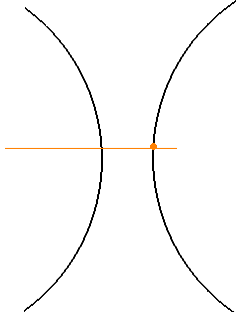
- Press Alt and modify an existing
curve.
The modification can be an internal modification, a modification at the end of a curve or the addition of a polyline. Note: You can also press first Alt to modify a curve then Ctrl to adjust it to another curve.
-
Click Merge
. - Either circle the zone in which the
intersections are to be merged if you are using a graphic pen or pick
each intersection using the Ctrl key if you are using the
pointer.
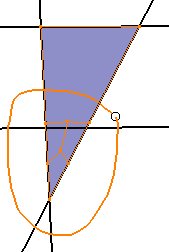
The Merge Tolerance slider appears. The tolerance is automatically adjusted, however you can also use the slider to modify the tolerance.
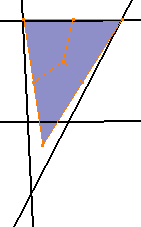
Notes: You can press both Ctrl and Alt keys: - To merge a curve with another one (without selecting Merge
first).
- Move the pointer to merge the curves.
- Click to merge the curves.
- To merge a curve with another one (without selecting Merge
-
Click Sketch Primitive
.The pointer is turned into a pen and the curve is turned into a primitive when you lift the pen or release the pointer. - Press Ctrl to create a circle arc
between two curves.
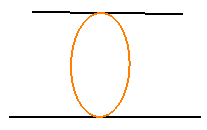
Notes: - You can press Alt to add a primitive to an existing curve or primitive, either by picking or by drawing the primitive.
- You can also press both Ctrl and Alt keys and move the pointer to merge a primitive with another one.
-
Click Mesh View
repeatedly to sequentially display the different
levels of visualization.Show mesh only Show curve only