


-
Click Link
 in the Operations toolbar.
-
You can also access this command by pressing ALT+SHIFT+L.
-
You can select the elements prior to entering the command.
-
-
Select the surface.
-
In the Tools Palette,
select any one from the following:
Curve Selection
Adds a new curve to the selection  All Association Removal
Resets all the curve associations  Auto Association Points/Vertices
Creates points associated to the selected vertices in a new geometrical set. 
- You can multi-select the vertices to create multiple points.
- After selecting the vertices, a new geometrical set is
created each time you click Apply
 .
.
-
Select a geometric feature (point, line, curve) or another subdivision surface.
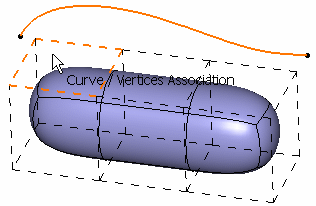
-
In the Tools Palette, select any one from the following:
 Association Removal
Resets the current curve association.  Auto Selection
Selects any kind of element (faces, edges and vertices).  Face Selection
Selects faces only.  Edge Selection
Selects edges only.  Vertex Selection
 Selects vertices only.  All Element Selection
 Selects all elements. For more information, see Selecting Elements. -
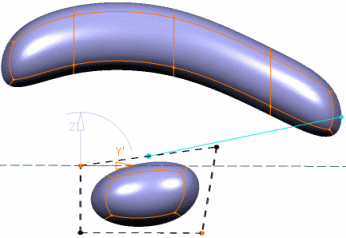
Select the elements of the base mesh to associate to the surface: a blue dotted line (that is the vector) is displayed in the 3D area to show the association.
-
Click Modification
 to deform the curve.
A Tools Palette appears. 
For more information, see Manipulating and Deforming Curves. -
Sketch the curve to deform it.
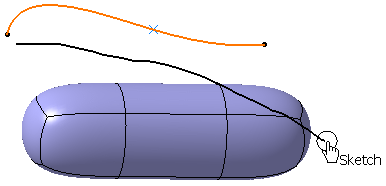
The selected elements are automatically moved and the surface recomputed. 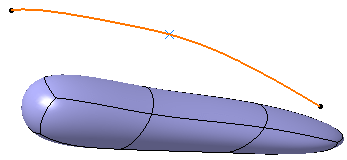
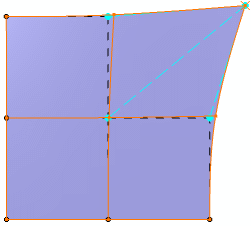
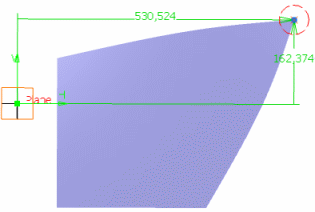
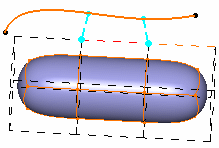
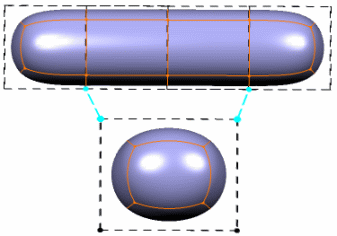
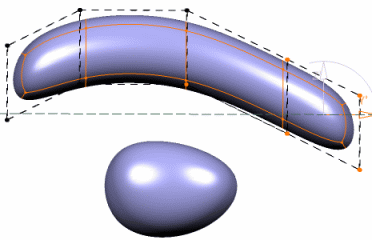
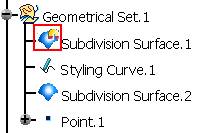
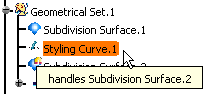
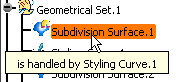
 is displayed on the linked element. When you hover over such an element, a tooltip appears showing
the element by which it is handled.
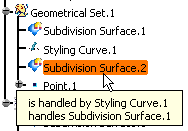
is displayed on the linked element. When you hover over such an element, a tooltip appears showing
the element by which it is handled.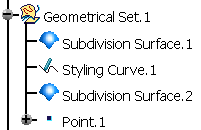
| |
When editing or modifying the subdivision surface, the link
appears as a blue full line: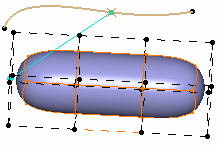 |
