


-
Click Extrusion
 in the Styling Surfaces toolbar.
You can also access this command by pressing ALT+SHIFT+X. -
Select a surface.
A Tools Palette is displayed. 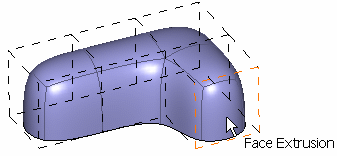
The following icons let you: -
 select a face
-
 select an edge
 -
 perform combined extrusion
 -
 perform pure extrusion
 -
 perform total extrusion
 -
 invert the extrusion side
-
 activate
the apply mode
activate
the apply mode
-
Extrude Faces
-
Click Face Extrusion
. -
Select a face.
-
Click to add a face.
An extrusion made of five faces is created. The extrusion direction is normal to the selected face. 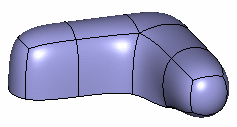

Click
to invert the extrusion side. 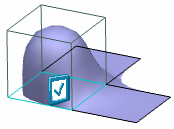
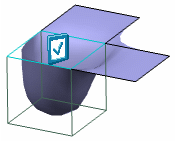
Before the inversion After the inversion
In the Modification toolbar, click Multi-Selection  to validate the current operation and select the next face to
extrude without exiting the Extrusion
command.
to validate the current operation and select the next face to
extrude without exiting the Extrusion
command.
You can also press Ctrl +Space to validate the current operation and select the next face to extrude.
Extrude Faces Using Multi-Selection
-
Click Face Extrusion
. -
Press Ctrl to select several faces.
-
Click to add as many faces, as you wish.
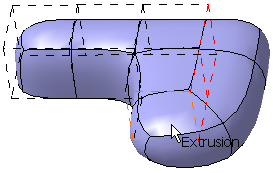
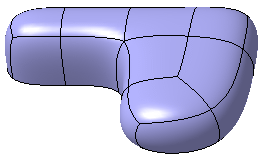
As an alternative, you can also use the Shift key and draw a trap to extrude several faces.
In the Modification toolbar, click Multi-Selection
You can also press Ctrl +Space to validate the current operation and select the next face to extrude.
Create a Hole Inside a Closed Surface
-
Click Face Extrusion
.
-
Press Ctrl and select a face on each side of the surface. Selected faces must be face to face.
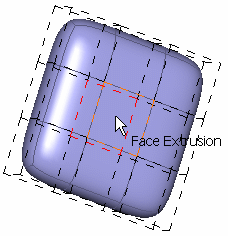
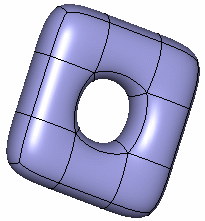
Create a Pure Extrusion
-
Click Pure Extrusion
.
You can also access this command by pressing CTRL+SHIFT+V. -
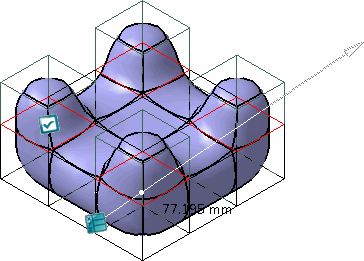
Click the subdivision surface to add a face.
A graphic scale with a manipulator appears.You can select multiple faces by using Ctrl key. -
Hold and move the manipulator on the scale to modify
the extrusion length.
Create a Total Extrusion
-
Click Total Extrusion
.
You can also access this command by pressing CTRL+SHIFT+W. The command for Smooth Attraction  is introduced in the tools palette.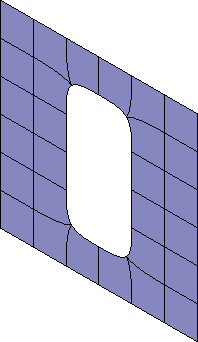
-
Click the subdivision surface to add a face.
A graphic scale with a handle appears.You need not select each face, as all faces are automatically selected.
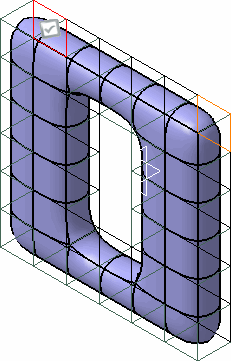
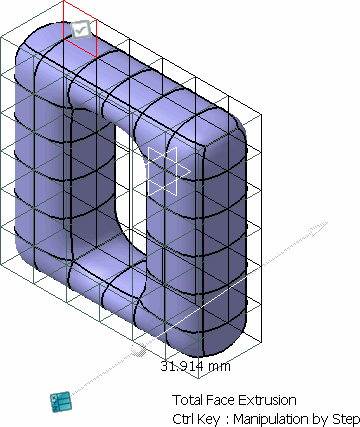
- Hold and move the handle on the scale to modify
the extrusion length.
- Click Smooth Attraction
.
This icon has two states:
- Sharp Attraction
 :
Defines sharp attributes of the selected edge (value
indicated with a minus sign) that are discontinuous in
tangency and curvature.
:
Defines sharp attributes of the selected edge (value
indicated with a minus sign) that are discontinuous in
tangency and curvature. - Smooth Attraction
:
Defines smooth attributes of the selected edge that are
continuous in tangency and curvature.
- Sharp Attraction
Fill Faces
-
Click Face Extrusion
. -
Press Ctrl to select the four connected faces to fill the hole.
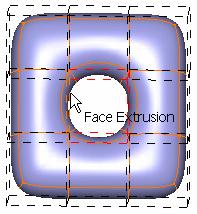
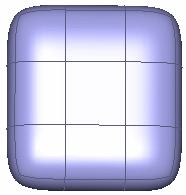
As an alternative, you can also press Shift and draw a trap to fill the hole.
Combine an Extrusion
-
Click Face Extrusion
. -
Press Ctrl to select the two connected faces.
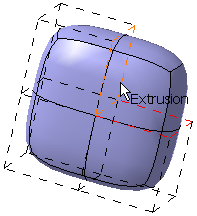
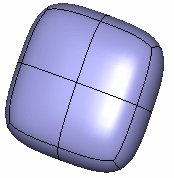
Join Two Unconnected Face-to-Face Faces
-
Click Face Extrusion
. -
Press Ctrl and select the two faces to connect. Selected faces must be face to face.
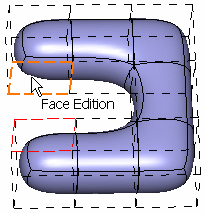
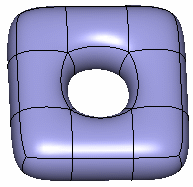
As an alternative, you can also use the Shift key and draw a trap to join the faces.
Extrude Edges
-
Click Edge Extrusion
. -
Select an edge.

You can only select the free edge of an open surface. 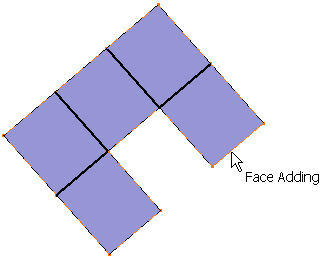
-
Click to add a face.
A single face on a plane is created. It is defined by the mean plane of the face connected to the edge. 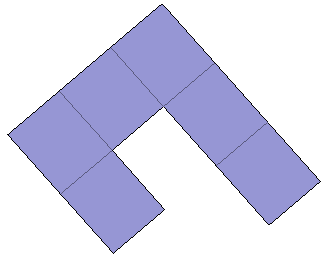
Extrude Edges Using Multi-Selection
-
Click Edge Extrusion
. -
Press Ctrl to select several faces.
-
Click to add as many faces as you need.
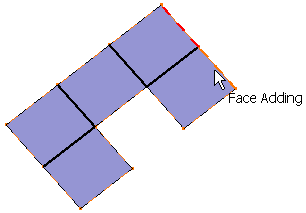
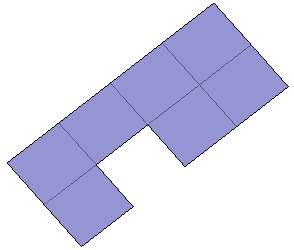
As an alternative, you can also use the Shift key and draw a trap to extrude several faces.
Extrude Edges Using the Fill/Inactive Fill Modes

Fill Mode
-
Click Fill
 .
. -
Select any border to fill the hole.
2 edges: 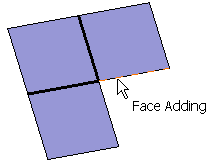
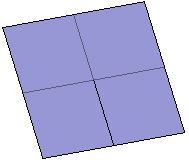
3 edges: 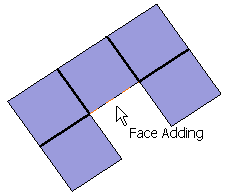
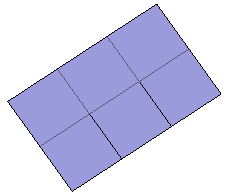
4 edges: 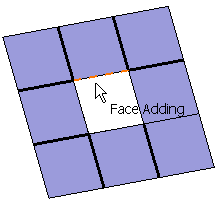
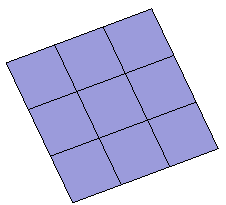
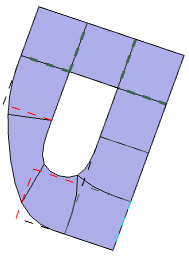
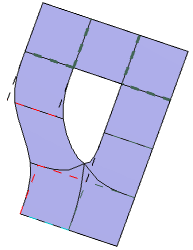
You can press Shift and draw a trap to fill a hole. When the Fill mode is activated, the join of two sets of edges is automatically detected. When the number of edges differs in both sets, only edges of the smallest set are joined. Therefore several resolutions may be possible.
The
and
buttons appear in the Tools Palette. Click either Previous Result
Extrusion Mode
-
Click Extrusion
 .
. -
Press Ctrl to select the edges.
Along an edge: 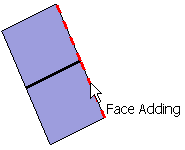
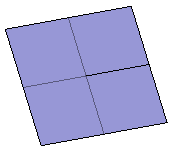
With a Corner: 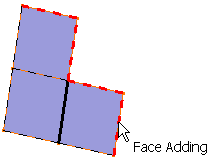
All edges: 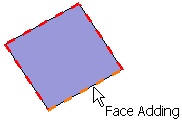
-
Click Extrusion Direction
 .
.You can also access this command by pressing CTRL+SHIFT+W. - Select the edge to be extruded.
-
A slider appears and lets you modify the angle value
associated to the fixed global direction. This direction is orthogonal
to the mean plane of the selected elements.
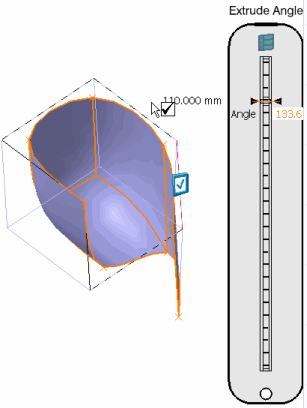
You can also modify the angle value through a dialog box by clicking Edition  icon.
icon. -
Modify the extrusion length by selecting and moving
the manipulator before releasing it.
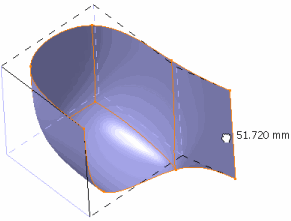
You can press the Ctrl key while moving the cursor to perform a step-by-step manipulation.
|
|
The icons
Fill
and
Extrusion
are
used when the extrusion is ambiguous. If there is no ambiguity,
only one of both icons is available. The examples below show this ambiguity. |
Fill mode
Extrusion mode
-
Click Edge Extrusion
. -
Click Fill
. -
Press Shift and draw a trap to create the extrusion.
In this example, draw two traps: 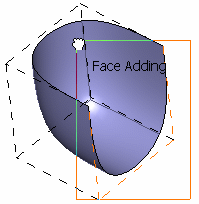
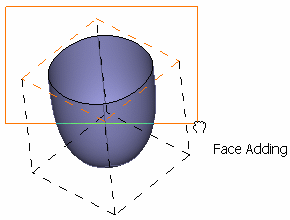
Here is the result: 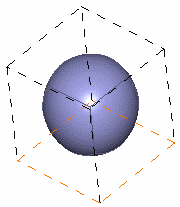
-
Click Edge Extrusion
. -
Click Extrusion
. -
Use the Shift key and draw a trap to create the extrusion.
In this example, we draw two traps: 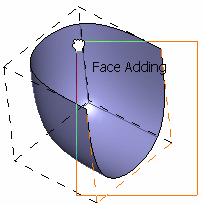
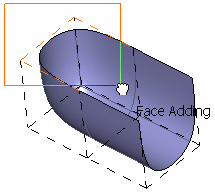
Here is the result: 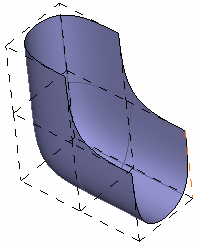
Propagate Edges
-
Click Edge Extrusion
. -
Click Propagation
 .
. -
Select an edge, as shown below:
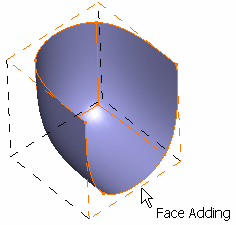
All connected edges are selected to create the extrusion. 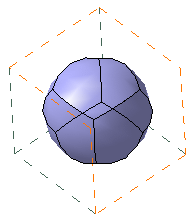
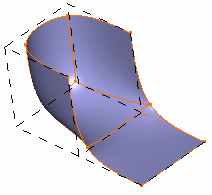
With propagation of edges Without propagation of edges
Propagate Edges to Compute a Fill
-
Click Edge Extrusion
. -
Click Propagation
. -
Select an edge, as shown below:
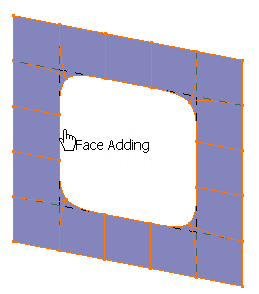
All connected edges are selected to create the extrusion.
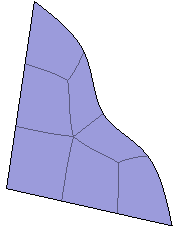
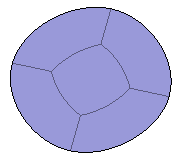
You can see that the surface is filled.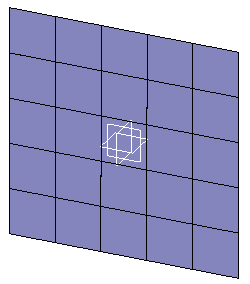
-
The number of edges defined for the fill must be lower than 30. If there are more than 30 edges, fill a few faces individually and multi-select edges to compute the fill at one time.
-
If the edges have an intersection, the fill will not be computed.
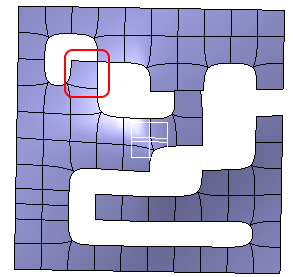
In this case remove the intersecting face.
-
If the selected edges lie on an external boundary, the fill will not be computed.
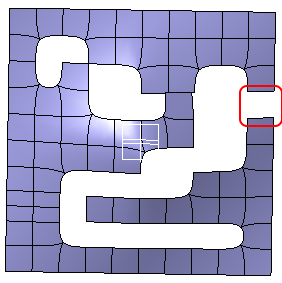
In this case fill the external face.
-
The number of edges passing through a point must be 3 or 5. In case of any other number, the fill will not be computed.
-
If the mesh has a symmetry axis or plane before the fill, the mesh after the fill may lose its symmetry characteristic.
Propagate the Symmetric Filling of Multiple Faces
-
Click Edge Extrusion
. -
Click Propagation
. -
Select an edge, as shown below:
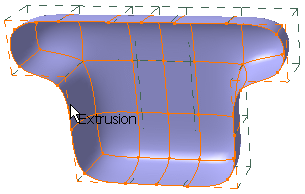
You can see that the surface is filled symmetrically: 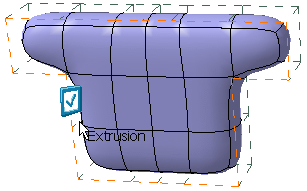
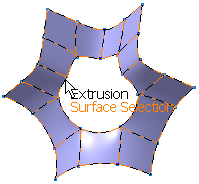
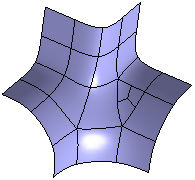
- In case of a subdivision surface with odd number of edges,
the fill is computed with a triangular face.
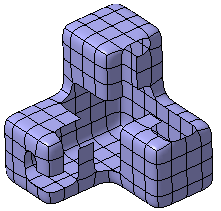
- In case of a subdivision surface with open edges more
than maximum number allowed (greater than 30 edges), the fill can be
computed in steps. The fill has been computed in various steps
(maximum 30 edges in a step) for the given subdivision surface by
multiple selection using Ctrl and Shift keys.
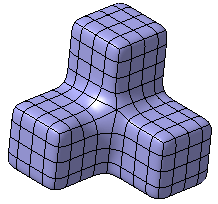
- In case of a surface with external edge open, symmetric
fill can be computed.
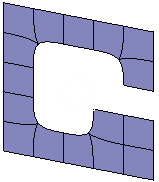
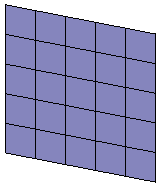
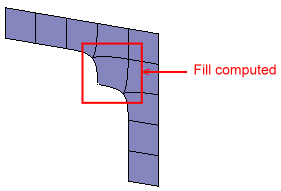
- If two subdivision edges are not joined by a face, fill
is computed.
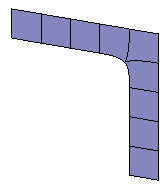
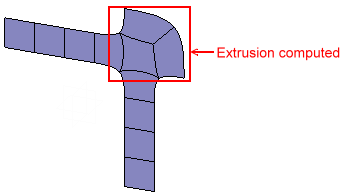
- If two subdivision edges are joined by a face, extrusion
is computed.
Apply the Extrusion Command
-
Click Apply (Enter)
.You can also validate by reselecting the same element again. This information is given in the help text when in detailed mode along with
icon in geometry and the pointer
changes to
 . Incase an element can be
validated
but is not active, the
. Incase an element can be
validated
but is not active, the
 icon is seen and the pointer
does not change.
icon is seen and the pointer
does not change.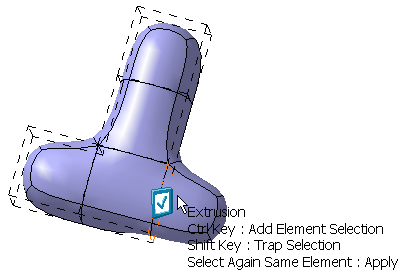
Add Face Mode 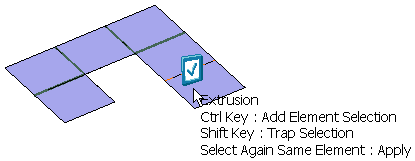
Add Edge Mode -
During the modification, the selection of elements is previewed on the surface.
-
The modification command is executed, only after the selection is validated using the Apply (Enter) command.
-
The Apply (Enter) command is automatically applied before quitting the modification command.
-
When the modification is not possible, the Apply (Enter) icon is not active (grayed out).
-
You can undo or redo the changes only after the execution of the Apply (Enter) command. Intermediate selection states cannot be managed by undo/redo.
-
