|
-
Click Fitting a
mesh
 ,
from the
Modification toolbar. ,
from the
Modification toolbar.
-
In the Tools
Palette, click any one of
the following:
| Command |
Description |
Shortcuts |
 Pick
Pick |
Enables you to select an
existing element to define the direction.
Note: Select an element that
does not belong to the subdivision surface. |
Shift + Ctrl + K |
 Automatic Selection
 |
Automatically selects the
support. |
Alt + Ctrl + A |
 Face Selection
 |
Lets you select a face. |
Alt + Ctrl + F |
 Edge Selection
 |
Lets you select an edge. |
Alt + Ctrl + E |
 Vertex Selection
 |
Lets you select a vertex. |
Alt + Ctrl + V |
 All Elements Selection
|
Lets you select any element. |
Alt + Ctrl + W |
 Selection Inversion
 |
Reverses
the selection. |
Alt + Ctrl + I |
 Apply Apply |
Applies the modifications. |
|
-
Select the subdivision surface to be modified.
-
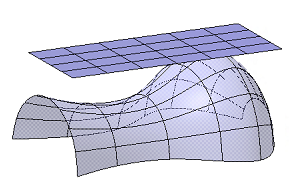
Select the target support.
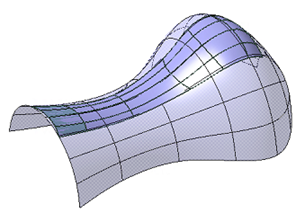
The fitting is automatically computed with all elements that can be
modified. You can select certain elements and therefore limit the
fitting.
 |
You can add cuts on the initial surface to be closer to the
support. |
|
 Fitting a
Subdivision Surface on Another Support
Fitting a
Subdivision Surface on Another Support