 |
-
Select one or more elements.
- If you select a free edge, the propagation is only
performed along the free edges.
- If you select a sharp edge, the propagation is performed
along the sharp or free edges.
|
-
From the Tools Palette, select one of the
propagation options:
The cursor position defines either the propagation side when there is an
intersection or the propagation direction for faces.
| Option |
Description |
 Linear Propagation
 |
Propagates the selection to a
free edge or a sharp edge.
| Vertex Selection |
Edge Selection |
Face Selection |
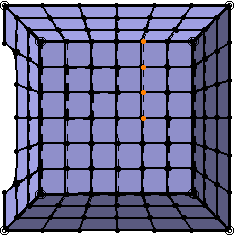 |
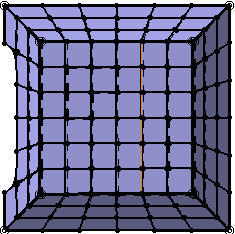 |
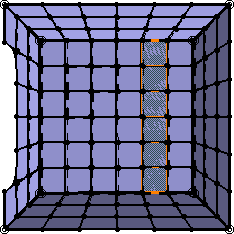 |
|
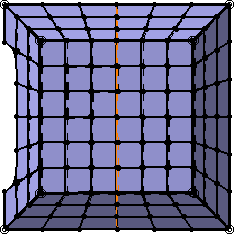
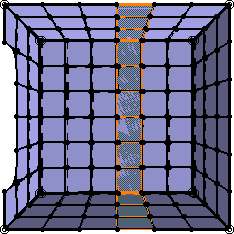
 Loop Propagation
 |
Propagates the selection to the
selected element or to a free edge.
| Vertex Selection |
Edge Selection |
Face Selection |
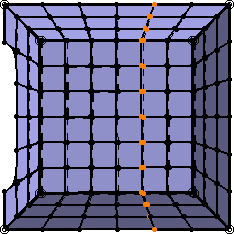 |
 |
 |
|
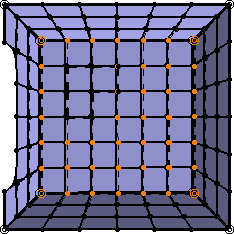
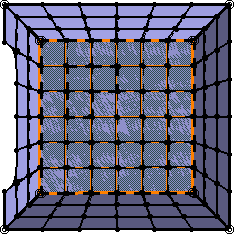
 Fill Propagation
 |
Propagates the selection in all
directions, to a free edge, or a sharp edge. It is available
when you select faces or vertices.
| Vertex Selection |
Face Selection |
 |
 |
|
 |
- When no propagation is active, you can double-click to
launch the linear propagation or press
Shift + double-click to
launch the fill propagation.
- When a propagation is active, you can do the following:
- Press Home to move to the next
propagation
- Press Home
+ Shift
to move to the previous propagation
- Press Home +
Alt to move to the next rank
- Press Home +
Alt + Shift to move to the
previous rank
|
|
|
 Propagating the Selection

