Open the ModifySurface5.CATPart document.

-
Click Modification
 in Modification toolbar.
 -
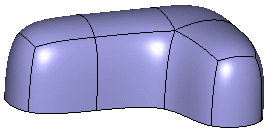
Select the subdivision surface.
-
Click Attraction
 in Tools Palette.
A single icon for defining the weight attributes appears in the toolbar. A click on the icon modifies its state, letting you: 
These options are not available if you select vertices. -
Select the element to modify.
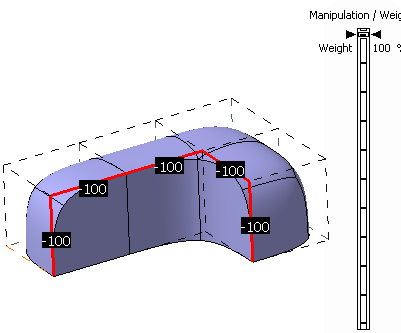
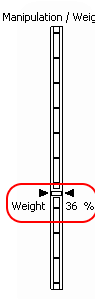
The value of the percentage weight, between 0 and 100, is displayed on the right of the screen.
-
Hold the left mouse-button and move the mouse to reach the desired value.
-
Release the left-mouse button when you are satisfied with the new position of the surface.
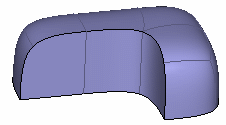
Weight on edges using the sharp mode 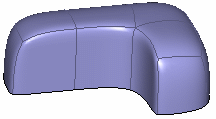
Weight on edges using the smooth mode 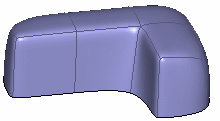
Weight on vertices


- If an edge or a vertex already has a weight value, the look of the edge or the vertex is different from the other edges or vertices: the edge is thicker, the line is not dotted, and the vertex is represented by a two concentric circles by default settings. The mesh settings can be customized in the Base Mesh field in Tools > Options > Shape > Imagine & Shape > Display tab.
- If selected edges have different weights, the slider value corresponds to the average weight of the selected edges. If you modify the mode (smooth or sharp), the average weight is applied to all the selected edges.
-
The weight on edges
and vertices is shown only for selected elements and
highlighted elements.
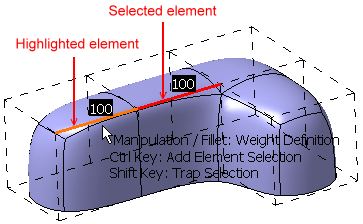
-
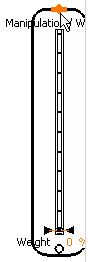
An interactive zone is defined around the slider. When you are in this zone, the pointer position allows to preview the value which is highlighted. A click moves the slider cursor directly to the highlighted value position.
-
Click and drag the pointer in the interactive zone, so that the slider cursor moves on the slider highlighting the value.
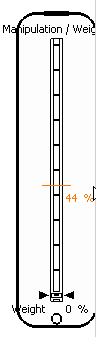
-
When the cursor is on a value, the value is displayed with more thickness than others for easy identification.
-
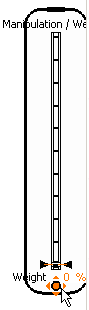
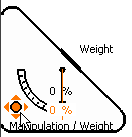
The slider can be customized using the anchor point circle at the lower end of the slider. Drag this point across the screen. The preview of the location where the slider can be dropped is displayed. The slider automatically changes its shape according to its position horizontal, vertical or corner.

-
The slider can be scaled using the resizing manipulator on top.