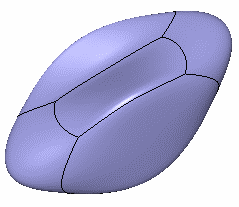
The ModifySurface1.CATPart document is still open from the previous task.
You can also open the ModifySurface3.CATPart document.

-
Click Modification
 in the Modification toolbar.
 -
Select the subdivision surface.
-
Click Affinity
 in the Tools Palette.
A 3D box appears around the selection. -
Click the surface to position the manipulators depending on the mouse cursor position.
-
Move the mouse cursor to highlight the desired axis.
Along One Axis
-
Hold the left-mouse button and drag to affine the elements.
The scaling value is displayed. Thus, you can control on how much to scale a surface.
Depending on the state of the Show Coord icon in Help Text toolbar, the
scaling value can be viewed in the following modes:
icon in Help Text toolbar, the
scaling value can be viewed in the following modes:-
:
This icon state indicates that the
scaling
value is viewed on the
selected manipulator. This is the default state.
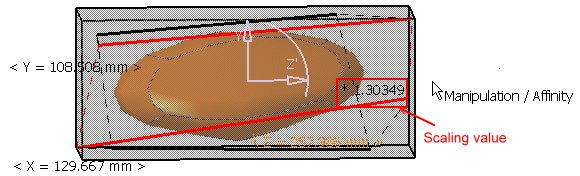
 :
This icon state indicates that the
scaling
value is viewed on the mouse
pointer.
:
This icon state indicates that the
scaling
value is viewed on the mouse
pointer.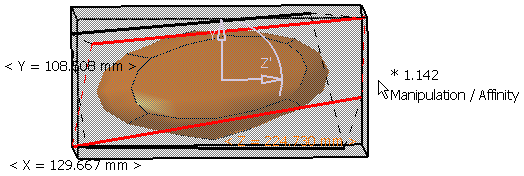
-
 :
This icon state indicates that the
scaling
value is not displayed.
:
This icon state indicates that the
scaling
value is not displayed.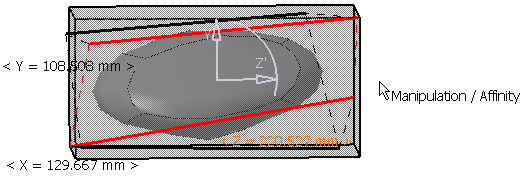
-
-
Release the left-mouse button when you are satisfied with the new position of the surface.
Along Two Axes
-
Select the arc of circle.
-
Hold the left-mouse button and move the mouse to affine the elements. Depending on the state of the Show Coord
icon in Help Text toolbar, the
scaling value can be viewed in the above mentioned different modes.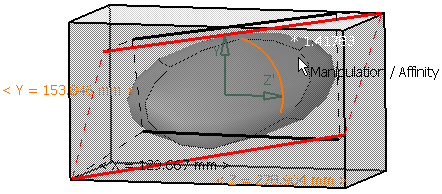
-
Release the left-mouse button the required position of the surface is achieved.
Along Three Axes
-
Press the Ctrl key.
-
Hold the left-mouse button and move the mouse to affine the elements. Depending on the state of the Show Coord
icon in Help Text toolbar, the
scaling value can be viewed in the above mentioned different modes.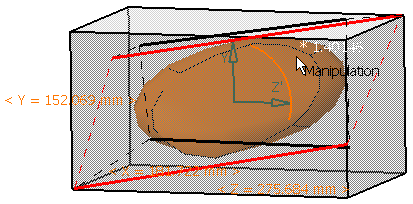

You can select any axis or handle: the scaling will still be performed along the three axes. -
Release the left-mouse button when you are satisfied with the new position of the surface.
The surface can now look like this: