|
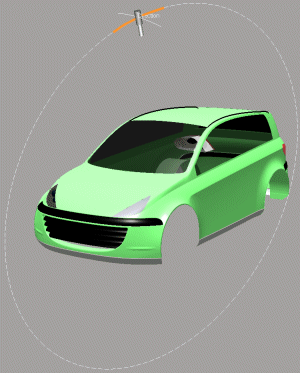
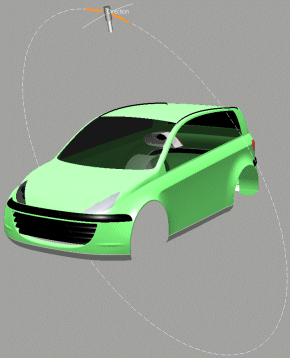
This task shows you how to manipulate light sources along predefined circles that are centered on the light target.
|
 |
Note: To avoid conflicts between light sources created in ICEM Shape Design workbench
and Realtime Renderer workbench, ISD light sources are not available in CATProduct sessions but only in CATPart sessions. Consequently,
the command Shape Analysis > Light Manager cannot be activated in CATProduct sessions. |
 |
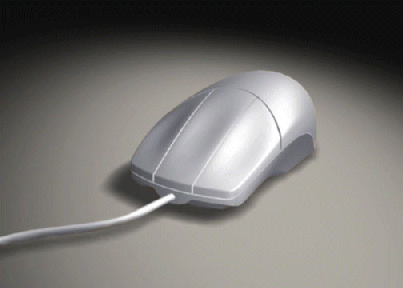
The geometry can be illuminated with different light source types. The effect of light and shadows creates the
three-dimensional impression of the geometry. |
 |
 |
Open the LightManager.CATPart document. |
 |
-
Click the Light Manager icon
 . .
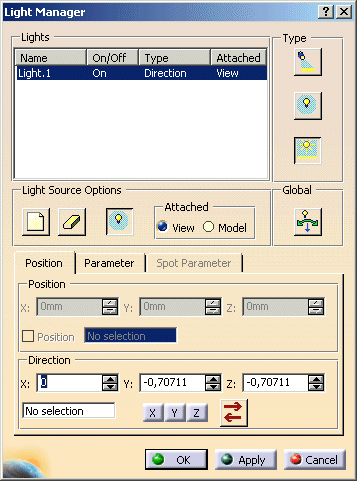
The 'Light Manager' dialog box is displayed.
|
 |
| |
-
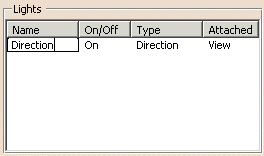
In the dialog box 'Light Manager' click the direction light source Light.1 in the Lights
table and rename it to 'Direction'.
|
 |
| |
-
Click onto the light source to activate the Manipulation Mode.
|
 |
| |
-
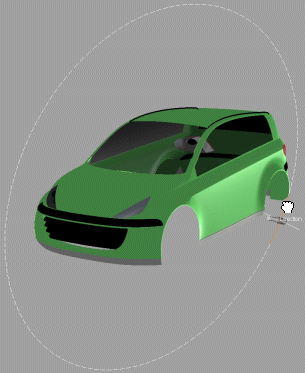
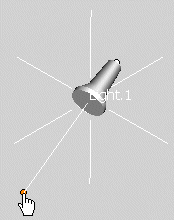
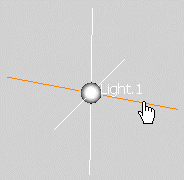
Click onto the light source manipulators to display the circular motion rails.
|
|
| |
-
Drag the pointer along a motion rail to modify the light direction.
|
 |
| |
-
In the dialog box 'Light Manager', click onto the icon 'Create Light Source' in the frame 'Light Source Options'.
A new light source type Direction is created.
-
Click onto the icon 'Active Light Source Type - Spot' in the frame 'Type'. The light source will be changed
to a light source type Spot.
-
Change the light source name to 'Spot'.
|
| |
-
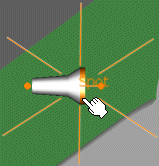
Activate the Manipulation Mode by clicking onto the light source.
|
 |
| |
-
Click onto the manipulator representing the Y axis to move the light source along this axis.
|
 |
| |
-
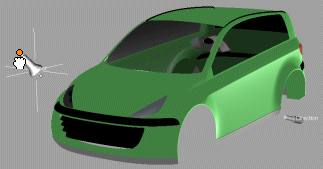
Click onto the manipulator at the end of the light source to rotate it.
|
 |
| |
-
Click onto the manipulator at the end of the light source to move the target point.
|
 |
 |
You can define the following options:
- Lights: The lights table field displays the light sources defined in the current CATPart.
Each light source created is given a default name with a consecutive number. It can be renamed after clicking twice onto the
name. Each light source created lists the following information:
- Name: Name of light source created.
- On/Off: Indicates if the light source is switched on or of within the CATPart.
- Type: Indicates the type of light source.
- Attached: Indicates if the light source is attached to the view or model.
Interactions:
The selected light source will become the current light source, i. e., its current parameter settings are displayed
in the menu and can be modified.
When manipulating the light source, the parameters in the dialog box are updated dynamically.
For the selected light source, the settings in the tabs Position, Parameter, and Spot Parameter can be modified.
|
- Type: Three light source types are available whose position can be modified by manipulators.
The manipulators are only visible if the Manipulation Mode is selected. An active manipulator
is highlighted.
-
Spot: The light of a spot light source is similar to a flashlight. It can be used to tune the lighting of each object
individually.
Spot light sources are defined by a direction vector, a light cone, the dehidral angle of which can be modified dynamically.
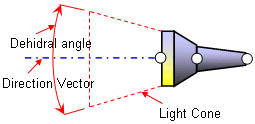
The transition to the environment can be hard or soft (see options Angle and
Sharpness in the Spot Parameters tab).
The Spot light source can be manipulated as follows:
- Rotate: Rotate the light source using the manipulator at the rear end.
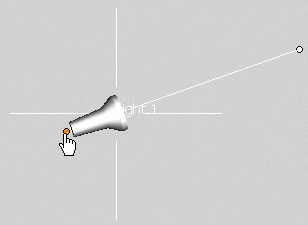
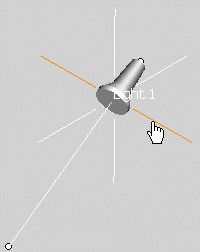
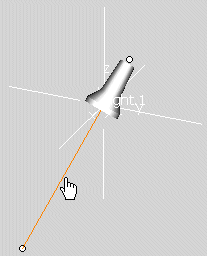
- Move:
Move the light source
along the selected axis |
Move the light source
along the light beam line |
 |
 |
- Change target point: Move the manipulator at the end of the light beam line.
 Point: Point light sources radiate light symmetrically into all directions (like a plain light bulb. The light
beams have different wave angles on a determined plane.
Point: Point light sources radiate light symmetrically into all directions (like a plain light bulb. The light
beams have different wave angles on a determined plane.
The Point light source can be moved along the axes of the model coordinate system.
 Direction: Beam light sources produce parallel light from a constant direction (like sunlight).
The wave angle on a determined plane is constant.
Direction: Beam light sources produce parallel light from a constant direction (like sunlight).
The wave angle on a determined plane is constant.
The direction light source can only be rotated. Via the contextual command, the following modes can be activated for the
rotation:
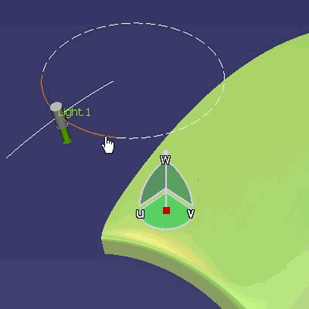
- Rotation Free:
| Free rotation on a circle rail |
Free rotation on a spherical path |
The light source is moved along one of two circular rails lying in two perpendicular planes.
The active rotation manipulator is highlighted and the associated motion rail displayed.
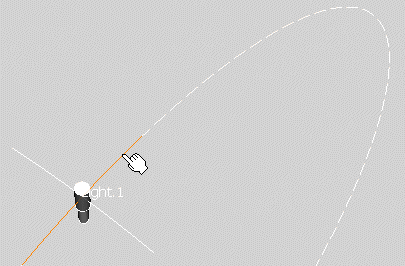
|
This manipulation mode allows a 'real' free rotation, i. e. the light source can be moved on an arbitrary
path on a sphere. This way a fast alignment of the light source is possible.
The manipulator is activated by moving the pointer onto the intersection point of the rotation manipulators.
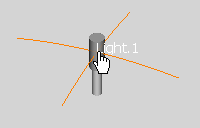
| |
Note:
- The manipulator at the intersection point of the rotation manipulators is not visible.
- Both rotation manipulators are highlighted.
- No motion rails are displayed.
|
|
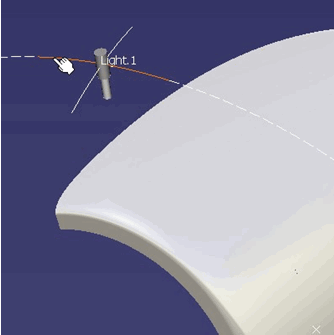
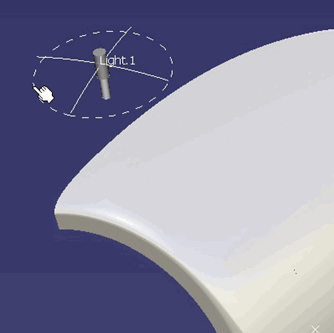
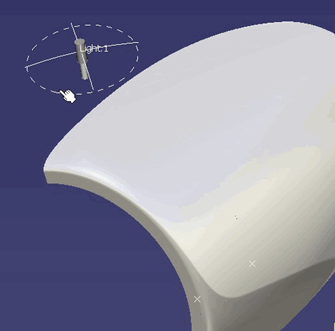
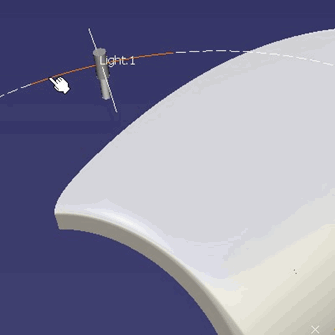
Alignment of the rotation manipulators in the 'Rotation Free' mode
|
The circular manipulator to align the rotation manipulators is located in a plane whose normal
is the light direction. Its center point is close to the intersection point of the rotation manipulators.
The alignment manipulator is activated when the pointer is moving over it.
When rotating the manipulator around the light source direction, it modifies the planes in which the rotation
manipulators reside. |
| Rotation manipulator before alignment |
Activated alignment manipulator can be
rotated with left mouse button pressed until
the rotation manipulators are aligned. |
 |
 |
| Modified planes after the alignment is finished |
Rotation manipulator after alignment |
 |
 |
|
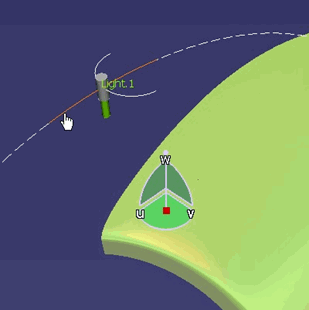
- Rotation around X/Y/Z: The light source rotates either around the global
X, Y, or Z axis or an axis which is perpendicular to the axis set.
- Rotation around Compass: Similar to the mode 'Rotation around Z' it allows
rotating the light source either around current compass Z direction (W) or around an axis which is perpendicular to
compass Z direction.
This mode allows to align the light source rotation axes precisely at geometrical objects.
Rotation of the light source around
the local compass Z axis (W) |
Rotation of the light source around the axis
perpendicular to the local compass Z axis (W) |
 |
 |
|
| |
- Light Source Options
 New: A new light source
depending on the Type selected is created with the current settings. New: A new light source
depending on the Type selected is created with the current settings.
The number of definable light sources is limited to 8.  Delete: The light source
selected in the lights table is deleted. Delete: The light source
selected in the lights table is deleted.- On/Off: Switches
the current light source on or off.
- Attached:
- View: Fixes the light source to the view, i. e. in case of geometry rotations its position remains unchanged.
- Model: Fixes the light source to the model coordinate system, i. e. it will be rotated together with
the geometry.
 Global: Switches the display of the light source
symbols globally on or off. The illumination of the parts displayed in the graphics area does not change. Global: Switches the display of the light source
symbols globally on or off. The illumination of the parts displayed in the graphics area does not change.
|
| |
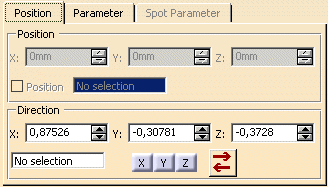
Position tab |
 |
| |
- Position: Only available for the light source types Point and Spot.
- X:, Y:, Z: : Defines numerical values for the position coordinates of the selected
light source.
- Position: Defines the light source position by selecting a point element.
- Direction: Only available for the light source types Direction and Spot.
The axis of orientation depends on the attachment View or Model of the selected light source.
- X:, Y:, Z: : Defines numerical values for the direction coordinates of the selected
light source.
- In the direction selection field, you can define the direction by selecting a line element or an axis. For this definition
the attachment Model must be selected.
- X, Y, Z : Aligns the light source direction to the corresponding axis.
 Invert Direction: Inverts the direction of the
selected axis. Invert Direction: Inverts the direction of the
selected axis.
|
| |
Parameter tab |
 |
| |
- White: The light source emits white light.
- Color: The light source emits colored light.
 Opens the Color dialog box to define the color. Opens the Color dialog box to define the color.
- Intensity: Defines the light intensity using the slider or by entering a value in the text box.
The intensity of a light source is the maximal lightness value of three colors (ambient, diffuse and specular).
|
| |
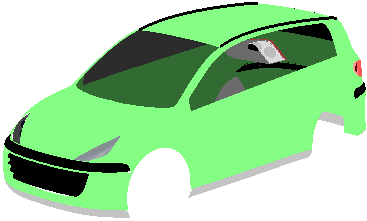
- Ambient: Defines the intensity of light emitted in any direction by the object, even if not lit by any light
source.
|
 |
| |
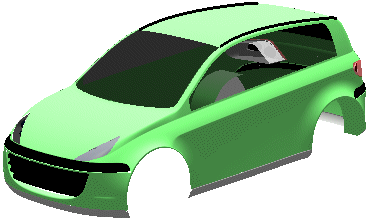
- Diffuse: Defines the intensity of light diffused by the object when lit by a light source.
Defines the Diffusion of the objects. Diffusion is the
not directed reflection of light by an object. Diffusion 0
is no reflection and your Light Source has no effect.
|
 |
| |
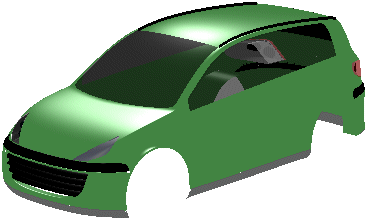
- Specular: Defines the intensity and color of light reflected in one particular direction. This coefficient affects
the highlight on shiny surfaces.
|
 |
| |
Spot Parameter tab
(only available for Spot light sources) |
 |
| |
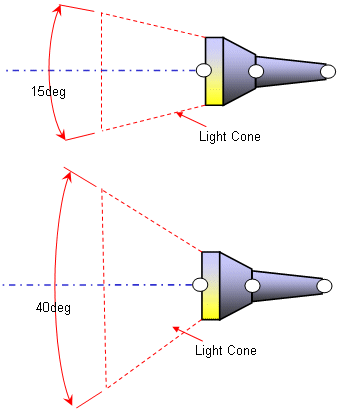
- Angle: Setting of the angle of the spot light cone. In case of setting the Angle to 90° and
the Sharpness to 0 a point light source with the same position will result.
- Sharpness: Setting of the sharpness of the spot light cone. Higher values concentrate
the light beam in the centre of the light cone.
|
 |
| |
Contextual Menus
|
| |
At the light source manipulators, you can you can display the following contextual commands:
- Manipulation Mode: Switch on and off Manipulation Mode.
The Manipulation Mode can also be activated by clicking onto the light source.
- Invert (for Direction light source only): Invert light direction.
- Rotation Free (for Direction light source only)
- Rotation around X/Y/Z (for Direction light source only)
- Rotation around Compass (for Direction light source only)
- X/Y/Z Direction (for Direction and Spot light source only): Light
direction is the selected axis.
- Compass Direction (for Direction and Spot light source only): Light
direction is the compass direction.
- View Direction (for Direction and Spot light source only): Light
direction is the view direction.
- Light On/Off: Switching on and off the current light source.
- Attach to View: The light source is fixed to the view, i. e. in case of geometry rotations its position remains
unchanged.
- Attach to Model: The light source is fixed to the model coordinate system, i. e. it will be rotated together
with the geometry.
- Light Manager: The Light Manager dialog box is displayed.
|