If an explicit element is selected as input, this element will be modified directly.
If a Feature element is selected as input, a duplicate element will be created. The Feature element will be converted into an explicit element, which is reported be a warning message. The explicit element will be modified, the Feature element remains unmodified.
Dynamic movements via the manipulator
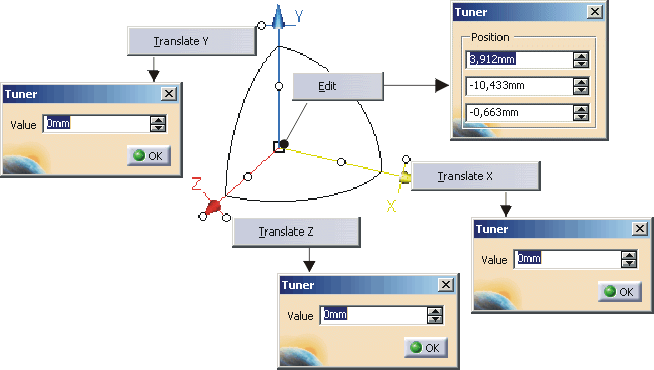
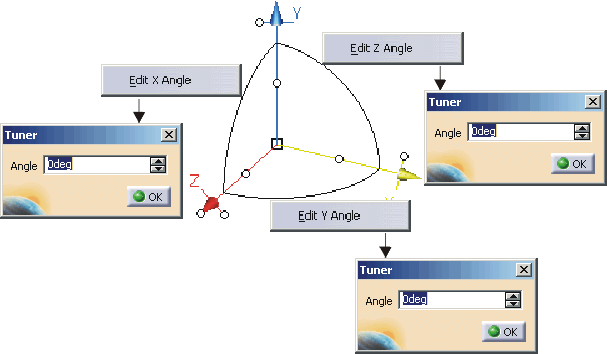
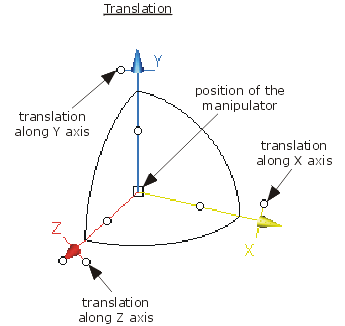
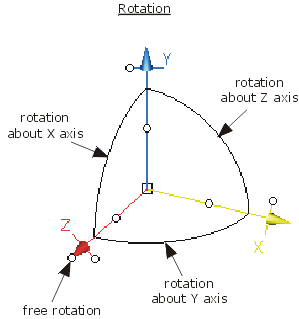
Upon selection of the elements, a manipulator appears for dynamic movements.
The manipulator can be translated along its axes or by a free positioning of its origin.
The manipulator can be rotated about each of its axes or by a free rotation.
The axis direction can be inverted.
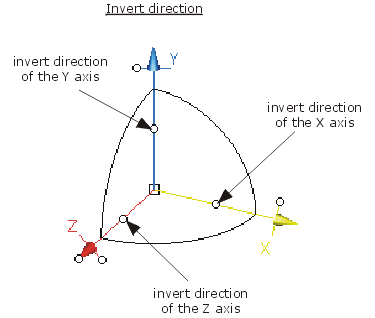

-
Click the Move icon:

The 'Move' dialog box is displayed.
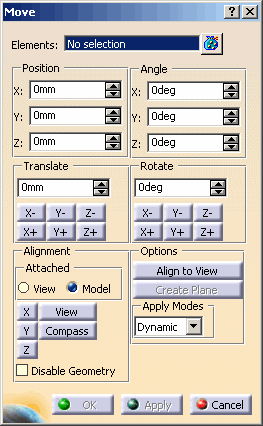

- Elements: Elements to be moved.
- Position, Angle: Definition of the exact position and alignment of the manipulator.
Upon selection of the elements, the manipulator will by default be located in the centre of an approximated cube encompassing the maximum limits of the selected elements. The manipulator will be aligned with the active model coordinate system.
Depending on the setting of the options in the field 'Attached', the coordinate values for 'Position' and 'Angle' indicated in the dialog box are adopted from the position and alignment of the manipulator in the model or view coordinate system.
The manipulator is modified by changing the coordinate values in the dialog box. - Translate: Translation of the selected elements by the specified value.
The manipulator will be translated in the corresponding direction along with the elements by clicking one of the direction buttons X-, Y-, Z-, X+, Y+, Z+.
Translation of a surface in the direction Z+
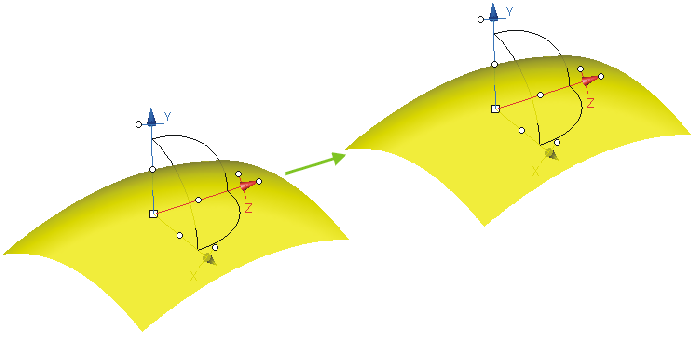
- Rotate: Rotation of the selected elements by the specified angle.
The manipulator will be rotated about the corresponding axis along with the elements by clicking one of the direction buttons X-, Y-, Z-, X+, Y+, Z+.
Rotation of a surface about the axis Y+
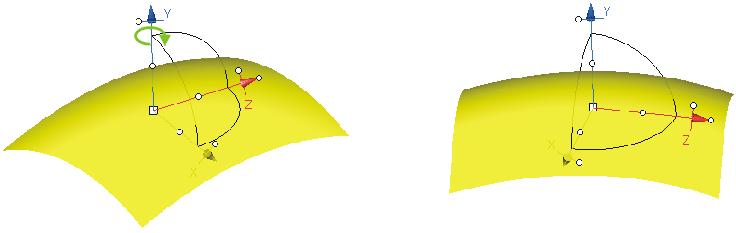
- Alignment
- Attached: The coordinate values indicated in the dialog box for 'Position' and 'Angle' are adopted from the position and alignment of the manipulator either in the active model coordinate system (Model ON) or view coordinate system (View ON).
- With the following options, the manipulator can be aligned in order to move the elements accordingly:
- X, Y, Z: Aligning the manipulator's Z axis with the X, Y or Z axis of the active model coordinate system.
- View: Aligning the manipulator's Z and X axes with the Z and X axes of the screen.
- Compass: Aligning the manipulator with the axes of the current compass.
- Disable Geometry: This option can be used to reposition the manipulator without modifying the selected elements.
- OFF: The manipulator will be modified and the geometry will be moved accordingly.
- ON: Only the manipulator will be modified.
The setting of the option 'Disable Geometry' has an effect on the options 'Translate', 'Rotate', 'X, Y, Z', 'View', 'Compass' and 'Align to View'.
- Options
- Align to View: The manipulator's origin will be set to the screen centre, and the manipulator axes will be aligned with the screen axes. The elements will be moved accordingly.
- Create Plane: A datum plane will be created in the manipulator's origin and aligned with the XY plane of the manipulator.
- Apply Modes: Dynamic, Preview, Static, None: See Apply Modes.