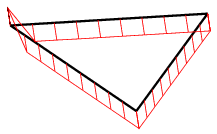
This task describes how to check surfaces.

The Surface Checker command is used to check sets of surfaces regarding their Class-A quality using user-defined parameters.

-
Click the Surface Checker icon
 .
.
The 'Surface Checker' dialog box is displayed.
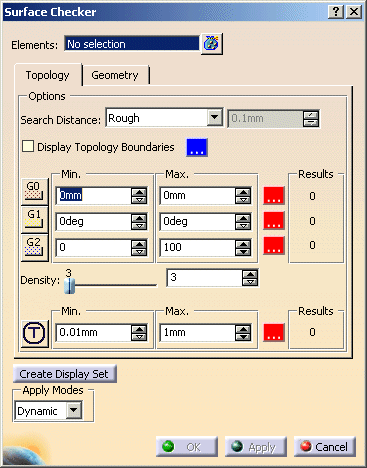

The following options can be defined:
- Elements: Selection of the surfaces to be checked.
- Create Display List: A menu for creating a new display list is coming up.
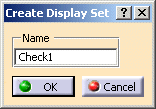
If you press OK, a new display list with the given name from the input field is created containing all entities on which defects have been detected. This new created display list will automatically be activated.
If several defects are simultaneously switched on for checking, all detected entities will be moved to the specified display set.
Note: In case of duplicate entities, the display list contains only the minor detected entity for each double defect. This means, if a user checks entities for duplicate cleanup, he will only need to delete the entities moved to the display list.
The just created display list can be activated via the pull-down menu Choose Display List.
For more information on working with display lists, please refer to Display Lists. - Apply Modes: Dynamic, Static, None: See Apply Modes
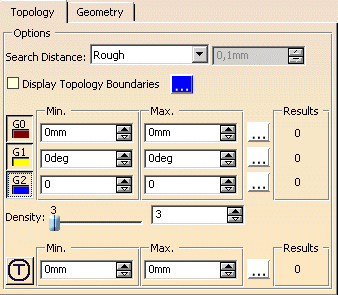
- Search Distance: All surfaces with a distance from each other which is smaller than specified tolerance are searched
for. These surfaces are neighbored building up a topology region.
For getting neighborhood information for surfaces, the topology regions within the specified tolerance are always searched for at first. All checks are calculated within these regions.
If no topology region can be found, all the other activated checks will produce no result. You will only get a check result for the position continuity, for example, if the tolerance value for the Search Distance is larger than the minimum tolerance value for G0.
The following options are available:
- Rough: The tolerance is pre-set to 0,1mm.
- Fine: The tolerance is pre-set to the CATIA V5 tolerance of 0,001mm.
- User: The tolerance can be set to the required value.
- Display of the topology edges, Color button: With this check button, the topology regions will be displayed graphically in the set color.
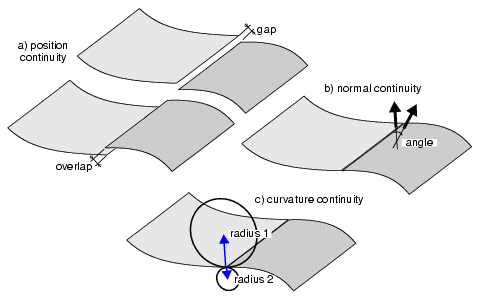
- G0, G1, G2:The Surface edges within the topology regions found with the Search Distance will be checked for position, normal and curvature continuity.
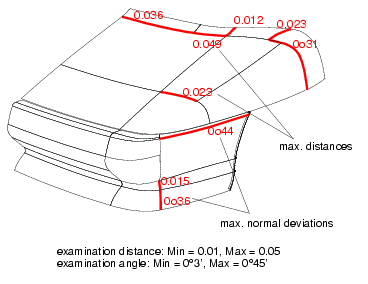
- Min, Max, Color buttons: Tolerance range for check distance, angle, and curvature. The edges at which the current value lies within the specified range will be marked with the set color. The minimum and maximum values will be indicated.
- Density: Number of points at which the position, normal or curvature continuity is to be checked along an edge.
Display of the checking results regarding G0 and G1 continuity
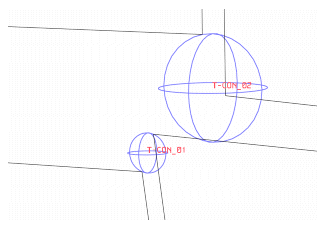
- T:With this option, all T-connections in patch clusters are marked, where the misalignment between the corner
points lies within the tolerance range specified.
The regions where a misalignment between the selected topologically contiguous surfaces is diagnosed are displayed in the graphic area as blue spheres.
Each misalignment region is labeled with the associated radius.
Note: Please note that users should specify values for the tolerance range that are falling considerably below the dimensions of the surfaces to be checked. If edge lengths of checked surfaces are lying within the tolerance range, these edges are output as T-connection. This result may be undesirable.
- Min, Max, Color buttons: Tolerance range for T-connections.
The edges at which the current value lies within the specified range will be marked with the set color. The maximum values will be indicated.
- Results: Number of check results found for the individual options.
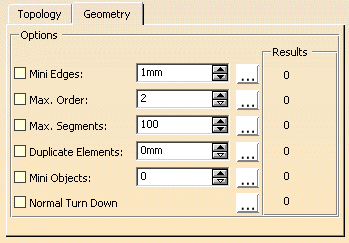
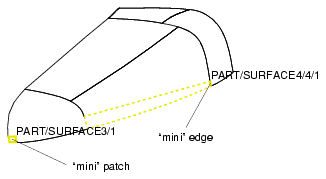
- Mini Edges: All edges with a shorter length than the specified value are marked.
- Max. Order: All elements with a higher order than the specified value are marked.
- Max. Segments: All objects with a larger number of segments than the specified value are marked.
- Duplicate Elements: All duplicate elements are marked.
Elements with identical edges lying on top of each other are recognized. Moreover, patches lying within another patch are found via a tolerance, i. e. patches lying on top of each other, but whose edges are not identical.
- Mini Objects: All objects with a smaller surface area than the specified value are marked.
Mini objects and mini edges
- Normal Turn Down: Irregularities of the normals, e. g. in the degenerated edge of a triangular patch, can be found with this option.
Normal turndown in a triangular patch