|
This task explains how to apply a transformation on surfaces using a specified number of vectors. |
 |
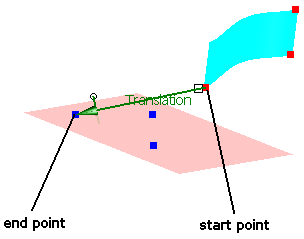
A vector is a pair of points. The first point is the start point and the second point the end point.
Only operations activated in the field Options are executed.
|
| |
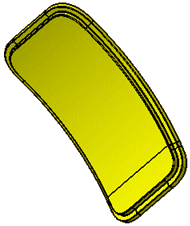
As example is used an aircraft door larger than the aperture must fit into. Using a specified number
of vectors, the door will be adjusted from one position to its assembled position. |
 |
Open the Adjust.CATPart document. |
 |
-
Click the Adjust icon 
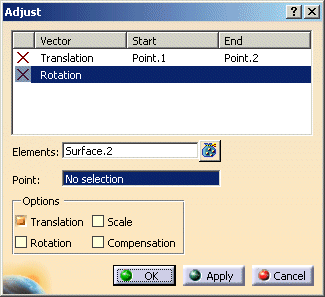
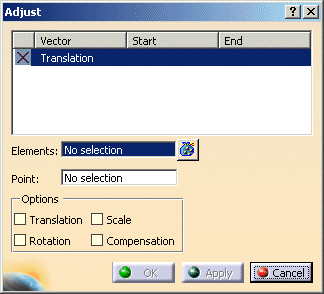
The Adjust dialog box is displayed.
|
|
| |
-
Select the door geometry to be adjusted (76 surfaces).
-
Terminate selection with F8.
In the dialog box 'Adjust', the field Point becomes active.
|
|
| |
-
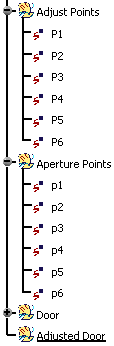
Expand in the specification tree the geometrical sets for 'Adjust Points' and Aperture Points.
These are the points to be used for transformation.
|
|
| |
The transformation of the geometry begins by selecting pairs of vector positions. |
| |
-
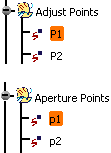
First select 'P1' from the geometrical set 'Adjust Points'
-
Next select 'p1' from the geometrical set 'Aperture Points'.
|
|
| |
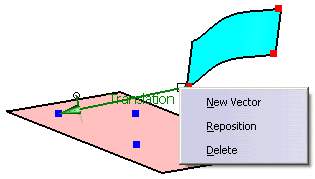
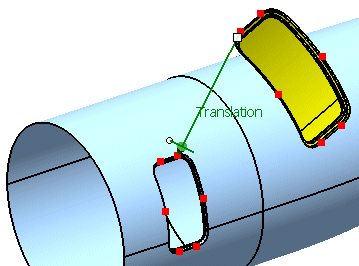
The vector 'Translation' appears. |
|
| |
-
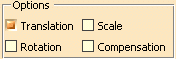
Activate the option Translation.
-
Click Apply.
|
|
| |
The door is now translated as a feature result. |
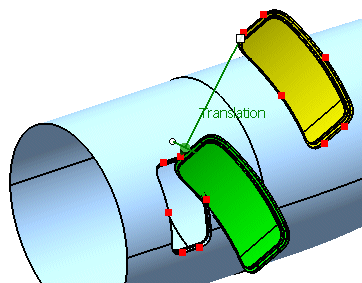
|
| |
Next we will perform a rotation of the geometry by selecting another vector. |
| |
-
First select 'P2' from the geometrical set 'Adjust Points'
-
Next select 'p2' from the geometrical set 'Aperture Points'.
|
| |
The vector 'Rotation' appears. |
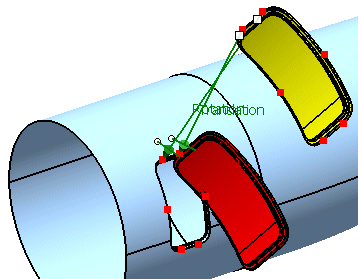
|
| |
-
Activate the option Rotation.
-
Click Apply.
|
|
| |
The door is now rotated. |
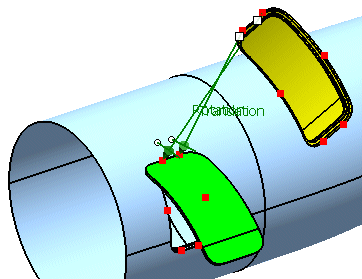
|
| |
Next we will perform a scaling of the geometry by selecting another vector. |
| |
-
First select 'P3' from the geometrical set 'Adjust Points'
-
Next select 'p3' from the geometrical set 'Aperture Points'.
|
| |
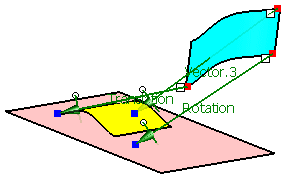
Vector.3 representing the scaling appears. |
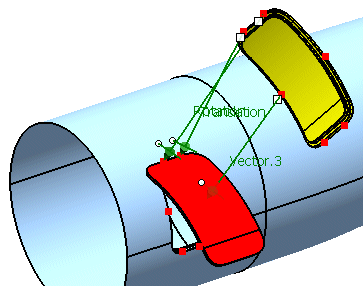
|
| |
-
Activate the option Scale.
-
Click Apply.
|
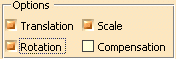
|
| |
The door is now scaled. |
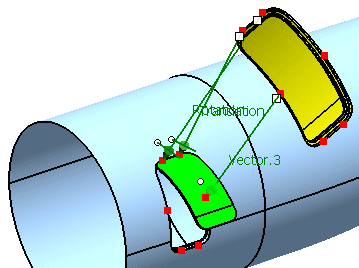
|
| |
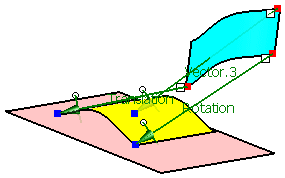
Next we select the remaining pairs of points to perform a compensation of the geometry which will fit it exactly into the
aperture. |
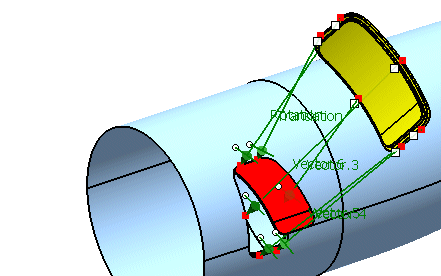
|
| |
-
Activate the option Compensation.
-
Click Apply.
|
|
| |
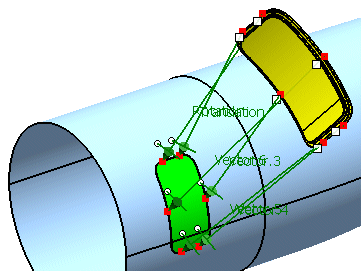
The door is now adjusted to its final position. |
|
| |
The result of the Adjust operation is a feature result. 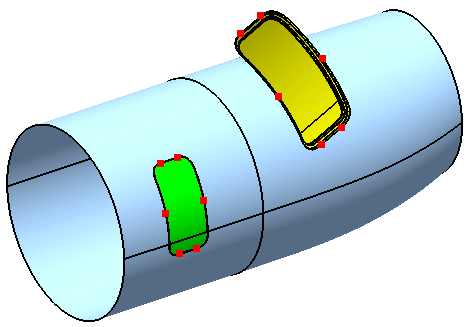
|
|
You can define the following options:
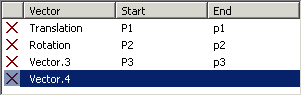
- Table of Vectors: The table lists the defined vectors with their start and end points.
Depending on the number of defined vectors, the following transformations are possible:
- 1 Vector: Translation
- 2 Vectors: Translation and Rotation
- 3 Vectors: Translation, Rotation, and Compensation.
In case of more than three vectors the compensation works on the mean plane. |
 |
| |
- Elements: Selects the elements to be transformed.
- Point: Selects the pairs of points defining the vectors used for the transformation.
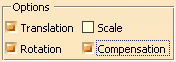
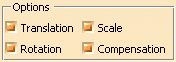
- Options:
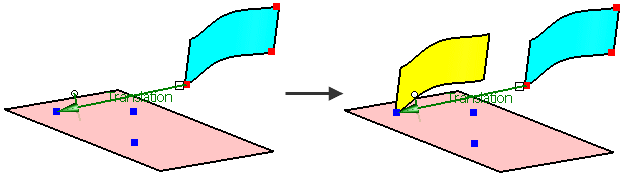
- Translation: This option requires one vector defined by two points.
'Translation' must always be selected. Without translation, no transformation is possible. If only 'Translation' is selected,
the element is moved and not rotated. The element is moved from the start point to the end point of the 'Translation'
vector.
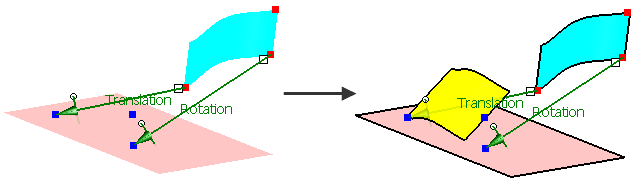
- Rotation: This option needs another vector defined by two points.
The 'Translation' vector defines in combination with the 'Rotation' vector the origin and one orientation direction of
the element.
If Scale is selected, the quotient of the distance of the end points and the distance of the start
points of both vectors is the scale factor.
- Compensation: Available if 'Translation' and 'Rotation' are selected.
A third vector is required.
The third vector defines with the two first vectors two planes. Start and End plane are defined by the start and end points
of the three vectors.
In addition to the translation and rotation, the elements are transformed from the start plane into the end plane.
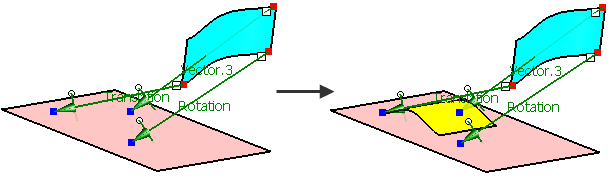
These three vectors define the transformation.
- Scale: Only available if 'Translation' and 'Rotation' are selected.
This option needs no additional vector.
The origin of scale is the end point of the 'Translation' vector.
The scale factor results the from quotient of the difference between the end points and start points of the 'Translation'
and 'Rotation' vectors.
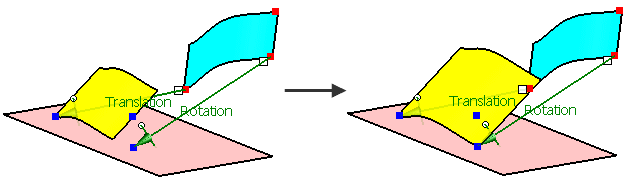
|
| |
Translation and Rotation have to be selected if you want
Scale and/or Compensation.
If you select additional points, the 'Translation', 'Rotation' (and 'Scale') vectors work as well-known.
From the additional points a start plane (mean plane from the start points) and an end plane (mean plane from the end points)
is calculated.
The geometry is transformed from the start plane to the end plane. |
|