 Opening Assembly in Visualization ModeOpening Assembly in Visualization Mode
 |
When you open an
existing 3D electrical exploded assembly in CATIA visualization mode,
the pointed CATPart documents are downloaded from the ENOVIA vault server
to build the electrical facets (electrical specific icons and electrical
contextual menu on geometry instances). In CATIA electrical workbench, you can see the 3D geometry has electrical specific icons and electrical contextual menu on geometry instances. 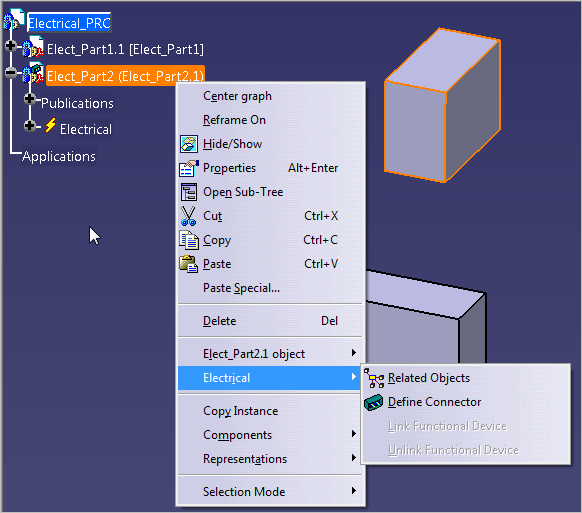 To avoid CATPart downloading and to improve performance, you can use the following option. Click Tools > Option > Compatibility > ENOVIA V5 VPM and select Download only CGR in Visualization Mode option under Open. 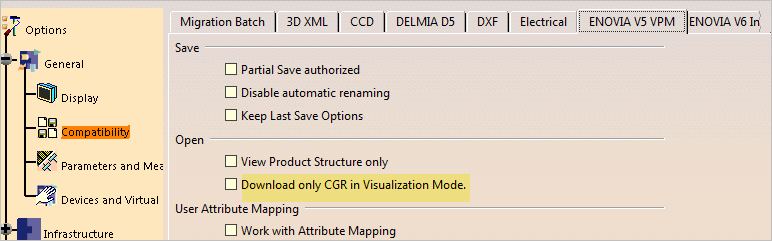 By default the option is not selected. When you select the option, a warning message appears informing you to restart the CATIA session to take in to account the option change. Notes: The option is applicable only for exploded product structure data and is effective only at Open (performed from ENOVIA V5 VPM Navigator or from ENOVIA LCA Classic). When you open the 3D electrical exploded assembly in visualization mode, after selecting the option , CGR is loaded from the local client DMU cache and the electrical specific icons and the electrical contextual menu does not appear. But once the data is switched to the design mode, you can see the 3D geometry has electrical specific icons and electrical contextual menu on geometry instances. You can also see the electrical facets when you switch the part in the product mode(Edit properties )and when you open the part document in a separate window. Note: CATPart downloading can occur for the following conditions even after the option is selected. The CGR file in the CATIA DMU cache is not up-to-date. The CGR format generated by File Introspection in ENOVIA is not up-to-date. |