This task explains how to save an ENOVIA V5 VPM document sent from ENOVIA V5 VPM to CATIA V5, visualized and modified in CATIA V5:

- After you worked on your ENOVIA V5 VPM document in CATIA V5 (for example, you created a pad), you need to save the changes from CATIA V5 to ENOVIA V5 VPM. This Saving action will let you see the changes in ENOVIA V5 VPM and make these changes persistent in the database.
- If you save a document from CATIA to ENOVIA and reopen it from ENOVIA database to CATIA, the blue cylinder icon appears before the product structure icon.

Saving an ENOVIA V5 VPM document from CATIA V5

To perform this task, you can work with the following example:
- Start a CATIA V5 session from ENOVIA V5 VPM,
- connect to ENOVIA V5 VPM, by pressing the Connect button in the ENOVIA V5 VPM toolbar,
- create a Product under a Product Class (PC) in ENOVIA V5 VPM,
- send this Product in CATIA V5,
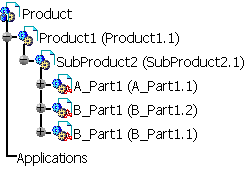
- edit this Product in CATIA V5 (for example: add a sub-product
containing two parts).

-
Click the Save Data in ENOVIA V5 VPM Server ... icon
 of the
ENOVIA V5 VPM toolbar, in CATIA V5 Product Structure workbench, to save the
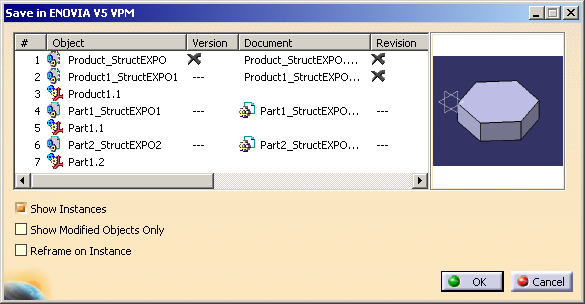
documents in ENOVIA V5 VPM. The Save in ENOVIA V5 VPM dialog box
appears:
of the
ENOVIA V5 VPM toolbar, in CATIA V5 Product Structure workbench, to save the
documents in ENOVIA V5 VPM. The Save in ENOVIA V5 VPM dialog box
appears: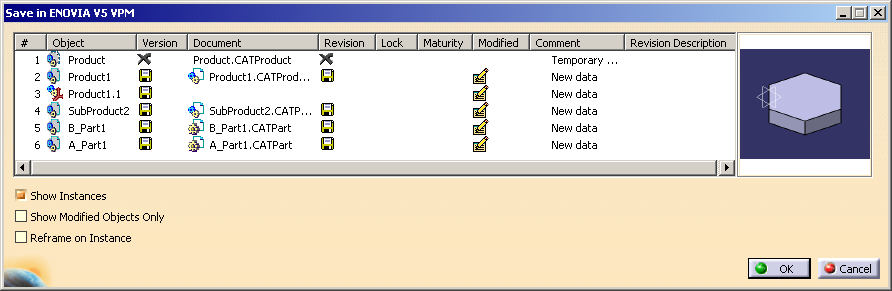
The current document and all the referenced documents are listed in the Save in ENOVIA V5 VPM dialog box.
Description of the Save in ENOVIA V5 dialog box
The save in dialog box has the following fields and options:
- A multi-list containing the following columns:
- Serial number: displays serial number of the components
- Object: displays the reference name or instance name of the object if Show Instances option is selected
- Version: displays the version of the component
- Document: displays the document name of the object. You can edit the name in this column only in case of creation of new data.
- Revision: displays the Revision of the Object
- Lock: displays whether the object is locked by you or someone else
- Maturity: displays the maturity status of the object
- Modified: displays whether the object is modified
- Comment: provides information regarding the document/modification status/new data
- Revision Description: provides information about the revision of the object
- Show Instances check box: If you select this check box, the instance of the object is displayed in the Save in ENOVIA V5 VPM dialog box.
- Show Modified Objects Only: If you select this check box, only the objects which are modified in CATIA session are displayed in the list.
- Reframe on Instance: If you select this check box, and select an object in the list, its corresponding item instance gets highlighted in the CATIA session.
- Preview frame: displays a 3D preview of the object selected in
the list.
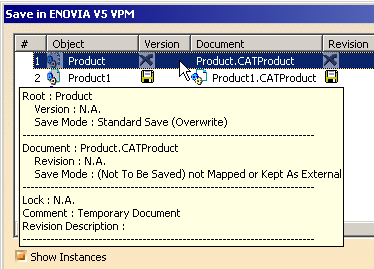
Note: The Preview is available only for Publication Exposed Products and not for Structure Exposed Products. - Tool tip: If you select an object in the list, and point to it,
a tool tip appears as shown in the following example:

 in the
ENOVIA V5 VPM toolbar.
in the
ENOVIA V5 VPM toolbar.
 For more information on Setting Up Saving Options, refer to Setting Up Saving Options (Set PDM Properties) |
-
In the Save in ENOVIA V5 VPM dialog box, click OK . You can visualize the result of the Save execution in the Product Editor of ENOVIA V5 VPM.
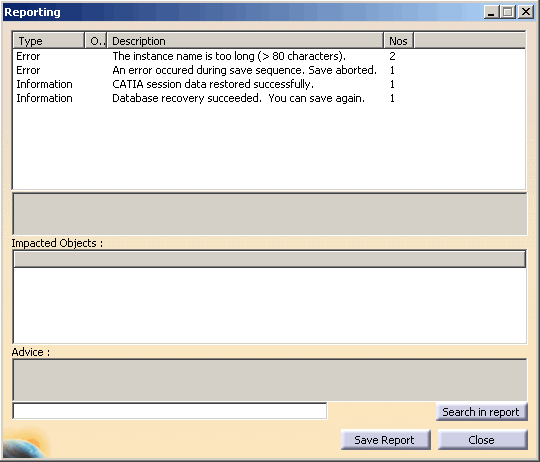
If save operation fails, then a Reporting panel appears with the error or warning information. For more information, see Miscellaneous Remarks.
If save operation is successful, the following message appears:

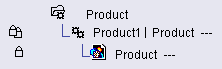
In this particular example, the result in ENOVIA V5 VPM is:
You can see the structure is not preserved in ENOVIA V5 VPM as Storage Mode of the Product1 is set to Publication Exposed.
Document not kept: Structure Exposed
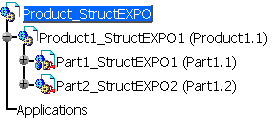
If you set the Storage Mode of a Product as Structure Exposed, the product structure of the Product is also saved. For example in the following Product, all the Products are saved as Structure Exposed.
-
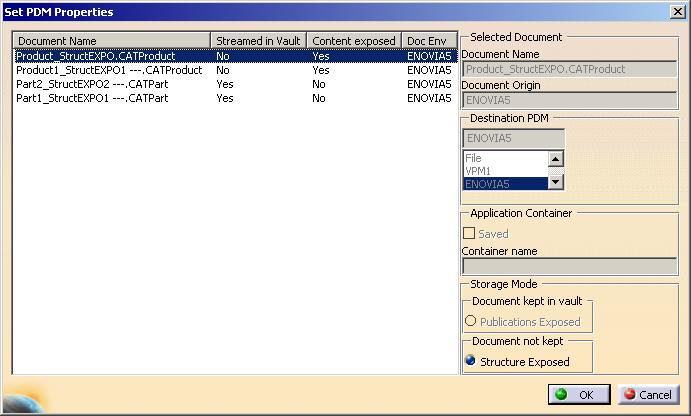
Set the Storage Mode as Structure Exposed in the Set PDM properties dialog box and click OK.
-
To save the Product, click the Save Data in ENOVIA V5 VPM Server ... icon
of the ENOVIA V5 VPM toolbar and click OK in the
Save in ENOVIA V5 VPM dialog box.
If the save is successful, the following message appears:
-
Open the Product in ENOVIA V5 VPM. The product structure is visible in the specification tree.
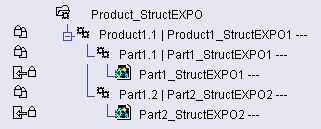
You can see that the structure is preserved in ENOVIA V5 VPM. Note that no document is saved under the Product1.1 | Product1_StructEXP01 node.
Miscellaneous Remarks
|
- Consistency rules are applied:
- a document kept in vault can not reference a document which is not kept in vault
- a document kept in vault in publications exposed mode can only reference documents saved with the same option.
- You must ensure that the current Action/Modification is set with respect to the active Product Editor catlet, if it exists. Therefore, when saving a CATIA session in ENOVIA V5, make sure that the appropriate Product Editor is active on the LCA side. If not, objects may be saved under wrong Action/Modification.
-
Note that every time the Save in ENOVIA V5 OK button is activated, data is transferred into ENOVIA V5 VPM and the ENOVIA database; so it is not necessary to operate the Save button in the ENOVIA workbench.
- In case you open a V4 model in
CATIA V5 and save it in ENOVIA V5, you have to be aware that you cannot
rename the V4 model via the Save in ENOVIA V5 or the Set
PDM Properties dialog box.
Should you need to, rename the V4 model before saving it in ENOVIA V5.
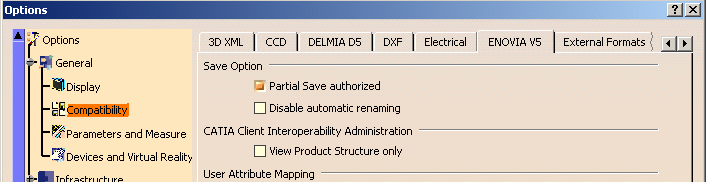
Partial Save
- When using a Partial Save within the Save
command, a warning is displayed explaining that a Partial Save
is taking place.
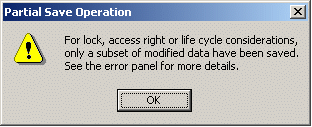
This message only exists if the Partial Save option has been activated and if a Partial Save has really taken place:
For more information about Partial Save, please refer to the VPM Navigator User's Guide.
Saving linked documents in ENOVIA V5 VPM
For example, when a CATProduct document opened from a file is saved in ENOVIA V5 VPM, all the CATProduct, CATPart and even cgr-type documents needed by the Product Structure are saved in ENOVIA V5 VPM as well.
Saving behavior of part assembly types (lock/unlock)
Saving an ENOVIA V5 VPM document back to ENOVIA V5 VPM using the File Menu
- the Save command enables to save the current document back to where it is currently stored
- the Save All command enables to save all opened documents back to where they are currently stored
If the currently opened document(s) have been saved in ENOVIA V5 VPM before by means of the "Save data in ENOVIA V5 VPM Server" command, the Save or Save All command saves the document(s) back to ENOVIA V5 VPM.

Integration into ENOVIA V5 VPM of documents that were created out of ENOVIA V5 VPM
In some cases, file-based CATIA data cannot be saved in ENOVIA V5 VPM.
The following procedures can be needed depending on the type of data to be
saved.
If you want to save into the current database, a CATIA Document extracted (saved as "File") from an anterior database (before V5Rn-1), you need to follow these steps:
-
Open the files in CATIA V5,
-
Use the Set PDM Properties option and choose the ENOVIA V5 VPM PDM,
-
Save the documents to a different directory or with different file names,
-
Save the documents in ENOVIA V5 VPM.
Example 1: Links based on publications in a Workpackage Document
If you try to save file-based CATIA data in ENOVIA V5 VPM, an error message can be displayed:
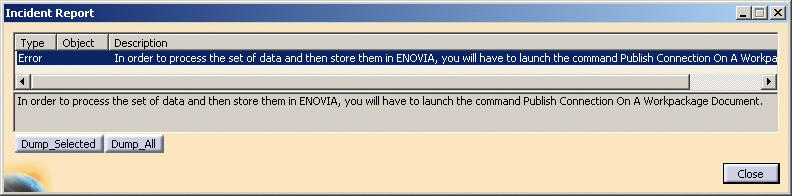 |
The "Publish Connection On A Workpackage Document" command is not available in a CATIA menu or toolbar by default. To make this command available, use the Tools > Customize menu. The command is accessible in the All Commands list:
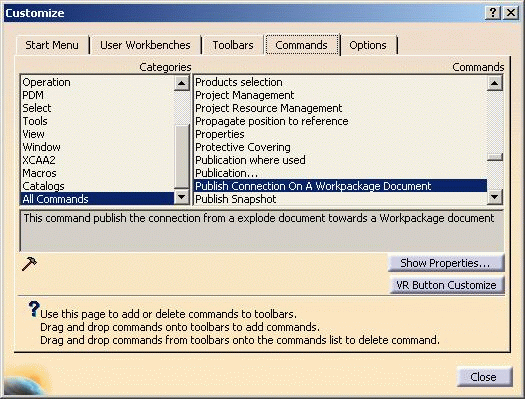 |
You can add the command to an existing menu or toolbar. The command scans the data searching for links (constraints, connections or contextual design) that cannot be saved because they are based on publications of CATParts or CATProducts included in a Workpackage document (for instance a document saved with the "Document kept in vault / Publications Exposed" option).
For such links, the command adds publications in the Workpackage document and modifies the link to use the newly created publications. The command does not require user interactions. Once executed, data can be saved in ENOVIA V5 VPM by means of the "Save Data in ENOVIA V5 VPM Server... " icon.
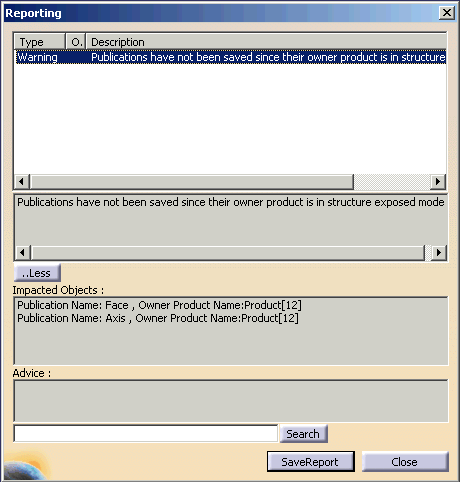
Example 2: Publications at Assembly Level
- Destination PDM: ENOVIA5
- Document not kept: Structure exposed
The following error message will appear.

About Contextual Links
To know the definition of contextual links and their symbols, please refer to the introduction of Managing Contextuality below the PRC.
Saving a CATProduct into ENOVIA V5 VPM
In this example, there are two Products in CATIA V5:
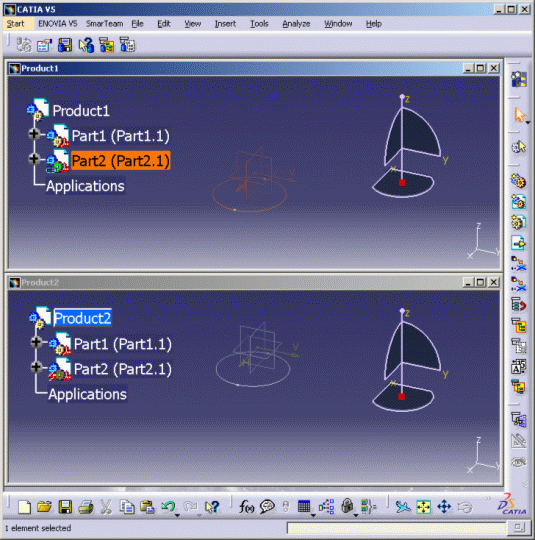 |
In Product1, Part2 is the Contextual Part.
The components of Product1 have
been copied into Product2. In Product2, Part2 has a different symbol:
 . This symbol means that the
Reference of this Part is linked to an Instance (of this Part) which can be
contained in another Product. Product2 is not the context of Part2.
. This symbol means that the
Reference of this Part is linked to an Instance (of this Part) which can be
contained in another Product. Product2 is not the context of Part2.
If you want to save Product1 in ENOVIA V5 VPM (Product1 is active), click the Save in ENOVIA V5 button in the ENOVIA V5 VPM toolbar and this window appears:
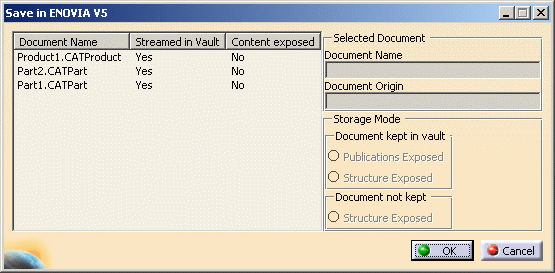 |
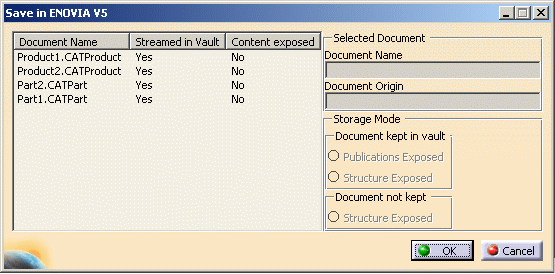 |
So the user can have several choices:
-
Define Contextual Links: in Product2, right-click Part2 and select Components > Define Contextual Links, and click OK. Therefore, Part2 in Product2 turns into a Contextual Part:
 and inversely Part2 in
Product1 becomes: . You are
moving the Reference link into another Contextual Instance. You are
saving only Product2 but Product1 remains present in the database.
and inversely Part2 in
Product1 becomes: . You are
moving the Reference link into another Contextual Instance. You are
saving only Product2 but Product1 remains present in the database. -
Isolate Part2: means that you remove the Contextual link associated to the 'Part2'.
-
Decide to save all documents (in the Save in ENOVIA V5 window), assuming that the Geometry of this Part is defined in another Product: click OK in the Save in ENOVIA V5 window.
Managing Revision Description for CATIA documents in VPMNav
Redundancy occurs in Revision Description while using the VPMNav Save panel and user AttrMap to transfer a description from CATIA to ENOVIA V5. To overcome this replace the revision description in XML. This changes from bidirectional mapping to unique direction ENOVIA V5 > CATIA V5 mapping. However, to ensure a bidirectional mapping, update in CATIA from the PLMDocumentAttributes tab of the Properties panel.
Discard Save
This task describes how to select or reject specific data to ENOVIA V5 VPM from the group of data you have modified in your CATIA session.

Discard Save option enables you to select or reject a modified document that is available for Save. By default, Discard Save option is accessible for the save of all components which are modified and are available for save.
Discard save is available for modified as well as new documents. Discard save does not support for multi-selection.
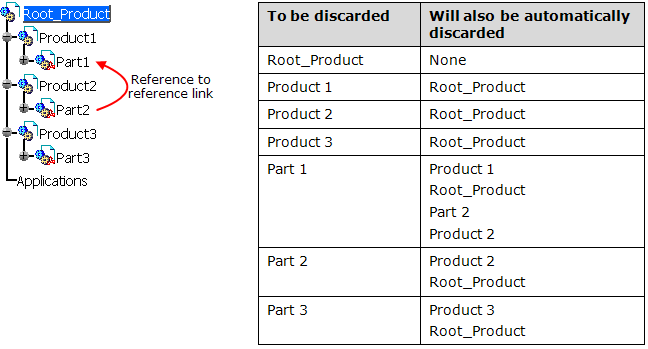
The Discard Save command is governed by propagation rules to ensure data integrity.
- In a session, if you Discard a document which is pointed by
other document, that other pointing document also get discarded. For
example, if you discard a child object, its parent object also gets
discarded.
- Child objects are not automatically discarded when a parent
object is discarded.
These are explained graphically in the example below:
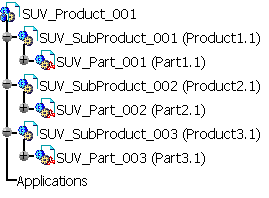
- Select the
Save in ENOVIA V5 VPM icon
 in the
ENOVIA V5 VPM
menu.
in the
ENOVIA V5 VPM
menu.
The Save in ENOVIA V5 VPM dialog box appears.
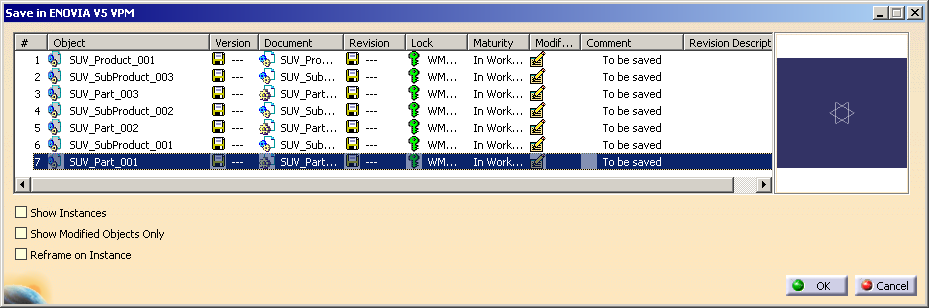
- Select and right-click
an object from the list and then select Discard
Save.
In the following example SUV_Part_001 is selected for Discard Save. This Part has reference to reference link with SUV_Part_002.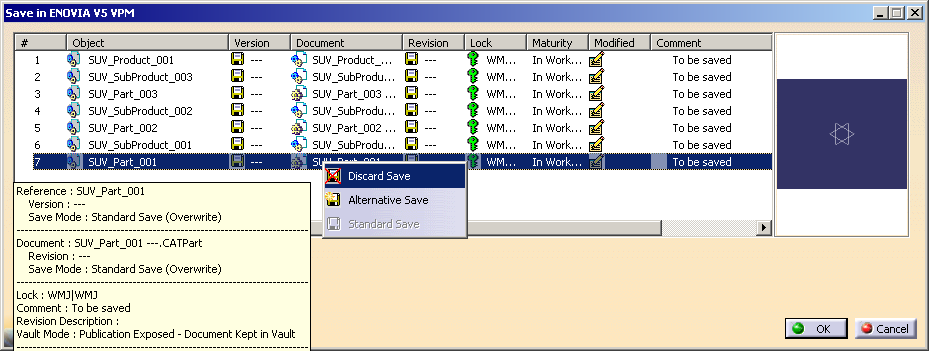
The Impacts of Save option: Discard Save dialog appears. All objects impacted by the Discard Save command are displayed.
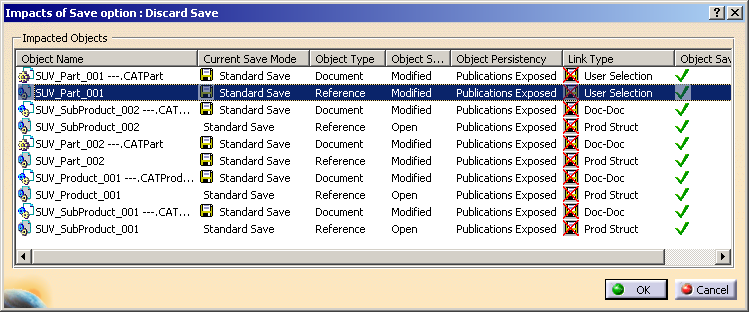
- Click OK.
The Save in ENOVIA V5 VPM dialog box appears with the list of the objects with the information in the Comment column about save result.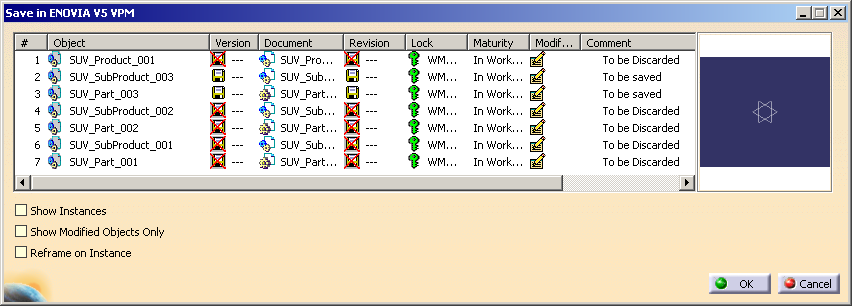
-
Click OK to save the changes in the database. Only the objects with the Comment To be saved gets saved.
Reset Save Modes on All Entities
-
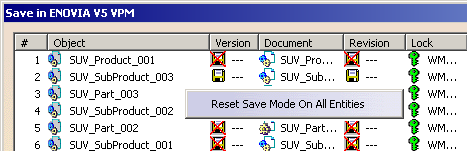
If you want to reset the save options in the Save in ENOVIA V5 VPM dialog box, right-click in the Save in ENOVIA V5 VPM dialog box. The following Reset Save Mode On All Entities option appears to reset the save option:
-
Click on the Reset Save Mode On All Entities. This resets the save option.
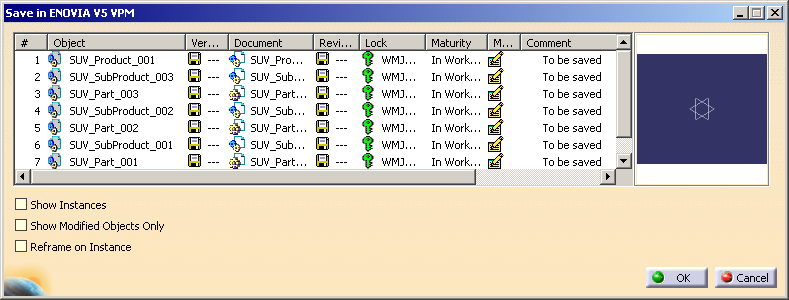
-
Click OK to save the objects.
Examples of Discard Save option in relation with propagation rules
Refer to the following example to understand the behavior of Discard
Save option in relation with propagation rules. Note: DS_Part is
modified in session.
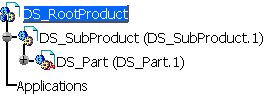
Example 1: If you apply Discard Save on DS_Part, its parent DS_SubProduct and the root DS_RootProduct also gets discarded.
-
Select and right-click DS_Part and then
select Discard Save.
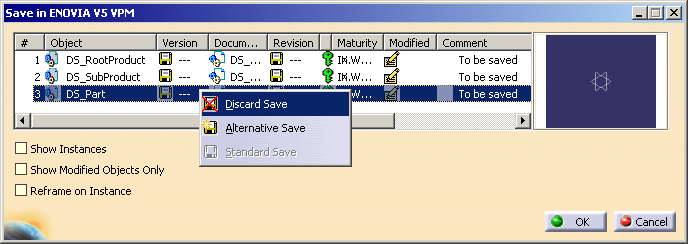
The Impacts of Save option: Discard save dialog box appears with the impacted objects.
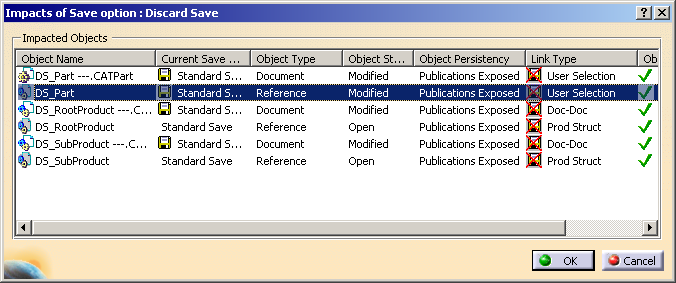
- Click OK.
The Save in ENOVIA V5 VPM dialog box appears with the objects which are impacted by DS_Part. These objects also get discarded with DS_Part.
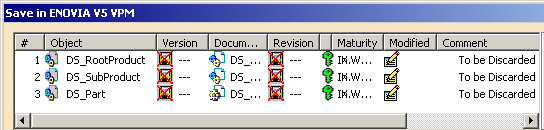
In this case, DS_SubProduct is discarded as it is pointed by DS_Part. The DS_RootProduct is also discarded as it is pointed by DS_SubProduct.
Example 2: If you discard DS_SubProduct, the root Product DS_RootProduct also gets discarded.
- Select and
right-click DS_SubProduct and then select Discard Save.
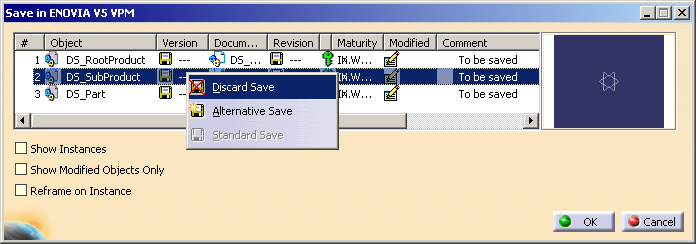
The Impacts of Save option: Discard save dialog box appears with the impacted objects.
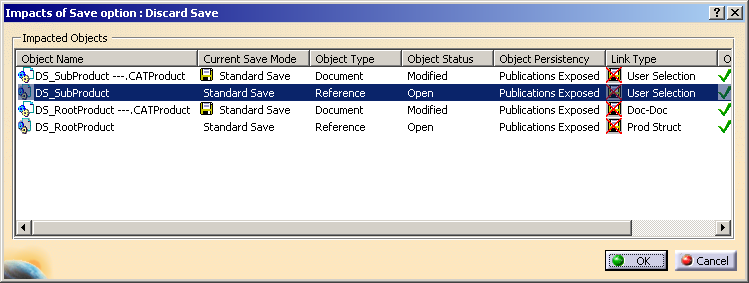
-
Click OK.
The Save in ENOVIA V5 VPM dialog box appears. The objects which are impacted by DS_SubProduct also get discarded.
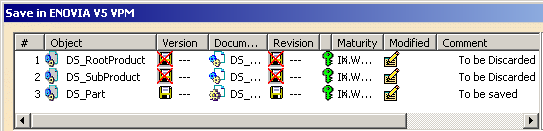
In this case, DS_RootProduct is discarded because it is pointed by DS_SubProduct. DS_Part is not discarded because it is not pointed by its parent Product or the root Product
Example 3: If you discard DS_RootProduct, only this product gets discarded as it is not pointing to any other document.
- Select and
right-click DS_RootProduct and then select Discard Save.
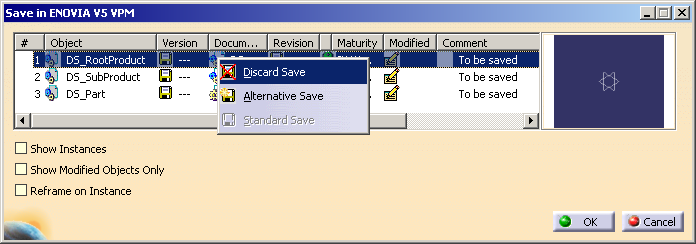
The Impacts of Save option: Discard save dialog box appears with the impacted objects.
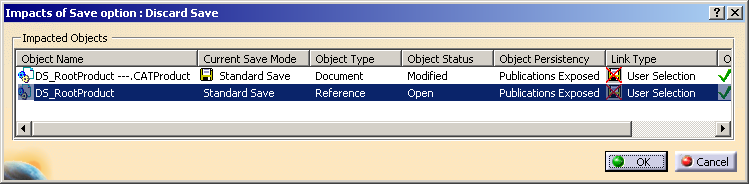
-
Click OK.
The Save in ENOVIA V5 VPM dialog box appears.
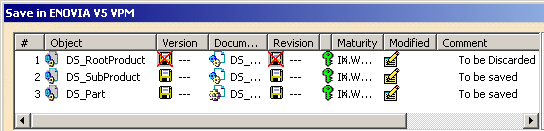
In this case, only the DS_RootProduct gets discarded because it is not pointing to any other document in the assembly.

Discard Save on Instance
Discard Save also enables you to reject one or more
instances, which are modified only by changing their position, that is
available for Save. This will allow you to avoid position modification
of instances owned by you or other users during Save. However, the
instances modified by other operations such as Rename, Graphic Attribute(Show/No-Show,
Color) cannot be discarded.
You cannot discard the selected instances from the Save process if:
- the new instances are not saved into the database. As a result the Discard Save operation is not available in the contextual menu.
- the instance is modified by operations like Rename, Show/No-Show in addition to the Move operation.
- the instances are modified as a result of Replace Component operation.
Open and modify a product structure in CATIA V5 window.
-
Click Save in ENOVIA V5 VPM
in the
ENOVIA V5 VPM
toolbar.
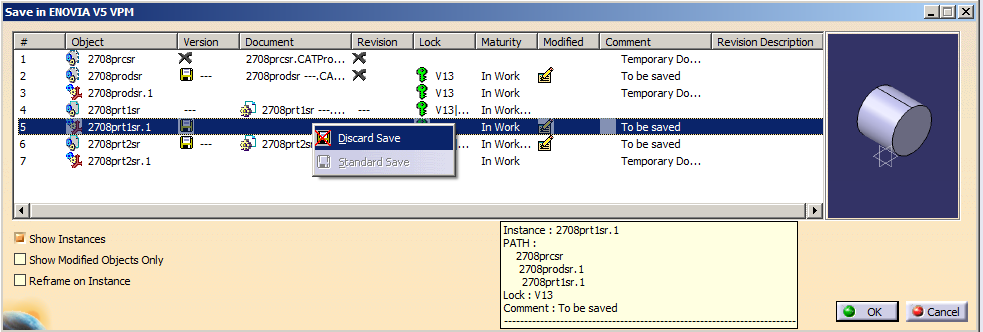
The Save in ENOVIA V5 VPM dialog box appears.
Note: If this toolbar doesn't appear, select View> Toolbars> ENOVIA V5 VPM to enable it. - Select and
right-click instance whose only position has been modified from the list and
select Discard Save.
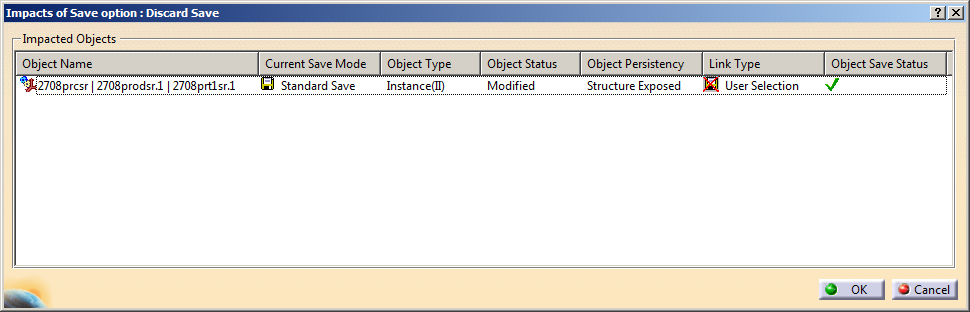
The Impacts of Save option: Discard Save dialog box appears.
The information related to all the objects impacted by the Discard Save command are listed.
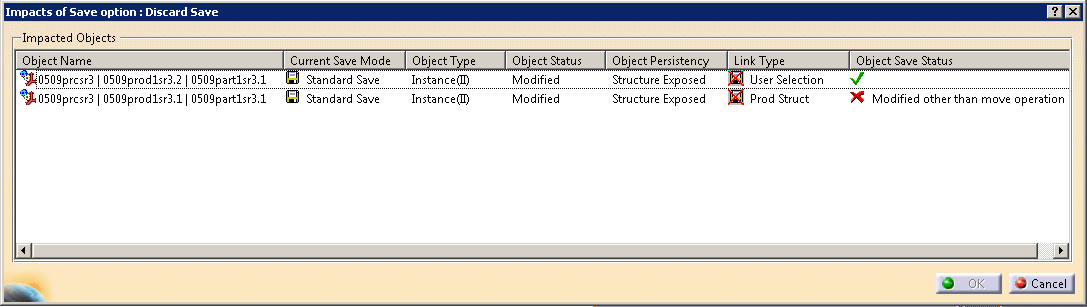
Note: You will be unable to set or change save mode on selected or impacted entity through the Impacts of Save option: Discard Save dialog box. If the impacted objects cannot be discarded when you perform Discard Save command, the OK button of the Impacts of Save option: Discard Save dialog box is disabled.
-
Click OK.
The Save in ENOVIA V5 VPM dialog box appears.
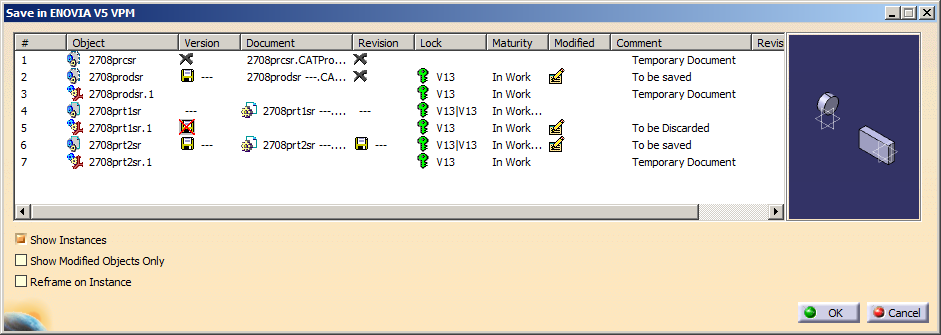
- Click OK to save
the objects.
The selected instances which have been discarded will remain modified without being saved in the current session, and you can choose to either save them or close them without saving them to ENOVIA.
Examples of Discard Save on Instance
If you want to discard the selected instance of any complex assemblies (containing links or constraints), there is a possibility of other instances' position being dependent on position of the selected instance during discard. As a result, discarding such instance from save will lead to creation of un-sync data in ENOVIA. This information will be listed in the Impacts of Save option: Discard Save dialog box.
Example1: Discarding the instance of an assembly containing contextual links
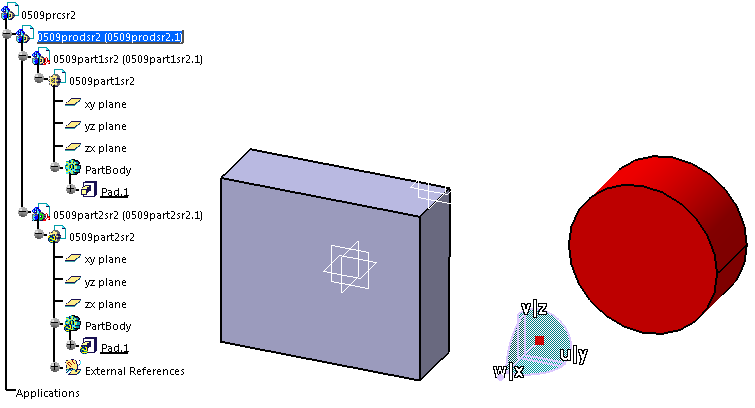
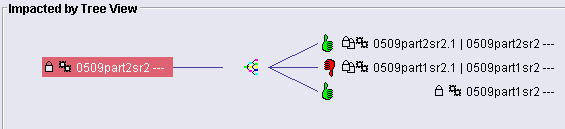
In this scenario a contextual link is established between 0509part1sr2.1 and 0509part2sr2.1. Therefore the links will be in sync and is displayed in LCA.

Similarly, if you change the position of
instance
0509part1sr2.1, and apply Discard Save on this instance
0509part1sr2.1,
the Impacts of Save option: Discard Save
dialog box lists the impacted objects and the links available
with instance
0509part2sr2.1.
Therefore, the 0509part1sr2.1 is not saved
and the available
links are in un-sync mode.
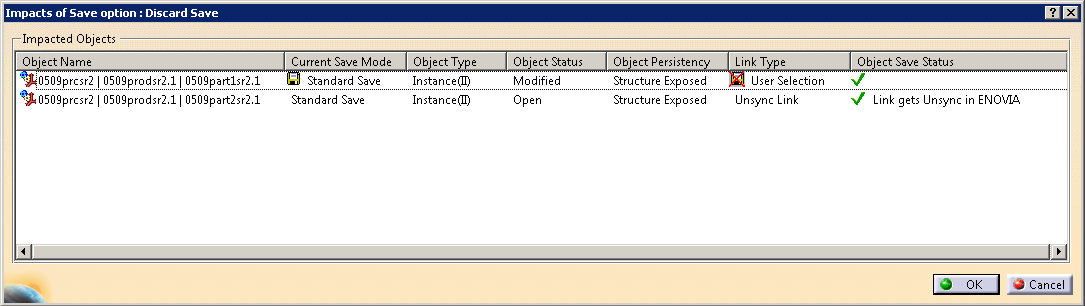
When you reopen the assembly again in CATIA session, the
0509part2sr2.1
position is updated whereas the
0509part1sr2.1
position is not updated because it was
discarded during last save and hence contextual link is not up to
date.
Note:
You will observe similar behavior:
-
if you discard instance 0509part2sr2.1 instead of instance 0509part1sr2.1.
-
if the contextual link is created through geometry publication.
Example2: Discarding multiple
instances
For multi-instantiation, an assembly contains
two or more instances sharing the same Assembly Relation (AR). If you
discard one instance for position modification, the other instances will
automatically be discarded as the instances share the same AR. This
information will be listed in the Impacts of Save option: Discard Save
dialog box.
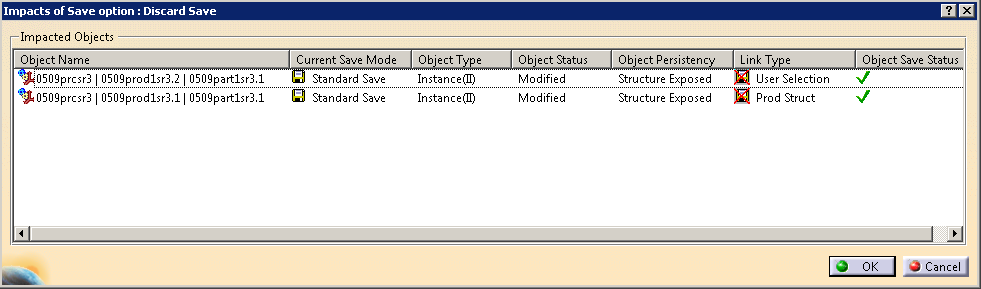
Note: Discard Save does not support for multi-selection of
instances.
Example3:
Discarding the instance of an assembly containing
constraints
For example, an assembly containing two
instances are connected by constraints. If you modify and update the
constraint, the position of one of the instances will change and
will be logged for move operation. If you discard such instance from
Save operation, the constraints will be saved successfully. However,
when you reopen the assembly from EV5 database, a message appears for
updating the constraints.
Note: It is impossible to perform Discard Save operation on instances available under the black box assembly as they are not exposed to ENOVIA database and cannot be seen in Save in ENOVIA V5 VPM dialog box. If you perform Discard Save on parent item instance, the child item instances will not be propagated.
Keep Last Save Options
Using Keep Last Save Operation option, you can keep a
record of the objects discarded in the last save operation in the
current CATIA Session. For your
next save operation, you can see the data which was discarded in the
last save process.
After using Discard Save option, the object which were discarded in the
last save appear with the discard save mark in the Save in ENOVIA
V5 VPM dialog
box. If you want to discard the same objects again, you do not need to
mark it again.
To activate the Keep Last Save Options:
-
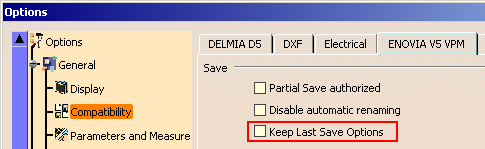
Select Tools > Options... > General > Compatibility > ENOVIA V5 VPM
-
Under Save, select the Keep Last Save Options check box.
Note: By default the Keep Last Save Options check box is cleared.
Go through the following example to know more about the Keep Last Save Options. -
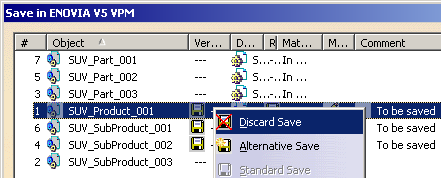
Modify any of the objects in an assembly and apply Discard save. In the following example, SUV_Product_001 is discarded.
-
Click OK to save the other changes in the ENOVIA V5 VPM.
-
Click Save in ENOVIA V5 VPM icon
in the
ENOVIA V5 VPM tool bar.
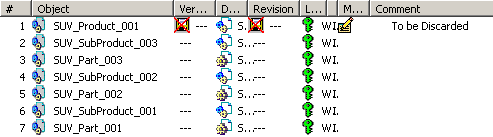
The Save in ENOVIA V5 VPM dialog box appears with the Discard Save icon in front of the object which you have discarded in the last save operation.
Alternative Save
- manage links between the new object and other loaded data
- rename the modified objects and leave the source object unmodified
- instantiate the newly created data appropriately in the existing Exploded Mode Product Structure to enable its use independently, replacing existing data
Alternative Save on Publication Exposed Product
When you apply Alternative Save for the document or reference row in the save panel of a Part or a Publication Exposed Product instantiated under an assembly, the following possibilities can happen:
- the document is saved as a new ENOVIA V5 VPLM Document Master and Document Revision
- if it is a document of type CATProduct or CATPart, a new ENOVIA V5 VPM Part Master and Part Version are created. The new Document Revision and the new Part Version are linked through Primary Representation Link. The Document Revision will be defined as geometry on the part version
- a new instance will be created in session to instantiate the newly created Part Reference under assembly
- the newly created data will be seen in the CATIA V5 session (replacing the existing data). However, in the actual ENOVIA V5 or VPMNav, it will be instantiated under the same product structure as an additional Part. You can view the these changes in CATIA V5 on next load operation
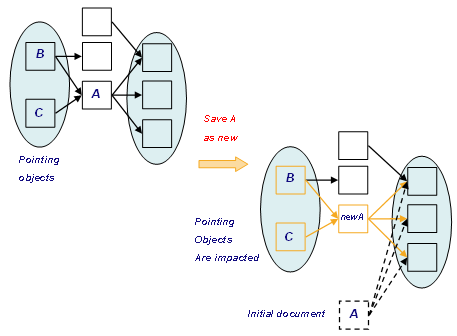
- by default, only the selected object is saved as new, and all
pointing objects are updated to refer to the newly created object.
This means the initial document is no longer referenced by the other
objects in the CATIA session, as illustrated in the following
example:
Alternative Save on Structure Exposed Assembly
When you apply Alternative Save on a structure exposed assembly instantiated under a PRC or other assembly, the following possibilities can happen:
- a new ENOVIA V5 VPM Part Master and Part Version are created for the object selected for Alternative Save option
- a new instance of the assembly under the object selected for Alternative Save is created in session to instantiate the newly created Part Reference under assembly
- the newly created data will be seen as new data in the CATIA V5 session which replaces the existing data. However, in the actual ENOVIA V5 or VPM Navigator, it will be instantiated under the same product structure as a new assembly
- all children item instances of the assembly will also be duplicated (alternately saved)
Basic Rules for Alternative save on Structure Exposed Assembly
- If you apply Alternative save on a structure exposed object
which has children in the assembly, new instances of its children as
well gets alternatively saved to maintain data integrity and keep
the concept of alternate design meaningful for the object.
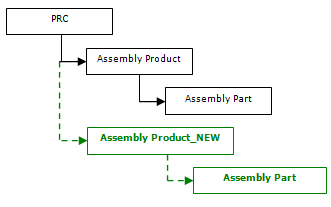
In the following example, Assembly Product is alternatively saved and its child instance also got alternatively saved under the new assembly.
- If you perform Alternative Save on an object which is not
dependent on other object but has an External Reference Contextual
link with other object, a new object with External Reference
Contextual link is created.
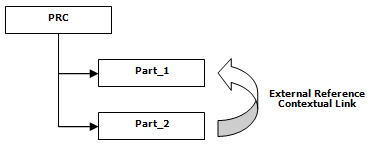
For example, in the following PRC, Part_2 is dependent on Part_1.
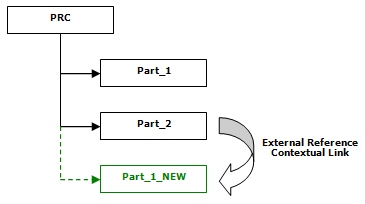
If you perform Alternative Save on Part_1, the new object Part_1_NEW will be attached to the original product structure under the PRC. The existing contextual link from Part_2 to Part_1 will be rerouted to Part_1_New. Part_2 will become dependent to Part_1_New as shown below.
- If you perform Alternative Save on an object which is dependent on
other object and has an External Reference Contextual link, a new
object with External Reference Contextual Link is created.
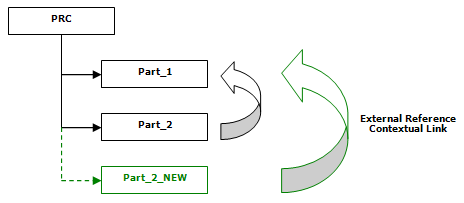
For example, in the following PRC, Part_2 is dependent on Part_1. If you perform Alternative Save on Part_2, a new object Part_2_NEW is created and a new link will be created for Part_2_New and dependency will be created on Part_1 as shown below:
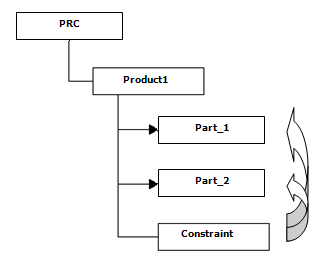
- To understand the following rules, consider the following PRC
example. In the following structure exposed assembly PRC, there is
an intermediate product with aggregating 2 CATParts with a
Constraint between the parts.
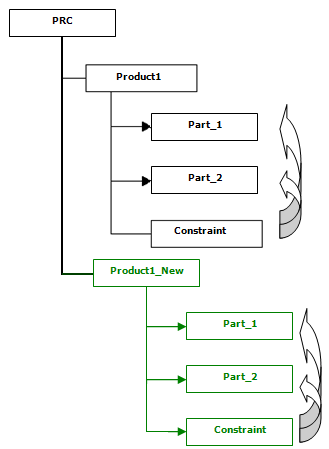
- When you apply Alternative Save on Product1, a new object
Product1_NEW is attached to the original product structure under
the PRC. New instances of Part_1 and Part_2 are also created
under Product1_NEW. A new constraint between these two instances
is also be created and saved as shown below:
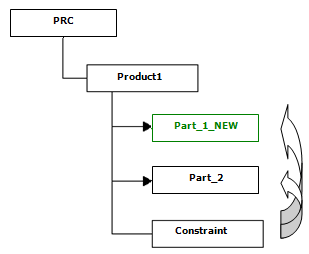
- If you apply Alternative save on Part_1, a new object
Part_1_NEW is attached to the original product structure under
the PRC and Product1. the existing constraint is rerouted to the
new instance of Part_1_NEW and saved in the same transaction as
shown below:
- When you apply Alternative Save on Product1, a new object
Product1_NEW is attached to the original product structure under
the PRC. New instances of Part_1 and Part_2 are also created
under Product1_NEW. A new constraint between these two instances
is also be created and saved as shown below:
Alternative Save For Part under Publication Exposed Product:
-
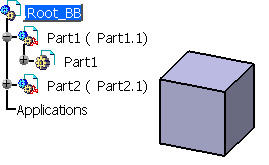
Open a Product in CATIA V5 from ENOVIA V5 VPM. For example, .Root_BB:
-
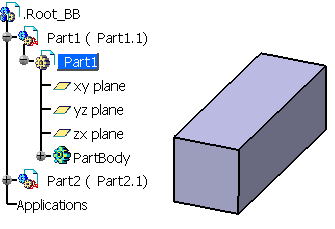
Modify a part. In the following example Part1 is modified.
-
Click Save in ENOVIA V5 VPM icon
in the
ENOVIA V5 VPM
menu.
The Save in ENOVIA V5 VPM dialog box appears. -
In the Save in ENOVIA V5 VPM dialog box, select the modified Part1, right-click it, and then select Alternative Save.
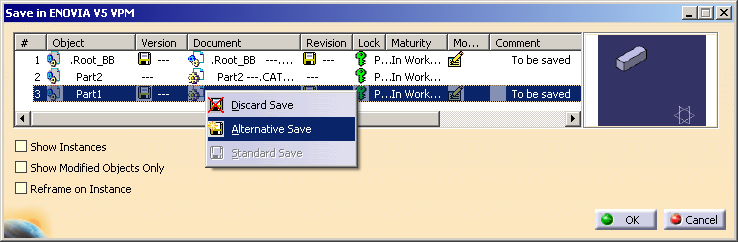
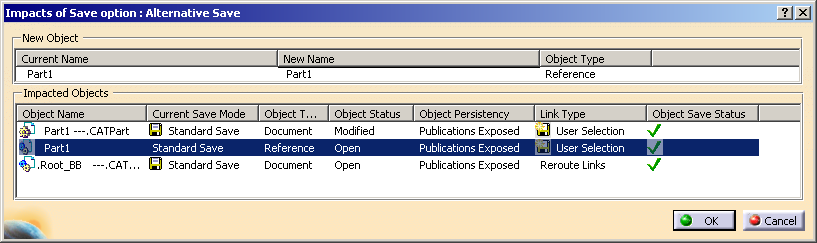
The Impacts of the Save option : Alternative Save dialog box appears. In this example, along with Part1 the .Root_BB also gets alternatively saved as it is impacted by Part1.
-
In the Impacts of the Save option : Alternative Save dialog box, under New Object section, click the object name to rename it.

-
After renaming the Part, click OK.
The Save in ENOVIA V5 VPM dialog box appears. The modified object with the new name and the Alternative Save icon appears in the list.

-
Click OK.
The object gets saved in ENOVIA V5 VPM. -
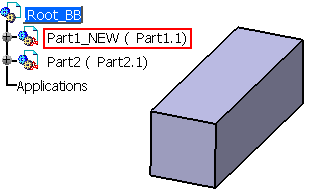
Close the existing CATIA session and open the assembly in CATIA from ENOVIA V5 VPM. The alternatively saved part gets inserted in the assembly as shown below.
Alternative Save For Part under Structure Exposed Product:
Modify a part. In the following example, part Prt_2 is
modified.
Click
Save in ENOVIA V5 VPM icon
in the
ENOVIA V5 VPM
menu.
The Save in ENOVIA V5 VPM
dialog box appears.
In the Save in ENOVIA V5 VPM dialog box,
select the modified
Prt_2,
right-click it, and then select Alternative Save.
The Impacts of the Save option : Alternative Save
dialog box appears. In this example, along with Prt_2
the Root_PRC
also
gets alternatively saved as it is impacted by Prt_2.
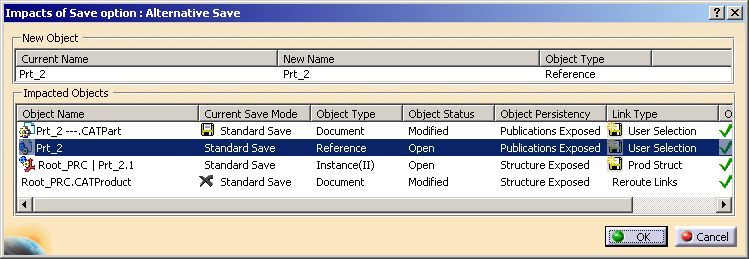
In the Impacts of the Save option : Alternative
Save dialog
box, under New Object
section, click the object name to rename
it.

After renaming the Part, click OK.
The Save in ENOVIA V5 VPM dialog box appears. The modified object with
new name and the Alternative Save icon appears in the list.

Click OK.
The object gets saved in ENOVIA V5 VPM.
Close the current CATIA session and open the assembly
in CATIA from ENOVIA V5 VPM. The alternatively saved part gets
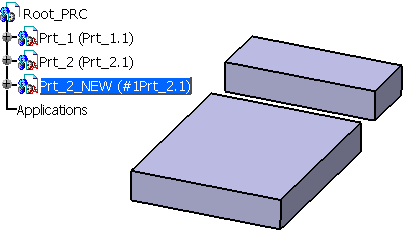
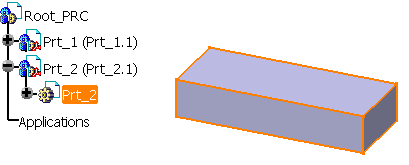
inserted in the assembly along with the source Part as shown below.
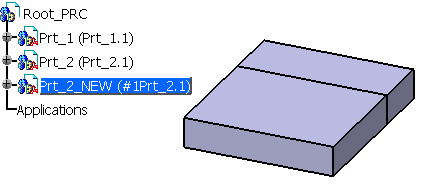
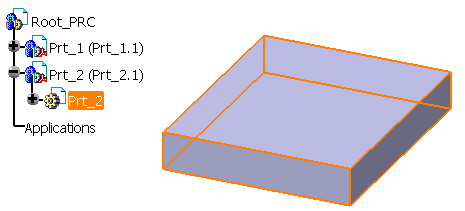
You can change the position of the newly saved part, as shown below: