-
Click
Angular Limitations
 and select a segment. The limits arrows are displayed. These
arrows are set by default at the mean values of movement limits. The
colored region represents the total range of motion for that DOF.
and select a segment. The limits arrows are displayed. These
arrows are set by default at the mean values of movement limits. The
colored region represents the total range of motion for that DOF.
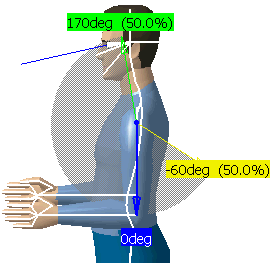
- The green arrow shows the upper limit.
|
- The yellow arrow shows the lower limit.
|
- The blue arrow is used to change the position of the active
segment.
|
Selecting another segment while the command is running
opens the angular limitations for the new segment and closes them for
the previous one.
-
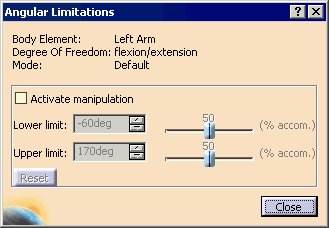
When you double-click the limits arrows, the Angular
Limitations dialog box appears (see below). It is also possible
to access the edition mode through the contextual menu. When you
right-click the limits arrows, select Edit…
-
Using this dialog box, you can activate the angular
limits (select Activate manipulation to make the grayed out
Lower and upper limit windows active) and modify the values directly with the sliders, the spinners,
or by using the left mouse button to manipulate the spinner arrows. It
is also possible to edit the Angular Limitations by direct
manipulation of the green and yellow arrows in the 3D viewer.
- Select Reset to return to the default values.
|
- Select Close to exit the dialog box.
|
-
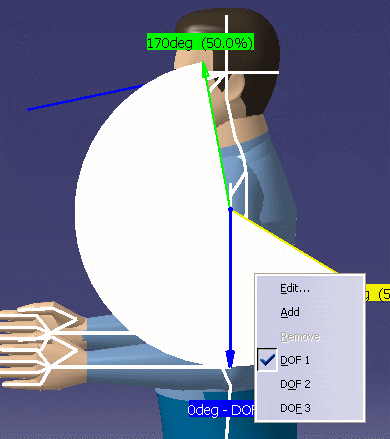
With the mouse in the limits window, right-click to get
the contextual window. This allows you to edit, add or change to a
different DOF.
-
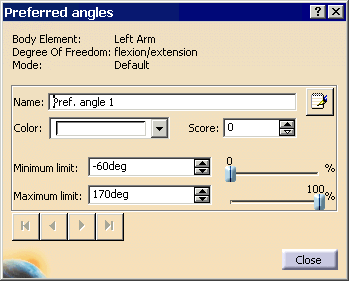
Selecting the Edit... allows you set the
Preferred angles, as the
Preferred angles dialog box appears.
-
Click Angular Limitations
to close the command and hide the angular limits arrows.


