
This task shows you how to modify a feature using Local work.
The Local work command allows you to work locally on feature(s).


-
Select Tools > Local work.
The Local work dialog box is displayed.
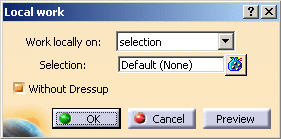
-
In the Selection field, select the feature(s) on which you want to work locally.

The selection mode is available by default in the Work locally on list. You can select complementary selection mode to locally work on the features which are not selected. -
Click the
 icon of
the Selection field.
icon of
the Selection field.
The Selected objects dialog box is displayed which allows you to remove a feature from the list or replace it with another one. -
Click Close to exit the dialog box.
-
Click OK to confirm and exit the Local work dialog box.
The selected features are available in the geometry area. The mask as shown below is seen in the specification tree for the features which are not selected for local modification.

More about Local Work Dialog Box
- The propagation mode is activated by default. To remove this mode, right-click the Work locally on field and select Unset Propagation Mode.
- To remove the selected features, right-click the Selection field and select Clear Selection. If you have selected more than one element, the Element list contextual menu command is available. You can select it to return to the Selected objects dialog box.
- The Without Dressup check box is selected by default. It allows you to work locally on the features without functional fillets and drafts to ensure better performances.
