For this you need to right-click Solid
Functional Set.x in the specification tree and select Solid Functional Set.x object >
Behavior visualization. The Behavior visualization
dialog box is displayed.
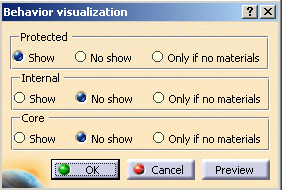
The following topics are discussed based on the options in the above dialog box:
- Visualizing Protected, Internal and Core Features
- Visualizing Features Depending on Material Availability
- Selecting a Part of the Feature
Visualizing Protected, Internal and Core Features
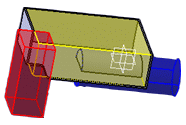
You can select the appropriate options of visualization for the Protected, Internal and Core features. If you have selected Show option for all these three behaviors, the protected, internal and core features in the part gets displayed in the red, blue and yellow colors respectively as shown below:
Visualizing Feature Depending on Material Availability
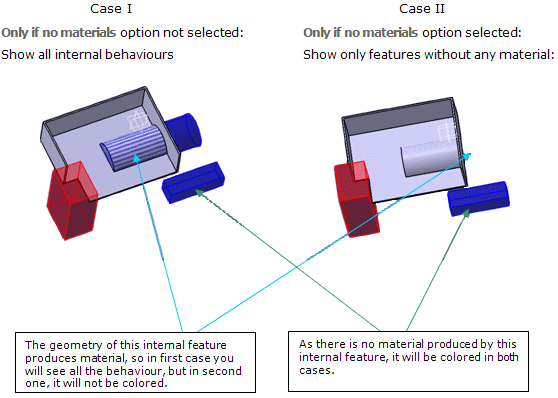
The Only if no materials option lets you visualize all the Protected, Internal and Core features that does not generate any material in the part.
Please refer below example for better understanding of this option:
Selecting a Part of the Feature
You can select a part of the protected or internal geometry (e.g. edges, faces etc), and apply functional modifier on them.
For example, you can select the edge of the internal feature and apply functional fillet to it.
