Importing a Single Specification

The Functional Import capability copies geometry from one part to another part. The copy can be done from one part editor to another part editor or in a product context (contextual link). The import behaves in the same way for both these cases. The only difference is that in a contextual import, the product context determines the position of the import (computed from the relative positioning of the origin and target part instance).
 
Open the Import.CATPart document.
  1. Copy Shellable Prism.1 from the specification tree.

  2. Select File > New (or click New ) to open a new CATPart document.

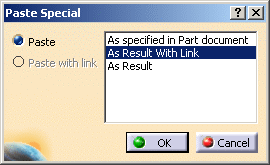
  3. Right click PartBody from the specification tree and select Paste Special....

  4. Paste Special dialog box will get displayed. Select As Result With Link option.


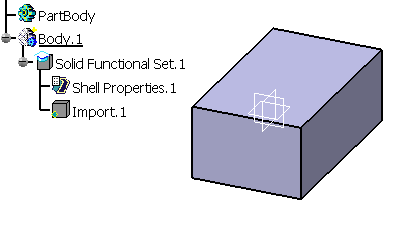
  5. You can see that geometry from one Part will get copied to another.


Synchronize

The synchronize command is available when the import is not synchronized. It is accessible from edit links. The geometry is copied from the reference according to the changes. The synchronization is not possible if the reference is not loaded : you have to load it manually beforehand.
Modifying an imported feature (for example a parameter) does not propagate the modification to the import: the import remains synchronized until the imported feature is updated. This avoids having to synchronize the import if not needed. Only after updating the geometry, the import needs synchronization.

Update

If the import is not synchronized, the status is propagated to the part, which becomes “not up to date”. Updating the part performs a synchronization of all the imports and then updates the other features (including those based on one of the imports). Each import can be synchronized via local update command.
 

  • The modification of the imported feature (for example a parameter) does not propagate the modification to the import: the import remains synchronized until the imported feature is updated. This avoids having to synchronize the import if not needed. Only after updating the geometry, the import needs synchronization.

  • The isolate command allows to break the link. The import becomes a datum and can not be synchronized any more.

  • When the source feature is deactivated, the import is not deactivated.

  • If the source is a wall feature (shell properties dependent feature), the import of functional specification is also a wall feature (in this case the shell properties feature is created in target part).

  • If the source is a wall feature, the imported functional specification does not have any link with source shell property i.e. any changes made in input specifications of source shell property does not have any impact on the imported functional specification. If you want a link with source shell property, you should use Solid Functional Set (SFS) import functionality.

  • When importing a feature in a new Solid Functional Set (SFS), the thickness value assigned to the paste feature is the one of the SFS shell properties. In other words, when you copy a feature, you do not copy its thickness value. Conversely, shell properties are kept when importing a SFS.

  • If you import a feature in another body using As Result With Link in Paste Special dialog box, intersection fillets are also imported on the feature and applied based on the intersection specifications.
    When importing the features created up to Version 5 release 20 and above level, you need to upgrade the imported feature. If you import features created in versions prior to Version 5 release 20, the intersections fillets are not imported.

  • Copy & Paste As Spec is not possible for import of Functional Specification (Result is not correctly calculated : No Geometry in simple case and error in other cases).

  • Copy & Paste As Spec is not possible for Functional Set containing import of Functional Specification (Result is not correctly calculated : No Geometry in simple case and error in other cases).

  • Copy & Paste As Spec is not possible for Functional Body (SFS) containing import of Functional Specification (Result is not correctly calculated : No Geometry in simple case and error in other cases).

  • Copy Paste As Spec is not possible for Body containing import (Result is not correctly calculated: No Geometry in simple case and error in other cases).

  • PowerCopy is not possible for import of Functional Specification (Result is not correctly calculated : No Geometry in simple case and error in other cases).

  • PowerCopy is not possible for Functional Set containing import of Functional Specification (Result is not correctly calculated: No Geometry in simple case and error in other cases).

  • PowerCopy is not possible for Functional Body (SFS) containing import of Functional Specification (Result is not correctly calculated : No Geometry in simple case and error in other cases).

  • PowerCopy is not possible for Body containing import (Result is not correctly calculated: No Geometry in simple case and error in other cases).