|
|
|
|
-
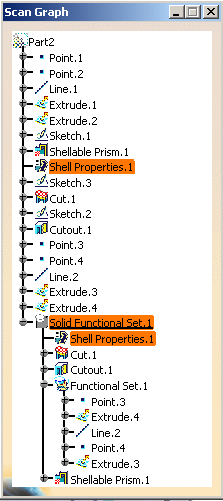
Select a feature in the Scan Graph or in the
specification tree. The application highlights the feature in question
in the specification tree as well as in the geometry area and make it
current.
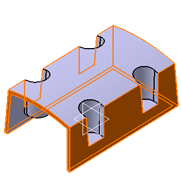
In our example, we chose Solid Functional Set.1.
|
|
|
-
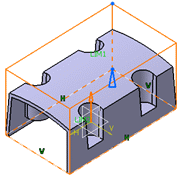
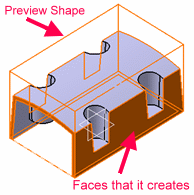
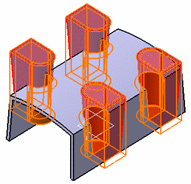
A preview of the current object's parents is available:
-
If the parents are visible: the thickness of lines and
points is increased and the surfaces' edges are in dotted
lines; faces and edges are highlighted.
-
If the parents are not visible: the surfaces appear as
transparent; lines and points are in yellow dotted lines.
-
If a parent of the in work object is in no show, it is
temporarily shown when its child is the in work object.
|
|
|
-
Click Previous
 to
move to the previous feature, that is Extrude.4. to
move to the previous feature, that is Extrude.4.
-
Click First
 to move to the first feature, that is Point.1.
|
|
|
In case there are several datum features, the application
highlights the last one as there are all scanned at the same time. |
|
|
-
Click Next
 to
move to the next feature, that is Point.2. to
move to the next feature, that is Point.2.
|
|
|
Scanning Next and Previous skip datum and
deactivated features. |
|
|
-
Click Last
 to
move to the last feature, that is Solid Functional Set.1. to
move to the last feature, that is Solid Functional Set.1.
|
|
|
Moving to the next or last feature enables to update elements
that are not up-to-date. |
|
|
-
Click First to Update
 to
move to the first element to be updated and consequently update it. to
move to the first element to be updated and consequently update it.
If both geometry and part are up-to-date, an information window appears
and confirms this.
-
Click this icon again to find the next element to be
updated and so on until a window appears to inform you that
both geometry and part are up-to-date.
-
Click Play Update
 to replay the update of the geometry. to replay the update of the geometry.
A progression bar is displayed, while the scenario is being replayed.
In case of update errors, the replay stops at the first error. The
Update Error dialog box opens.
-
Click Exit
 to
exit the command. to
exit the command.
In the geometry area and the specification tree, the application
highlights the current object.
If the object was in no show, it is put in show as long as it stays
current.
|
|
|
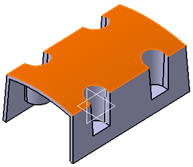
| At each step of the scan operation, you can see both the edition
and the highlight views of the "In Work" feature.
|
|
|
|
More about Scanning a Part
Keep in mind the following information when scanning a part:
- Defining a feature as current without
scanning the whole part is possible using the Define in
Work Object
contextual command on the desired feature. This feature is put
in show if needed, and keeps its status even if another feature
is defined as the in work object.
-
When clicking a sub-element in the 3D
geometry, it is in fact the feature used to generate this
sub-element which is selected as the in work object. Likewise,
this feature is edited when double-clicking a sub-element.
-
When a collapsed contextual element is
highlighted, it is the node of its set that is highlighted in
the Scan Graph.
-
To display 3D parameters attached to Part
Design features, check the Parameters of features and
constraints option in the Tools > Options > Infrastructure > Part
Infrastructure > Display.
-
The part is put in No Show, so is its 3D display, in
order to build a new 3D display that contains the same
features but in a different order.
As a consequence, if a geometrical set or an ordered
geometrical set is in no show, it is ignored and its
elements are considered as being in show.
To put the contents of this geometrical set or ordered
geometrical set in no show, use the Geometrical_Set.x
object > Hide components contextual command. Refer to
the
Hiding/Showing Geometrical Sets or Ordered Geometrical Sets
and Their Contents chapter for further information.
|
|
 |
-
Sketcher elements are not taken into account by
Scan or Define In Work Object... command.
-
The Update mode is not available for Power Copies.
-
The Structure mode allows you to move
the In Work Object along the part structure. It is not possible to define In
Work Object on Functional Features as well as on Geometrical Set
contents. Therefore, scanning Functional Features in Structure mode is not possible.
-
The scan capability is available only on
features created on level R16 and above (For functional features
created inside a solid functional set).
|
|
|
 |



 .
.