
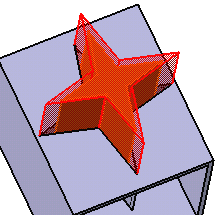
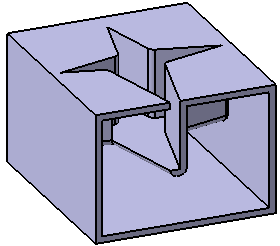
This task shows you how to push a body in form of a star into another body to obtain the shape of the star.


-
Click Cutout or Push
 in the Basic Features toolbar.
The Cutout.x dialog box is displayed. -
Select Push
 as the
Shape definition.
as the
Shape definition.
The Push.x dialog box is displayed. -
Select Body.2 as the pushing body.
Clearance
-
The clearance is the protected volume around Body.2 that separates it from Solid Functional Set.1. To define it, enter a value in the Distance field.
-
Click Preview to see the result:
Advanced
-
If you wish to define other clearances between specific faces and Solid Functional Set.1 , click the Advanced tab.
-
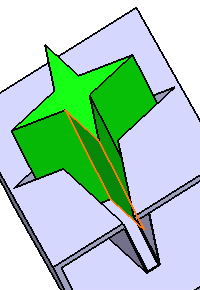
Select the face of interest, then enter a large distance value.
-
Click Preview to see the result:
 |
-
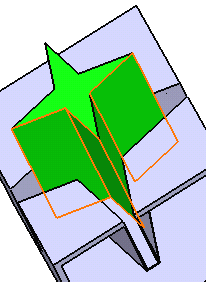
If you wish to apply the same clearance to other faces, just select the faces, and check Apply distance to all selected faces.
-
Click Preview to see the result:
In case you wish to remove:
a face from the selection, just select the face from the geometry.
all selected faces, use the Clear Selections contextual command available from the Faces field.
Fillet
To add an intersection fillet, you can choose between Intersection with Core/Cavity, Intersection with Core or Intersection with Cavity from the Intersection Fillet list. 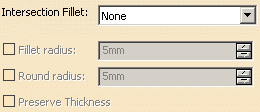
In this case following three options are available:
- The Fillet radius option enables you to add material to the feature.
- The Round radius option enables you to remove material from the feature.
- The Preserve Thickness option enables you to keep the thickness applied on the part.
Protected Volume
Clear the Protected volume check box to add material inside the cavity (unprotected area) created by the push feature.
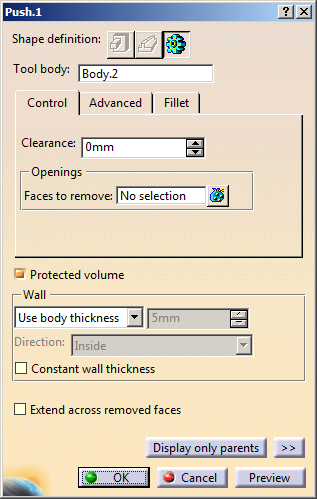
 By default, this option is selected.
 Wall
The walls produced by the Push feature are defined by one of the two options available from the Type drop down list:
-
Use body thickness: the push wall thickness is that of the active shelled body thickness.
-
Enter thickness: simply enter the value you want. After this option is selected, the value field becomes available. Wall thickness values can only by positive values.
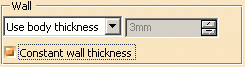
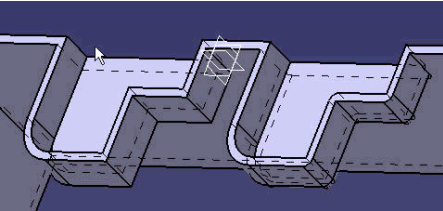
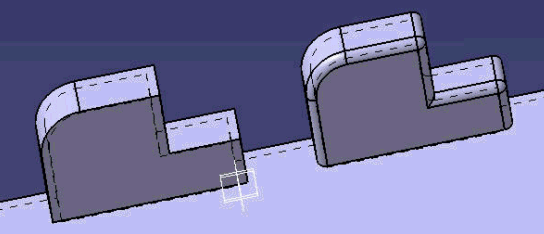
The Constant wall thickness option on push allows the user to get to the final required shape with less fillets, giving them a part that is more stable through modifications and also faster to build.
Cross section through two push features, the push on the right is with Constant wall thickness option on.
The Extend across removed faces option causes a feature not to be confined within the wall of the deleted face of the shelled volume. Refer to Extend across removed faces option.
-
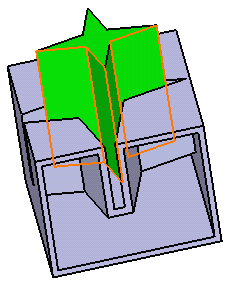
For the purposes of our scenario, set the Enter thickness option and enter 6mm for instance in the Thickness value field.
 |
-
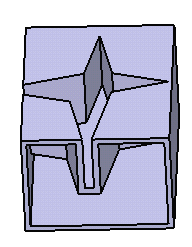
Click OK to confirm and create the push. Push.X is added to the specification tree in the Solid Functional Set.X node.
Openings
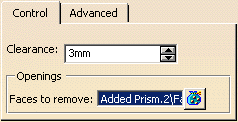
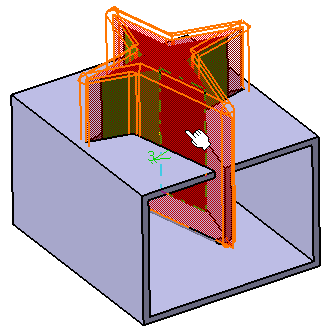
By selecting faces in Faces to remove in Openings, the walls facing to the selected face will be removed. This feature is useful for the vent shapes. The clearance option on selected faces will be compatible with the selection of faces to remove.
-
Select the face as below to remove. The selected face will be removed.
-
Click OK to confirm and create the push.
 |
 |
