|
-
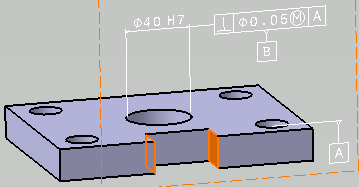
Select the two parallel surfaces of the groove (use the Ctrl
key to select the second surface).
|
|
The Semantic Tolerancing Advisor dialog box is updated.
The buttons and options available in the dialog box depend on your
selection. |
- Click the
Distance Creation icon (Tab/Slot):
 . .
The Limit of Size Definition dialog box appears.
Keep options as is.
- Click
OK.
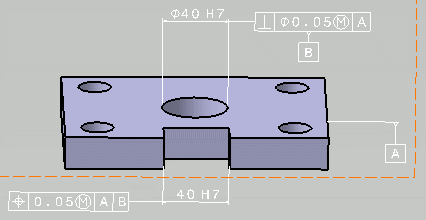
The slot size specification is created.
- Click
Add...
in the Semantic Tolerancing Advisor
dialog box.
The Datum and Datum Systems dialog box appears.
- Select each
datum and specify its box (primary, secondary, and tertiary)
- Click
OK.
| The Semantic Tolerancing Advisor dialog box is updated.
|
- Select the
slot size.
- From
the
Datum systems
list,
in the Semantic Tolerancing Advisor
dialog box, select the required datum system (A|B in this
case).
The Semantic Tolerancing Advisor
dialog box is
updated.
- Click the
Position-with-DRF-Specification icon
(Tab / slot):
 . .
The Geometrical Tolerance
dialog box appears.
- Enter the
requried numerical value and select
the required
modifiers.
|
The position tolerance is automatically grouped with the previously
created size tolerance. |
- Click
OK.
-
Click
Semantic Datum (1
Plane)
 in the Semantic Tolerancing Advisor
dialog box.
in the Semantic Tolerancing Advisor
dialog box.
The Datum Definition dialog box appears.
-
Under Datum/ Datum System Creation, select
From this Datum feature.
-
Click OK.
-
Select another required element and click
Semantic Datum (1
Plane)
in the Semantic Tolerancing Advisor
dialog box.
The Datum Definition dialog box appears.
-
Select the
option Create a DRF with the 3 last created datums.
-
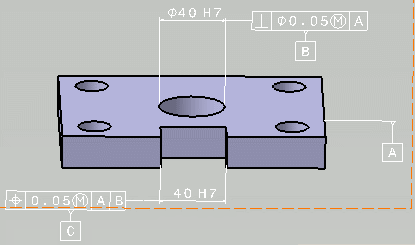
Click OK. You can see that datum C is
created.
The
Datum Reference Frame A|B|C
is seen in the specification tree also.
- Do not close
the Semantic Tolerancing Advisor
dialog box to perform the next task.
|