
Annotation Positioning
The attachment points are visualized when you move the pointer over the reference annotation during the annotation creation. The nearest attachment point is highlighted in blue indicating that the annotation can be positioned on it if that point is selected. Once it is selected, the annotation is positioned on it and all the attachment points disappear.
The following types of annotations can be positioned associatively:
|
The following types of annotations can be used in associative annotation positioning:
|
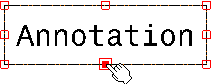
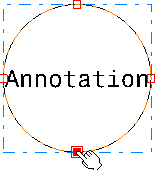
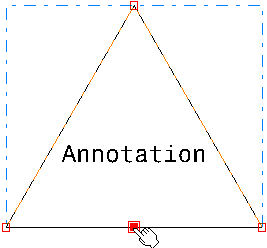
The attachment points where an associative position can be created depend on the frame type of the annotation. The following table depicts some of the frame types of annotations and their attachment points:
|
Type of Annotation |
Type of Frame |
Attachment Points |
|
| Text |
|
 |
|
|
 |
||
|
 |
||
|
 |
||
|
Datum Feature |
Square |
 |
|
| Datum Target | Scored circle |
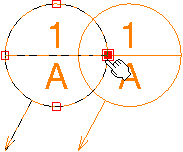 The datum target has four attachment points from the circular frame and two additional attachment points available in the datum target upper compartment and lower compartment. The attachment points of upper and lower compartment are used to attach the leader anchor point of an annotation. |
 |
The attachment points for all fixed frames are on the frame even if the frame is smaller than the annotation. |
Annotation Placement on Another Annotation
- Text
- Text with Leader
- Datum Feature
- Datum Target
- Flag Note
- Note Object Attribute
- Flag Note with Leader
- Instantiate Note Object Attribute
- Positional Link > Create
- Positional Link > Replace
|
|
In this case, the existing leaders are not removed during snapping. |
- If an attachment point is selected, it is highlighted to show that the annotation is positioned at that point. If the annotation has a leader, it is removed.
- If an attachment point is not selected, the annotation is positioned with reference to the selected annotation at the indicated location, without snapping to any attachment point.
- The attachment point can be moved interactively. Its position is snapped to the closest attachment point of the reference annotation.
- The positional and orientation links are created between both the annotations.
- The anchor point of the positioned annotation is also managed to make sure that it is properly aligned with the reference annotation according to the attachment point.
When positioning an annotation with a leader on an existing annotation:
- The leader is removed as soon as the target annotation is selected.
- If an annotation with a leader containing an attribute link or a link template is instantiated and positioned on an existing annotation, its leader is removed but the link is resolved.
| When manipulating the extremity leader, if the leader has a positional link on a reference, only the snap on perpendicular to the reference and reference tangent directions are available. When there is no reference selection, snap on horizontal and vertical directions is available. | |
|
You can describe complete information with several
characteristics for requirement generation by specifying the
principal and complementary annotations. This helps
manufacturing process in controlling the requirement generation
in more specific way. You can associate or dissociate the
complementary annotations with their principal annotation. |
|
When you generate the manufacturing requirements, they are
generated only for principal annotations and not for
complementary annotations. The data of each complementary
annotation is added in the attributes of its principal
annotation. You can differentiate between principal and
complementary annotations as below:
|
|
