- Reconnecting a Single Broken Link
- Reconnecting
Multiple Broken Links
In case of broken geometrical links in annotations, it is possible to see the last geometrical element to which the annotation was linked to. This helps in rerouting or reconnecting the broken links.


Reconnecting a Single Broken Link
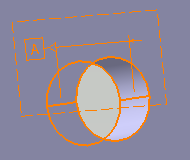
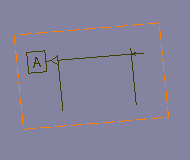
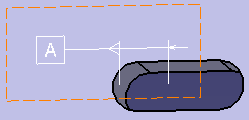
In the example below the circular hole geometry has been deleted.
 |
 |
|
| Datum created on hole | Invalid annotation due to deletion of hole geometry |
You can reconnect a broken link using the automatic mode or manual mode.
Automatic Mode
-
Right-click the invalid annotation (due to deletion of geometry) and select Associated Geometry > Geometry Connection Management. The Connection Management (Automatic Reconnection of Broken Links) dialog box is displayed with the Scope set to Global. The broken links are displayed as ? symbol in the Graph of Geometrical Links.
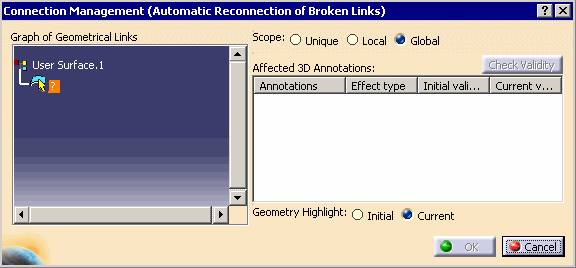
Note: The (Automatic Reconnection of Broken Links) appears in the title bar of the Connection Management dialog box only if you have selected the Automatically propose reconnection of broken links check box in the Geometry Connection Management area available through Tools > Options > Mechanical Design > Functional Tolerancing & Annotation > Annotation tab.
The previously linked lost geometry is displayed temporary in red color which helps you in choosing a new geometry.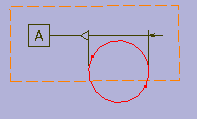
Previously linked lost
geometry in red - Select
the new reference geometry, and depending on the options selected in Tools > Options > Mechanical Design > Functional
Tolerancing & Annotation > Annotation
tab, Geometry
Connection Management
area, one of the following actions takes
place:
- The automatic mode ends.
- The validity is automatically checked, then the automatic mode ends.
- The command ends.
The broken link is resolved.
Manual Mode
You can use this mode to reconnect a broken link in case the automatic mode is stopped or the Automatically propose reconnection of broken links check box is not selected in the Geometry Connection Management area available through Tools > Options > Mechanical Design > Functional Tolerancing & Annotation > Annotation tab.
Consider the above example and follow the step 1.
- Right-click the broken link symbol
?
and select
Stop automatic reconnection
at
any time throughout the duration of the automatic mode. It is also
possible to change the Scope
and the Geometry Highlight
mode throughout the duration of the automatic mode.
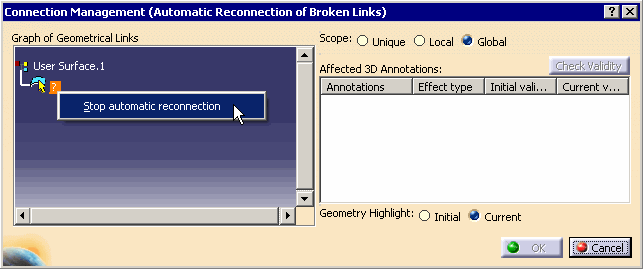
As a result, the links that were already reconnected are kept and the (Automatic Reconnection of Broken Links) is removed from the title bar.
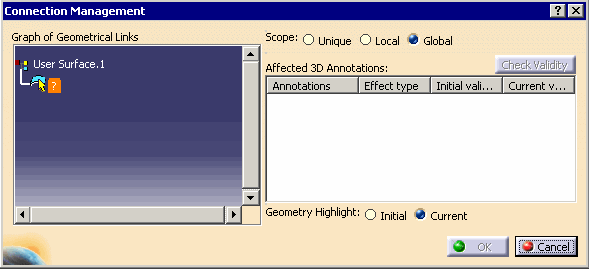
- Right-click the broken link symbol ?
and select
Connect.
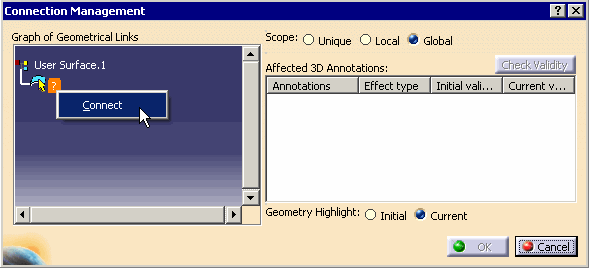
- Select
a
new reference geometry.
The Graph of Geometrical Links shows newly selected geometry. - Click
Check Validity to check the new geometry component validity
relative to the selected annotation.
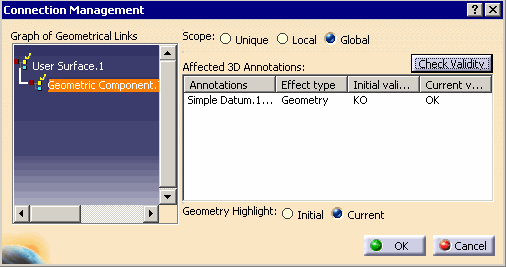
- Click OK.
The annotation is now connected to the new surface and the broken link is resolved.
 |
To get a better visualization of the deleted face by displaying its hidden edges, you can set the view mode to Shading with Edges and Hidden Edges in the View toolbar (View mode sub-toolbar). |
Reconnecting Multiple Broken Links
Like reconnecting a single broken link, you can reconnect several broken links in a single click.
In the example below the circular pattern hole geometry has been deleted.
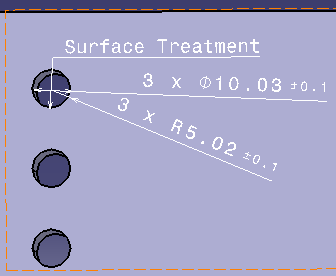 |
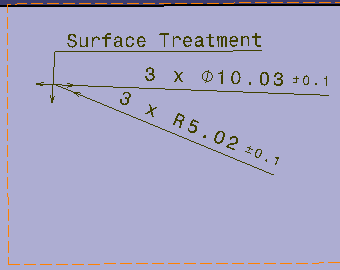 |
|
| Annotations created on pattern of holes | Invalid annotations due to deletion of pattern geometry |
-
Right-click the invalid annotation (due to deletion of geometry) and select Associated Geometry > Geometry Connection Management. The Connection Management (Automatic Reconnection of Broken Links) dialog box is displayed.
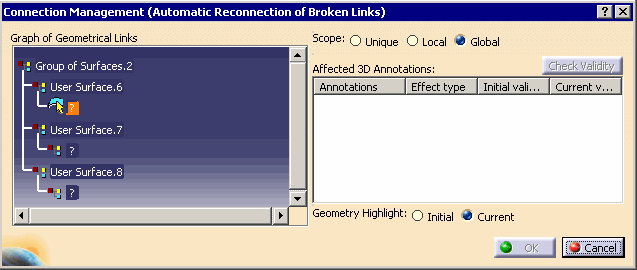
- Follow the step
2 as explained in Automatic Mode scenario.
The broken links are resolved. -
Optionally, right-click the
broken link symbol ?
and
select
any one of the following actions
at any time throughout the duration of the automatic mode:
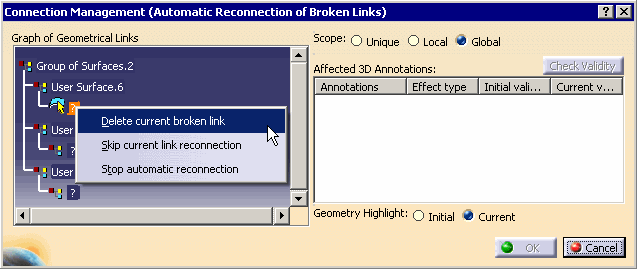
- Delete current broken link: Deletes the selected broken link.
- Skip current link reconnection: Skips the selected link reconnection. (Available only when several broken links are remaining).
- Stop automatic reconnection: Stops the
automatic reconnection mode, which removes the (Automatic Reconnection of Broken Links)
from the title bar.