To create and route a bundle segment, you have to:
- Define the bundle segment parameters
- Possibly create points, lines or planes if needed
- Then route the bundle segment.
You can also split bundle segments into two.


-
Double-click to activate the desired product: Geometrical Bundle1
- A Multi-branchable1 part that becomes active
- A Flexible Curve.1 belonging to the part, which at that time, does not have any geometrical representation.
- The first bundle segment whose parameters and route you will now define.
 .
.
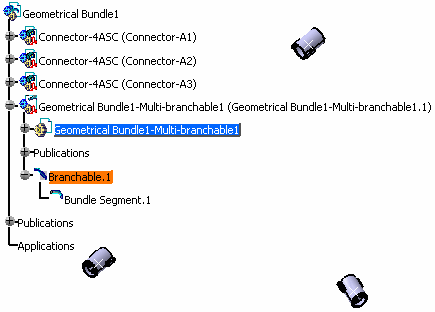 |
| A multi-branchable document is created. It includes:
|
| The Electrical 3D Design Assembly workbench switches to the Electrical 3D Design Part workbench or Electrical Harness Installation workbench depending on your configurations. In case you switch to other workbench, go to Electrical 3D Design Part workbench and the Branch Definition dialog box appears as described in next task. |
