
You may define several constraints simultaneously using the Constraint Definition dialog box, or by means of the contextual command (right-click).

 and/or the Geometrical constraints
  (depending
on the type of constraint you want to create) from the Sketch Tools
toolbar. If you do not activate these icons, the constraints will only be
created temporarily.
(depending
on the type of constraint you want to create) from the Sketch Tools
toolbar. If you do not activate these icons, the constraints will only be
created temporarily.

-
Select the required elements to be constrained. For example, two lines.
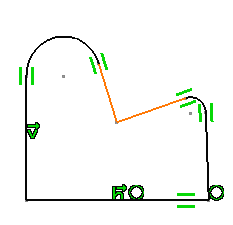
-
Click Constraints Defined in Dialog Box
 from the Constraint toolbar.
The Constraint Definition dialog box appears, indicating the types of constraints you can set between the selected lines (selectable options).
These constraints may be constraints to be applied either one per element (Length, Fix, Horizontal, Vertical) or constraints between two selected elements (Distance, Angle, Coincidence, Parallelism or Perpendicular).
Multi-selection is available.
If constraints already exist, they are checked in the dialog box. -
Select the constraints to be applied on the selected elements.
-
Under Create Multiple Constraints, select the Target Element check box and select the required target element.
- The selected elements are constrained with respect to the target element.
- The available constraints in the dialog box may change based on the selected target element.
-
Click OK.
The elements are constrained.

